 Signing/Initialing PDF Forms
When you have filled out a form, you may want to add a signature to the document. You can use the Signature and Initials options in the Protect tab to do this:
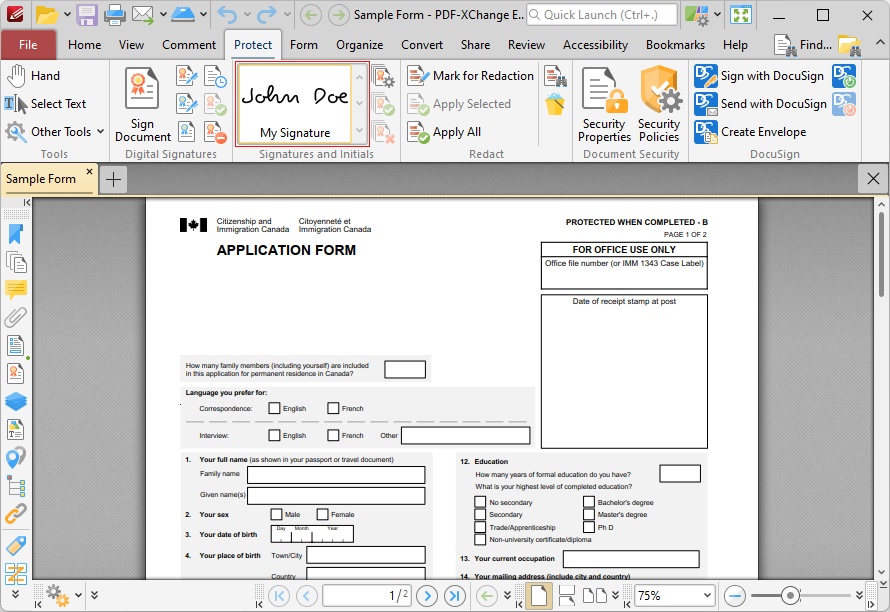
Figure 1. Protect Tab, Signature and Initials Group Highlighted
•Available signatures are displayed in the pane. Click to select signatures, then click again to add them to the document. They can then be resized and/or repositioned as detailed below.
•Click Manage to manage signatures. The dialog box detailed in (figure 2) will open.
•Click Apply All Signatures to apply all placed signatures to the document. This process converts signatures from editable objects into base content.
•Click Cancel All Signatures to remove signatures that have been placed in documents. (This action will not remove signatures that have been applied. The Undo action in the Quick Access toolbar can be used for this purpose).
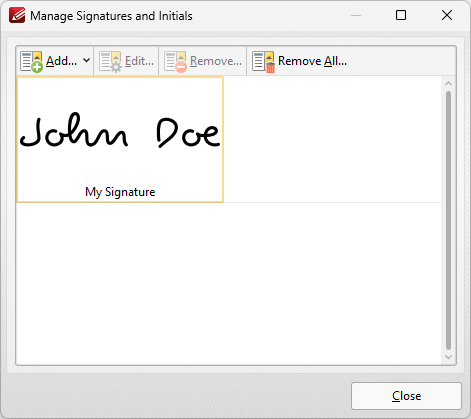
Figure 2. Manage Signatures and Initials Dialog Box
•Click Add to add new signatures/initials to the list of available options:
•Click From File to add a new signature from a file.
•Click From Clipboard to use the current clipboard content to create a new signature.
•Click Draw Signature to draw a new signature.
•Click Type Signature to type a new signature. The Type Signature dialog box will open, as detailed below.
•Click From Webcam to create a new signature using your webcam. The Image from Webcam dialog box will open. Click the camera button to take a picture, then apply the crop as desired and click Next to add the image to the Image to PDF dialog box.
•Click Edit to edit selected signatures. The Edit Signatures/Initials Information dialog box will open. Update the signature name/password as desired then click OK.
•Click Remove to remove selected signatures, or Remove All to remove all signatures.
•Click Export to export signatures to file for use on other installations of PDF-XChange Editor.
•Click Import to import signatures into PDF-XChange Editor.
Added signatures appear as detailed below:
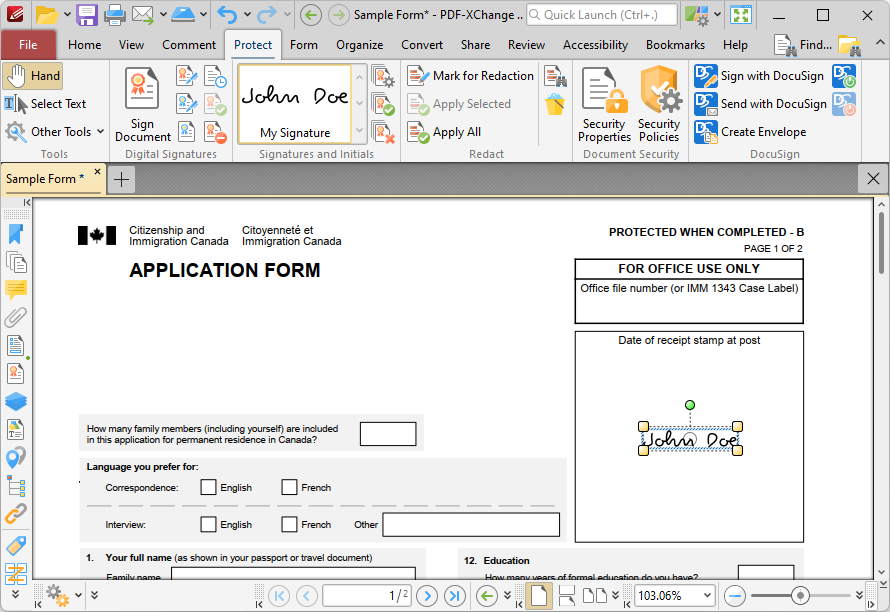
Figure 3. Signature Added to Document
•Click and drag the yellow control points to resize signatures.
•Click and drag the circle at the center to reposition signatures.
•Click and drag the green control point at the top to rotate signatures. Hold down Shift to rotate at increments of fifteen degrees.
•Use the arrow keys to reposition signatures. Hold down Shift to move at an increased increment.
•Press Ctrl+' to open the Properties pane for signatures and view/edit properties:
•OC Details determines the optional content layer to which the signature belongs. When a signature belongs to an optional content layer, it displays only when the layer is enabled. Use the Layers pane to view/create/edit layers, as detailed here.
•Opacity determines the level of transparency of the signature.
•Rotation determines the rotation of the signature.