 Adding and Editing Text in Documents
There are a number of ways to use PDF-XChange Editor to edit text in PDFs. The simplest method is to use the Edit Text feature:
1. Click the Home tab.
2. Click the Edit dropdown menu, then click Text:
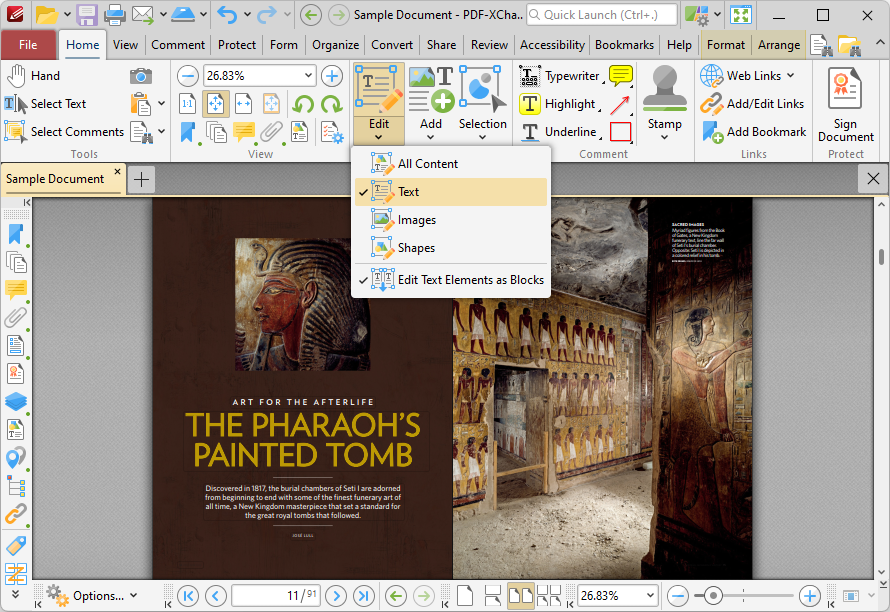
Figure 1. Home Tab, Edit Dropdown Menu, Text Option Selected
2. Double-click the text that you want to edit:
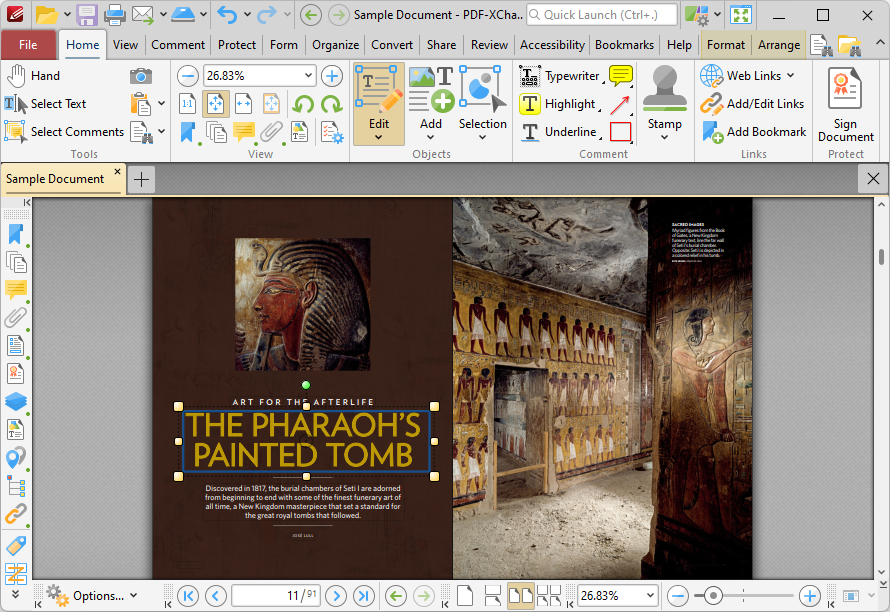
Figure 2. Text Selected for Editing
3. Edit the text as desired. Note that the format tab is enabled when text is selected and can be used to determine font and style options:
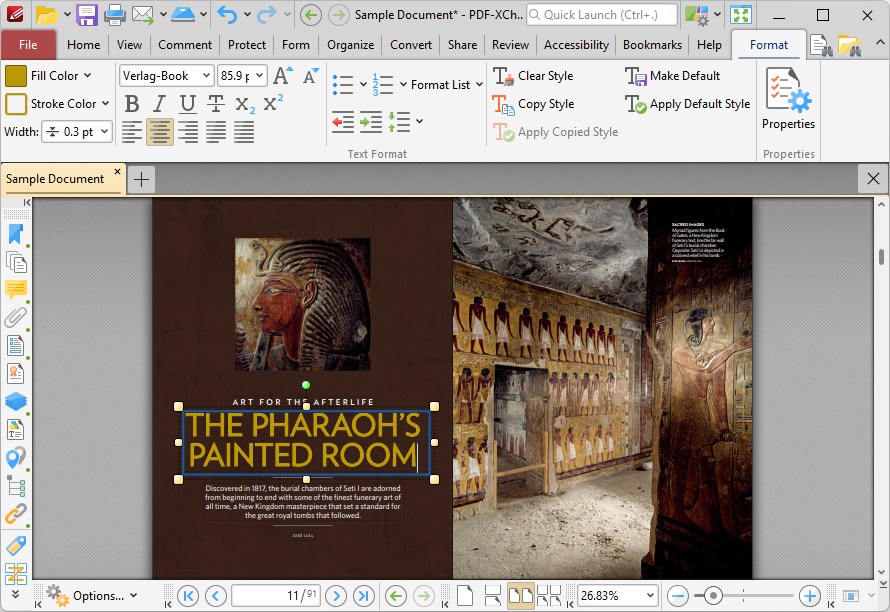
Figure 3. Format Tab
•Select an option in the Fill Color dropdown menu to determine the fill color of the text.
•Enter a font in the Font combo box, or use the dropdown menu, to determine the font of the text.
•Enter a value in the Font Size combo box, or use the dropdown menu, to determine the size of the text.
•Click Grow Font/Shrink Font to increase/decrease the size of the text.
•Click Bold, Italic, Underline, Strikethrough, Subscript or Superscript to enable/disable these text options.
•Click Align Text Left, Center Text, Align Text Right or Justify Text to adjust the alignment of text.
•Click Clear Style to revert text to the default style for the current tool.
•Click Make Default to set the current style as the default style for the current tool.
•Click Copy Style to copy the style properties of selected text. Use the Apply Copied Style feature detailed below to apply copied styles to text.
•Click Apply Default Style to apply the default text style for the current tool to selected text.
•Click Properties to open the Properties pane, which can be used to view/edit the properties of selected text.
Right-click text for further editing options:
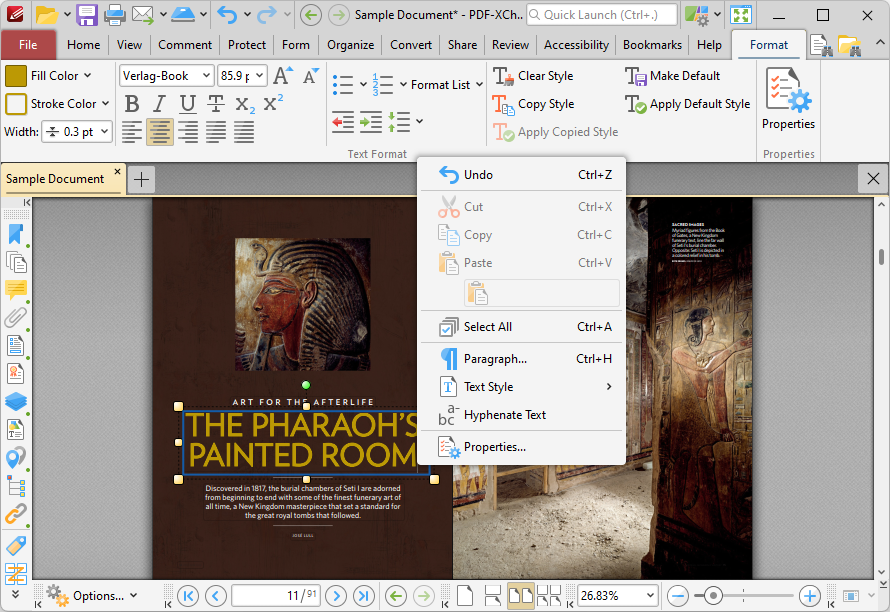
Figure 3. Text Editing Right-Click Shortcut Menu
•Click Undo to undo the most recent editing action.
•Click Cut, Copy, Paste or Select All to perform these editing options on selected text.
•Click Paragraph to view/edit paragraph options:
•Use the Alignment options to align text to the left/center/right or justify text.
•Use the Left and Right indentation number boxes to determine the left and right indentation.
•Use the Special dropdown menu to add indentation for the first line/hanging indentation.
•Use the Spacing options to determine paragraph spacing.
•Click Text Style edit the style of selected text. These options are detailed in (figure 1).
•Click Hyphenate Text to enable/disable text hyphenation for words at the end of lines.
Adding Text to PDFs
Follow the steps below to add text to PDF documents:
1. Click the Home tab.
2. Click the Add dropdown menu, then click Add Text:
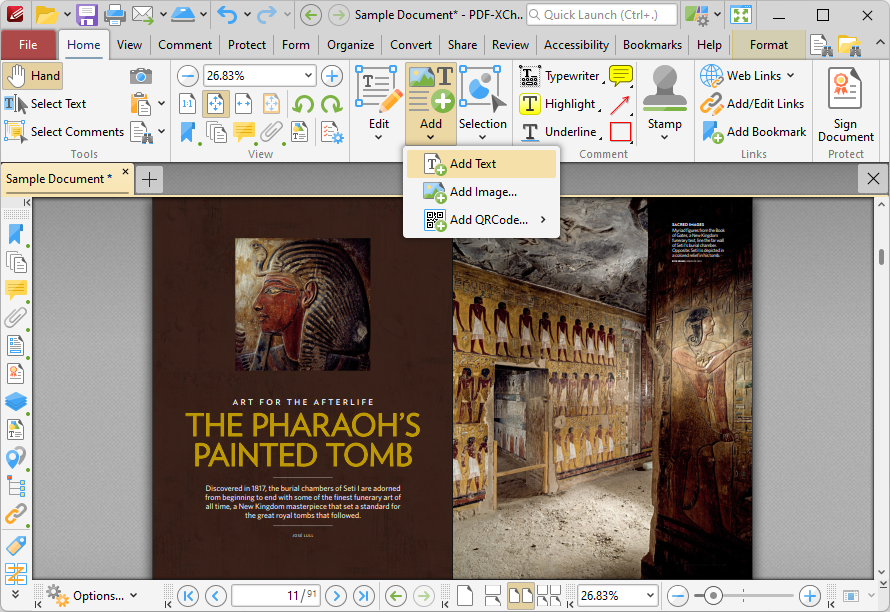
Figure 4. Home Tab, Add Options, Add Text Selected
When the Add Text feature is selected, the pointer will become a cross icon. Move the icon to the desired location and click to designate the location of the new text box. Text can then be entered as desired:
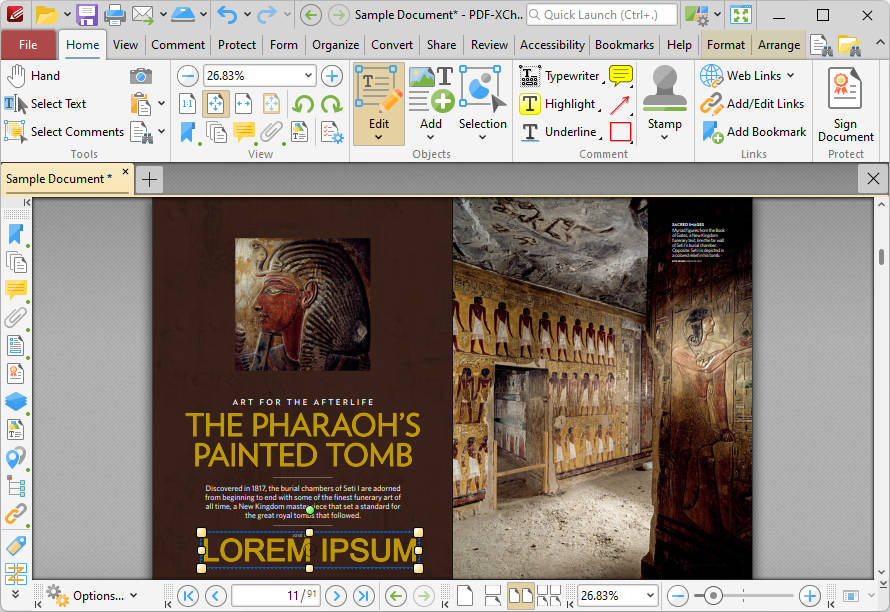
Figure 5. Add Text Feature, New Text Added
•Click and drag the central yellow control points on either side of text boxes to resize them horizontally. (Note that it is not possible to resize text boxes vertically until text has been entered into them).
•Click and drag the green control point to rotate text boxes. Hold down Shift to rotate at increments of fifteen degrees.
•Use the editing aids detailed here to assist in the precise placement of text boxes.
•Press Enter to start new lines. The options in the Format tab can be used to adjust the text style, as detailed above. If you want the text to match the existing text in the document, then select the existing text with the Edit tool, click the Format tab and then click Copy Style. Select the text that you want to convert to the existing style, then click the Format tab and click Apply Copied Style.
Select Text Tool
The Select Text Tool is used to select document text:
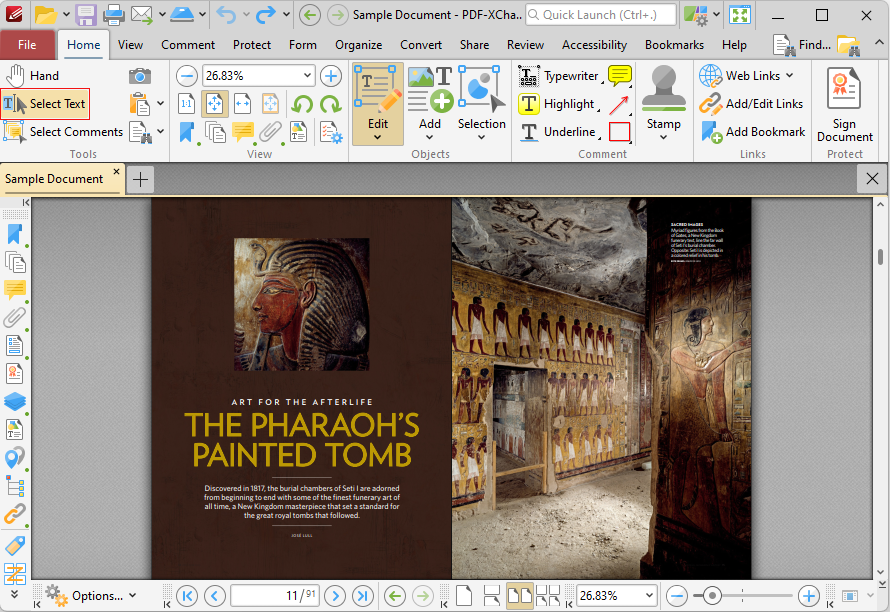
Figure 1. Home Tab, Select Text Highlighted
The Select Text Tool is used to select base-content text. Click to enable the Select Text Tool, then click and drag the pointer to select text. Double-click to select words, triple-click to select paragraphs and quadruple-click to select all text on the current page. Right-click selections for editing options, as detailed above. Note that the default setting of the Select Text Tool results in it selecting entire lines of text. If you instead want to select a custom area of text, such as text that is located over several lines at the center of a larger block of surrounding text, simply press and hold the Alt key and then select the desired text. Additionally, please note that when text is copied from PDF documents and pasted into applications/locations outside of PDF-XChange Editor (such as Microsoft Word) additional page breaks may appear. This is a recognized issue with PDF documents. The Edit Content Tool should be used instead of the Select Text Tool in order to avoid this issue when copying text.