 Adding Actions and JavaScripts to PDFs
PDF-XChange Editor contains a feature that make it possible to execute predefined actions when users click bookmarks, links or form fields. The following actions are available:
•Go to Page Options (Go To a Page in the Document, Go To a Page in Another Document and Go To a Page in an Embedded Document).
Adding Actions to Bookmarks
Press Ctrl+B to open the Bookmarks pane, then right-click the bookmark and click Properties. The Bookmark Properties pane will open:
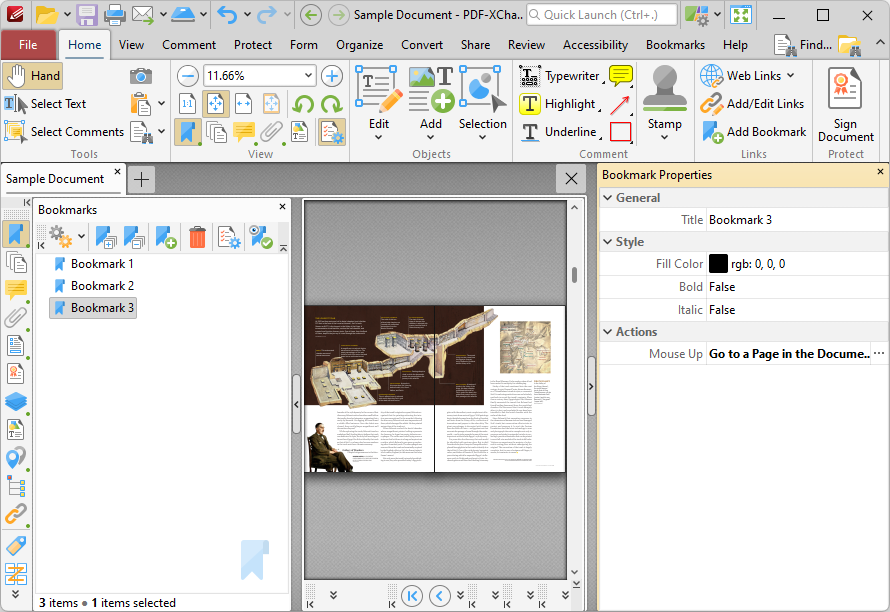
Figure 1. Bookmarks Pane
Double-click the Mouse Up property. The Edit Action List dialog box will open:
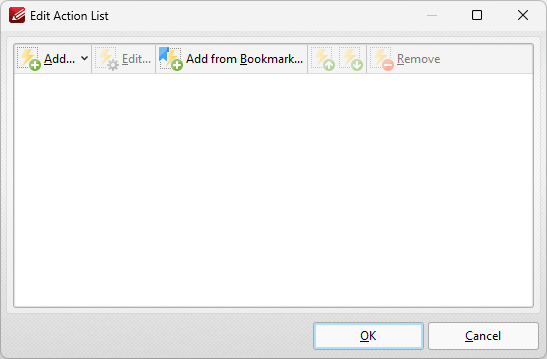
Figure 2. Edit Action List Dialog Box
Click Add to add an action to be executed when the bookmark is clicked. The following options are available:
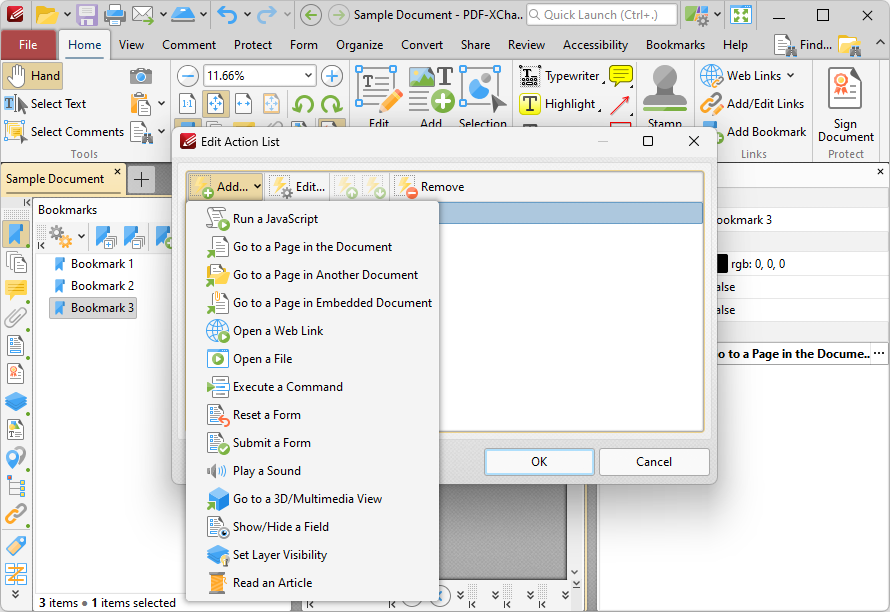
Figure 3. Edit Action List Dialog Box, Add Action Options
All actions and their parameters are detailed at the links above. Note that multiple actions can be added to bookmarks as desired.
Adding Actions to Links
Actions are added automatically when links are created using the Add/Edit Link tool. The default action of a link is to browse to the page of the link. Usually the creator of the link changes this so that the link browses to a different page, or performs an action. If you want to create a link, then click Add/Edit Link in the Home tab:
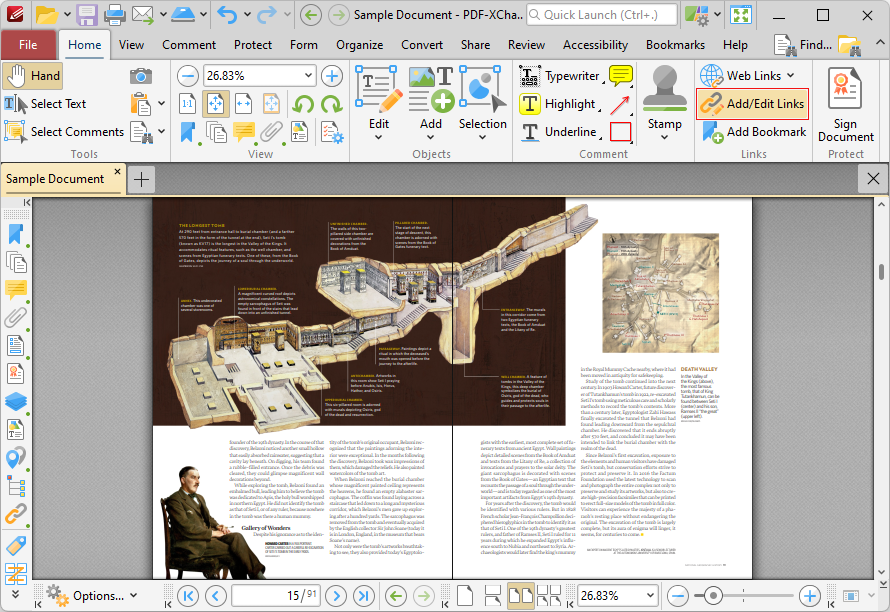
Figure 4. Home Tab, Create Link Highlighted
The pointer will become a crosshairs icon. Click and drag to determine the size and location of the link. The Browse for Link Target dialog box will open:
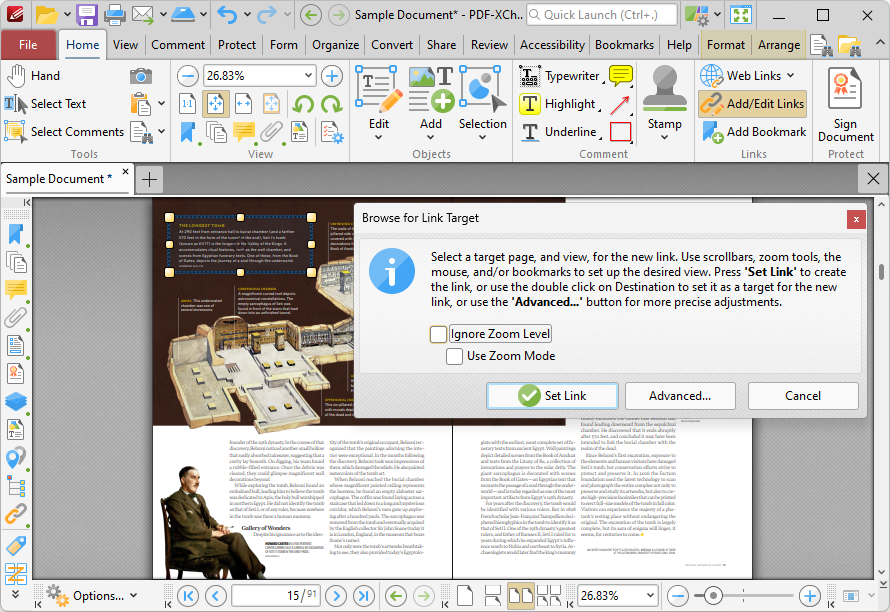
Figure 5. Browse For Link Target Dialog Box
Click Advanced to add actions to the link. The Edit Action List dialog box will open. Click Add to add an action to be executed when the link is clicked. The following options are available:
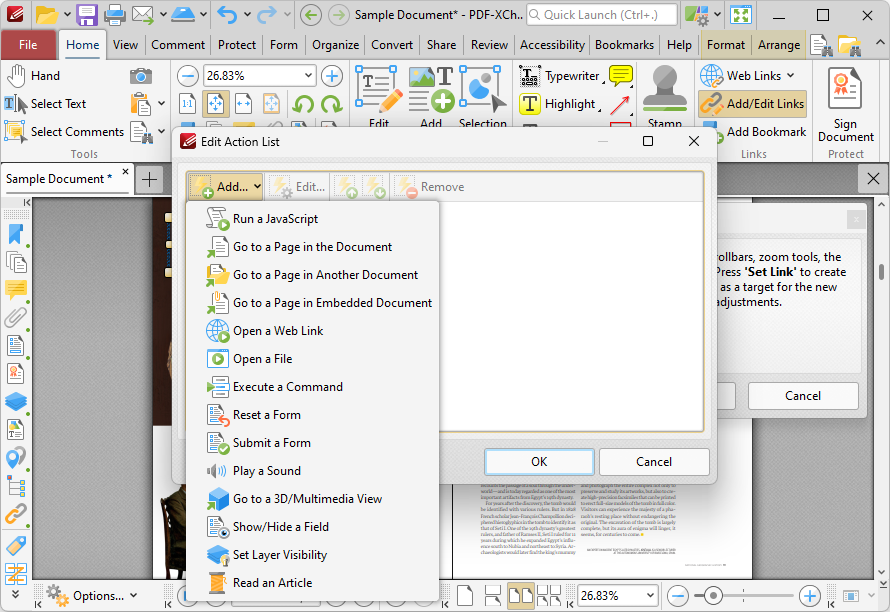
Figure 6. Edit Action List Dialog Box, Add Action Options
All actions and their parameters are detailed at the links above. Note that multiple actions can be added to links as desired.
Adding Actions to Thumbnails
Actions can also be added to thumbnails, in which case they will execute when the associated document page is opened/closed. If you want to add an action to a thumbnail, then press Ctrl+T to open the Thumbnails pane, right-click the thumbnail and click Properties:
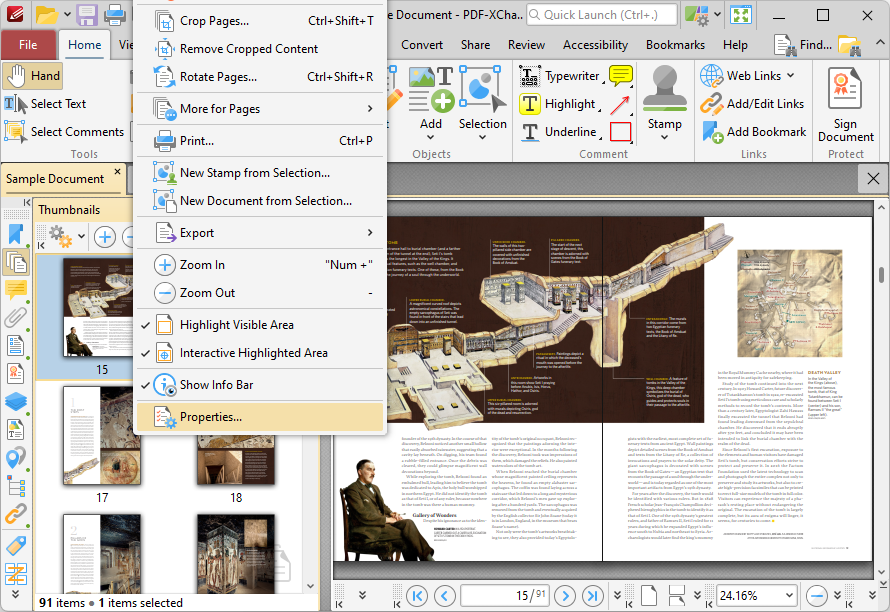
Figure 7. Thumbnails Pane, Shortcut Menu Options
The Page Properties pane will open:
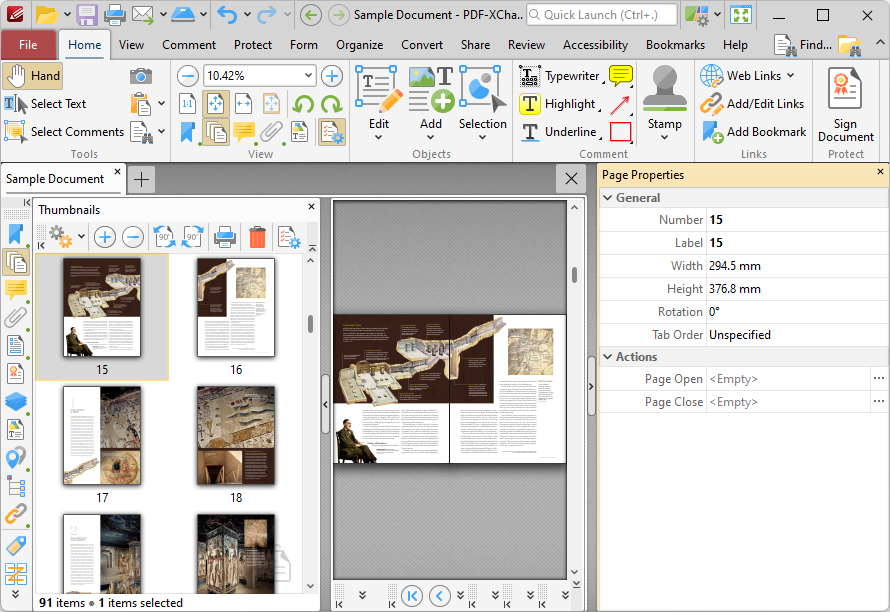
Figure 8. Page Properties Pane
Double-click the Page Open/Page Close property to add actions when pages open/close. The Edit Action List dialog box will open. Click Add to add an action to be executed when the pages are opened/closed. The following options are available:
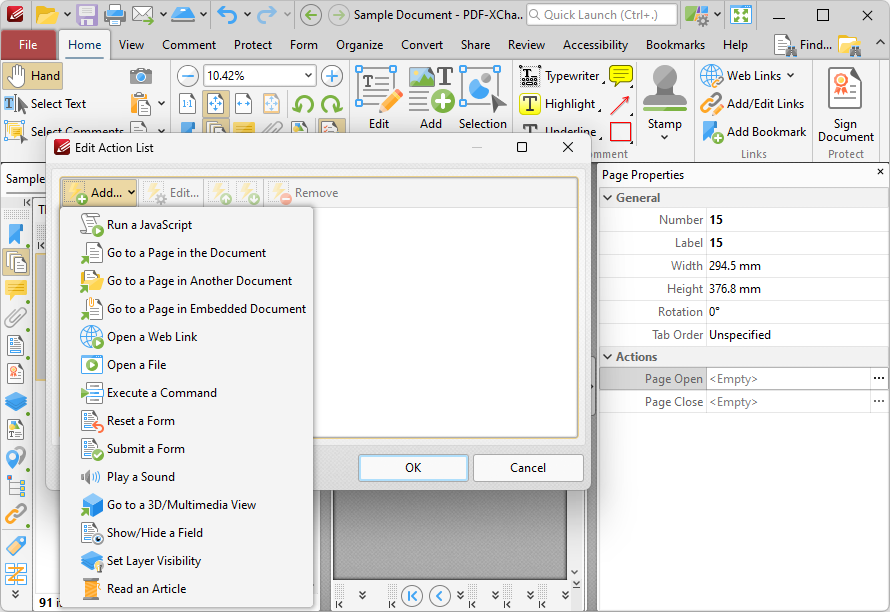
Figure 9. Edit Action List Dialog Box, Add Action Options
All actions and their parameters are detailed at the links above. Note that multiple actions can be added to pages as desired.
The JavaScript Console
The JavaScript console can be used to execute JavaScript on open documents. Click the Form tab, then click JavaScript Console to open the JavaScript Console:
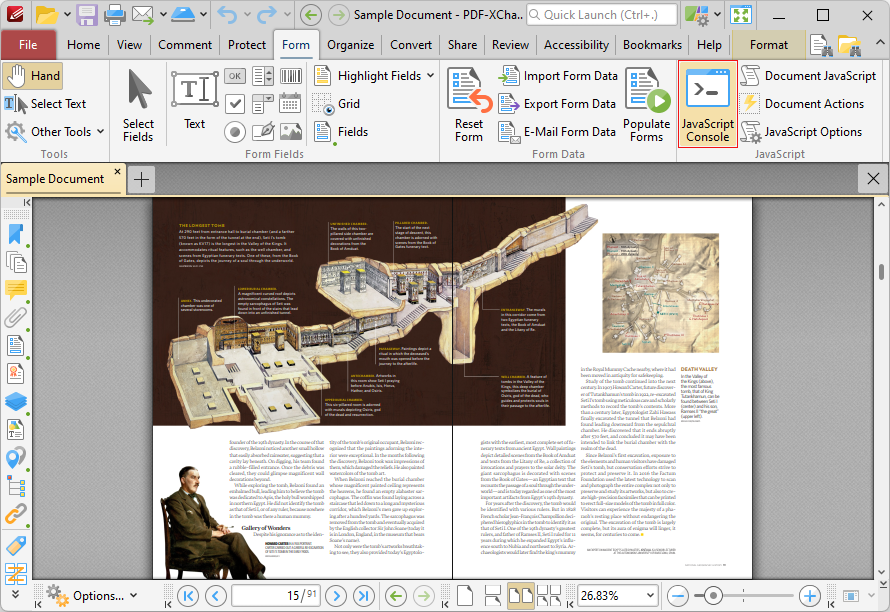
Figure 10. Form Tab, JavaScript Console Location Highlighted
The JavaScript Console will open:
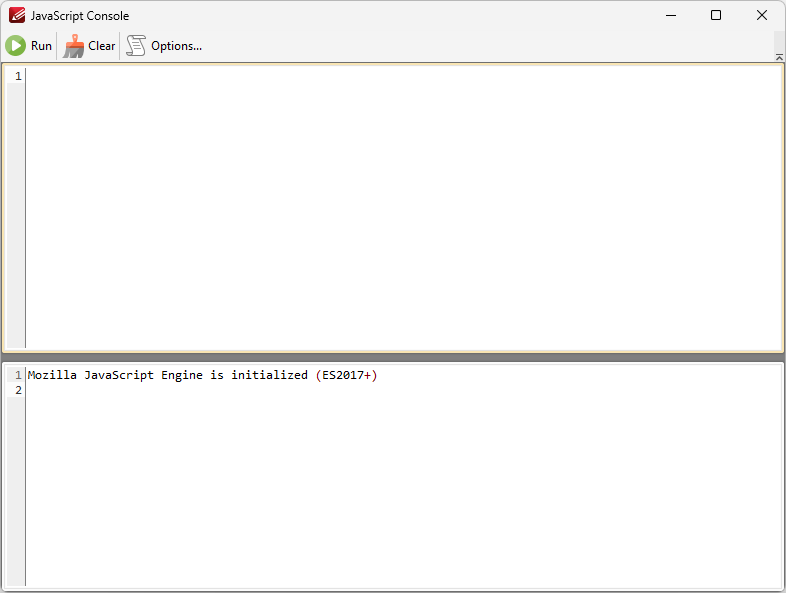
Figure 11. JavaScript Console
•Enter the desired JavaScript in the upper window, then click Run (or press Ctrl+Enter) to run the JavaScript. Errors in JavaScript and/or output of JavaScript will be displayed in the lower window.
•Click Clear to remove error messages/output from the lower window.
•Click Options to customize JavaScript preferences, as detailed here.
Note that the Link Creation Tool can be used to create JavaScript-enabled links. An index of existing JavaScript operations that PDF-XChange Editor supports and additional information about JavaScript is available here.
Adding JavaScript to Documents
If you want to add JavaScript permanently to documents, then the Actions/JavaScript categories in Document Properties must be used. Click the File tab, then click Document Properties:
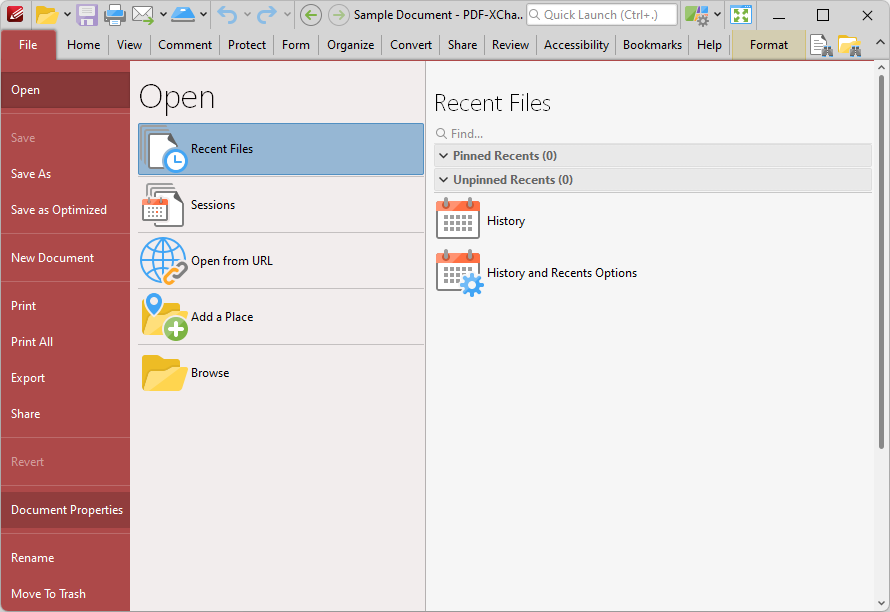
Figure 12. File Tab, Document Properties
The Document Properties dialog box will open. Click the Actions category to view/edit document JavaScript set for when the document closes, saves or prints:
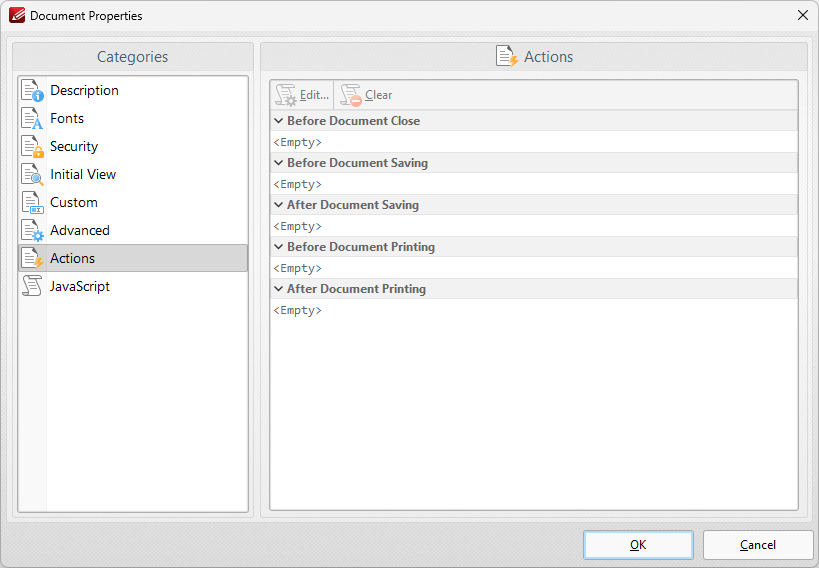
Figure 13. Document Properties Dialog Box, Actions Category
Double-click the text boxes beneath operations to add JavaScript. The Add Action dialog box will open:
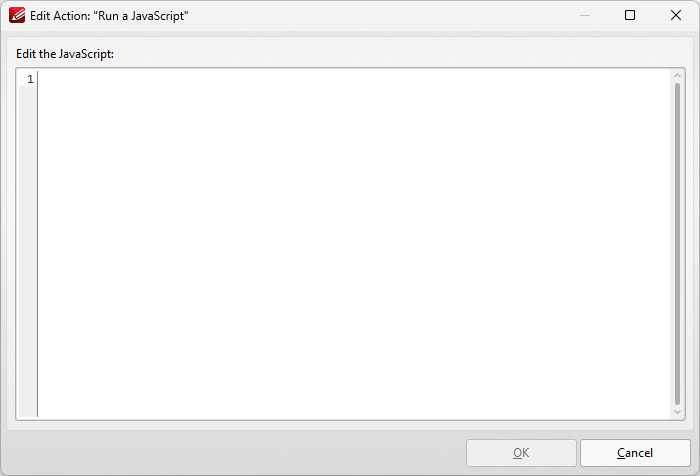
Figure 14. Add Action Dialog Box
Enter the desired JavaScript and click OK to save. The JavaScript will execute when the document closes, saves or prints as specified.
Alternatively, click the JavaScript category in the Document Properties dialog box to add JavaScript to documents:
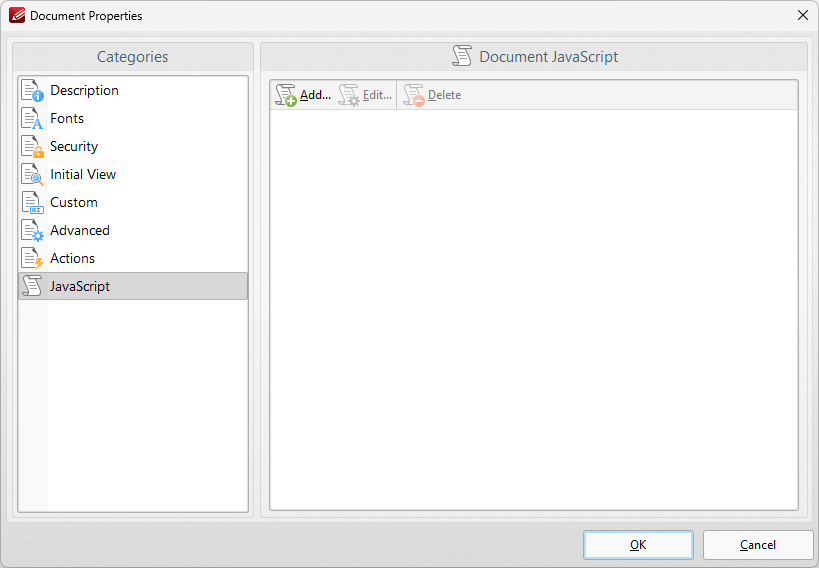
Figure 15. Document Properties Dialog Box, JavaScript Category
Click Add, Edit or Delete to add/edit/delete document JavaScript.
Adding Actions to Form Fields
If you want to add an action to a form field, then click Select Fields in the Form Tab:
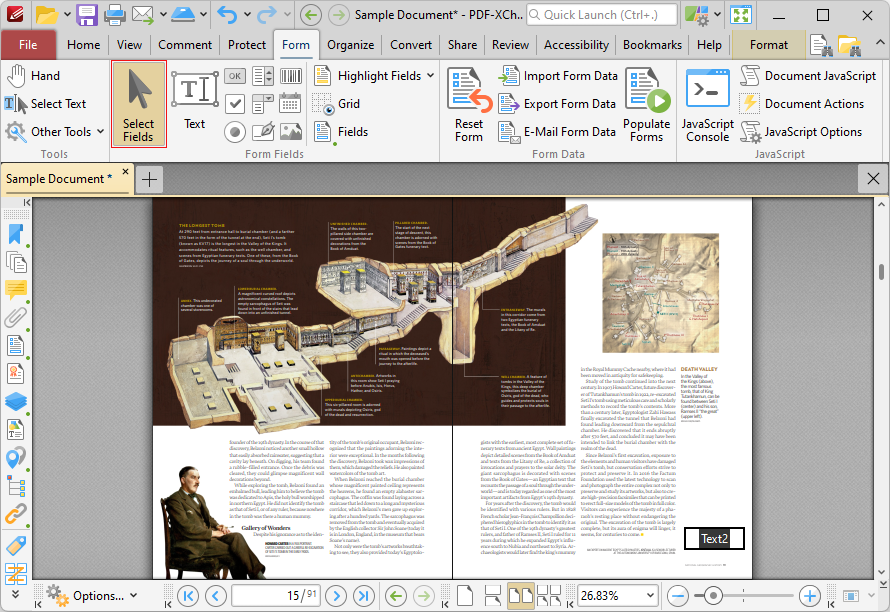
Figure 16. Form Tab, Select Fields Highlighted
Right-click the field and then click Properties in the shortcut menu:
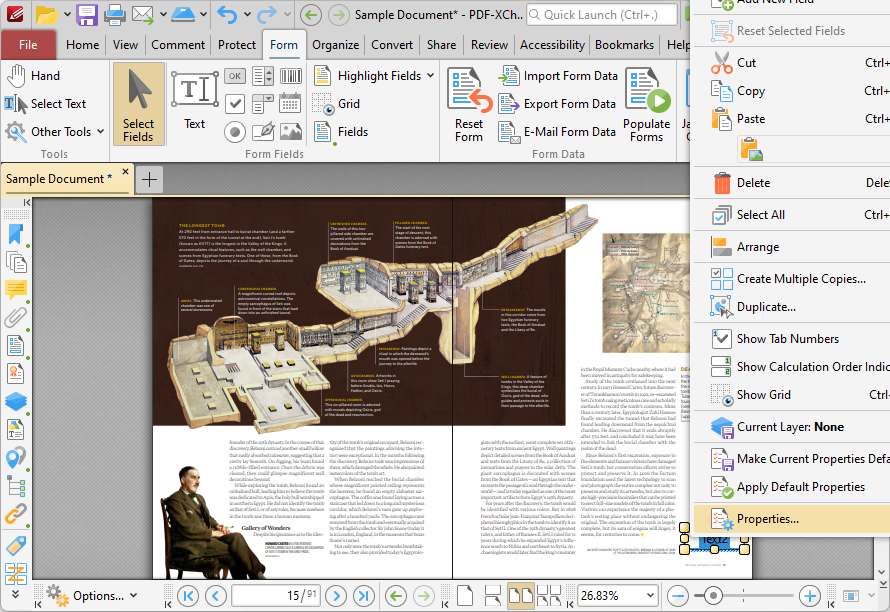
Figure 17. Shortcut Menu, Properties Highlighted, Properties Pane Open
The Properties pane will open:
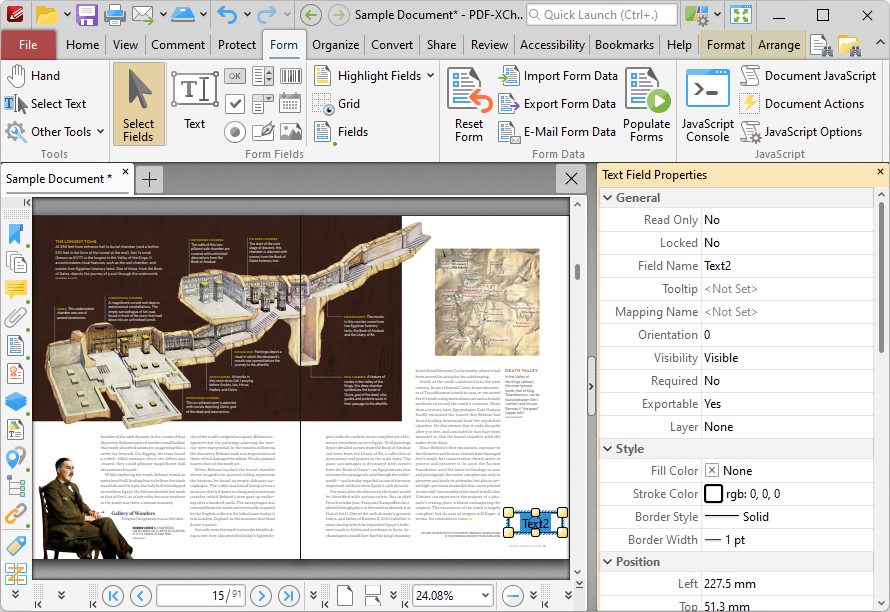
Scroll down to the Actions properties, then double-click the desired action type:
•Mouse Down initiates an action when the left mouse button is pressed (without being released) on the form field.
•Mouse Up initiates an action when the left mouse button is clicked (pressed and released) on the form field.
•Mouse Enter initiates an action when the pointer moves into the form field.
•Mouse Leave initiates an action when the pointer moves out of the form field.
•On Focus initiates an action when the form field is selected.
•On Blur initiates an action when the form field is deselected.
The Edit Action List dialog box will open. Click Add to add an action to the action type specified for the form field:
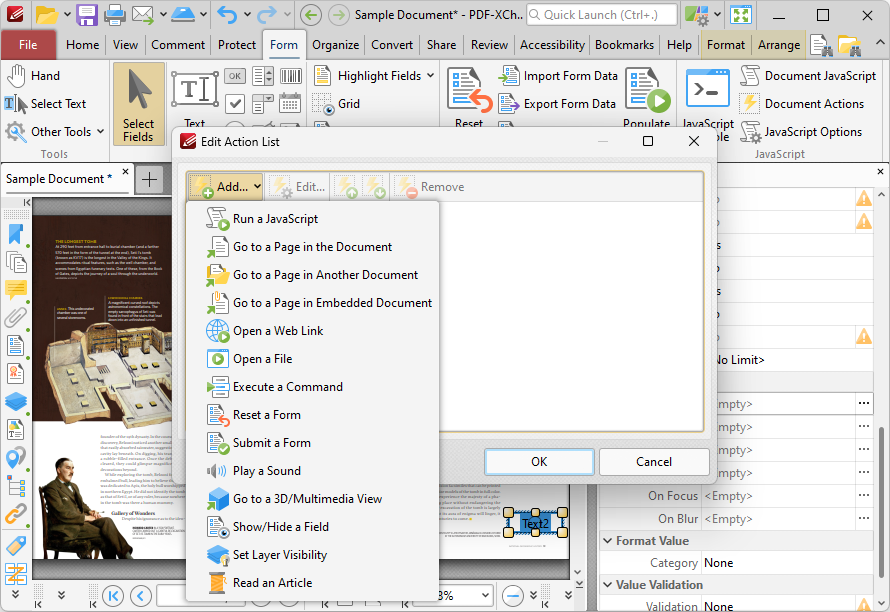
Figure 18. Edit Action List Dialog Box, Add Action Options
All actions and their parameters are detailed at the links above. Note that multiple actions can be added to form fields as desired.