 Using Fields to Validate Values
When you are creating forms, it may be useful to include fields that contain a value validation property that ensures values entered into the field fall within a given range. Follow the instructions below to perform this operation:
1. Place either a Text Field or a Drop Down form in the active document.
2. Click the Form tab, then click Select Fields:
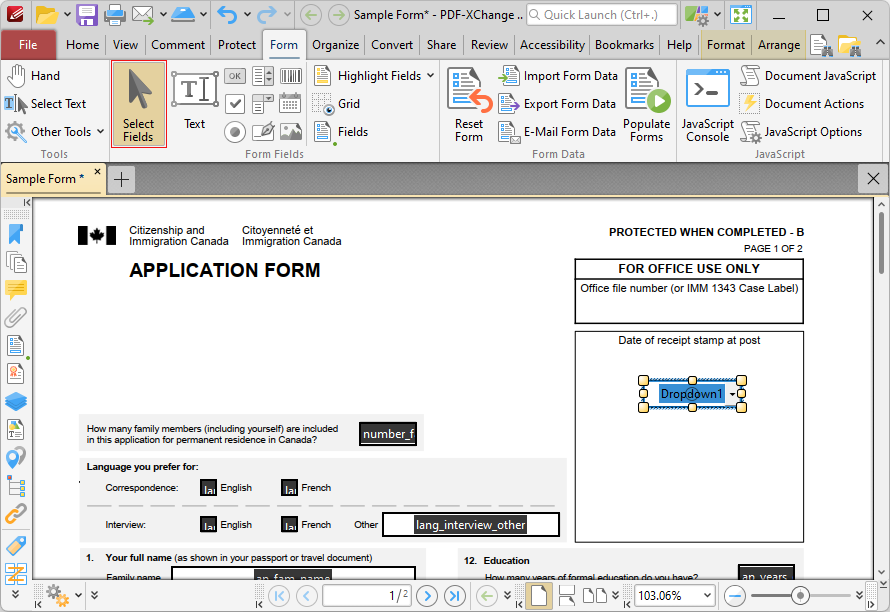
Figure 1. Form Tab, Select Fields Highlighted
3. Right-click the form field and select Properties. The Properties pane will open.
4. Scroll down to the Format Value tab and set the Category to Number.
5. Scroll down to the Value Validation tab and select Value in Range. The From and To options will appear in the Value Validation tab:
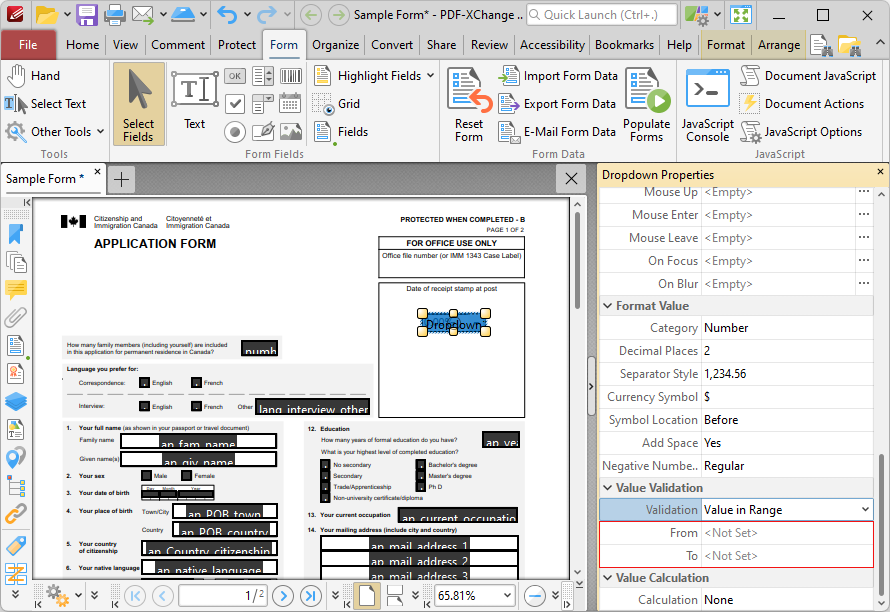
Figure 2. Properties Pane, From and To Properties Highlighted
6. Use the From and To options to determine the desired range.
Value Validation Example
This example will detail how to validate that values entered into the text field 'Dropdown1' fall in the range 0-100:
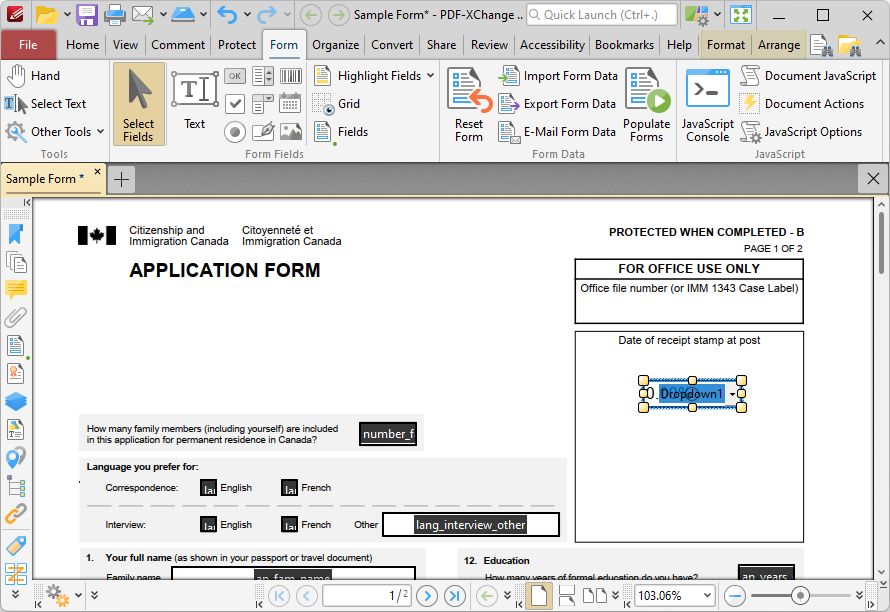
Figure 3. Value Validation Example, Dropdown Field Highlighted
1. Click the Form tab, then click Select Fields and select the form field.
2. Click the Format tab and click Properties. The Dropdown Properties pane will open:
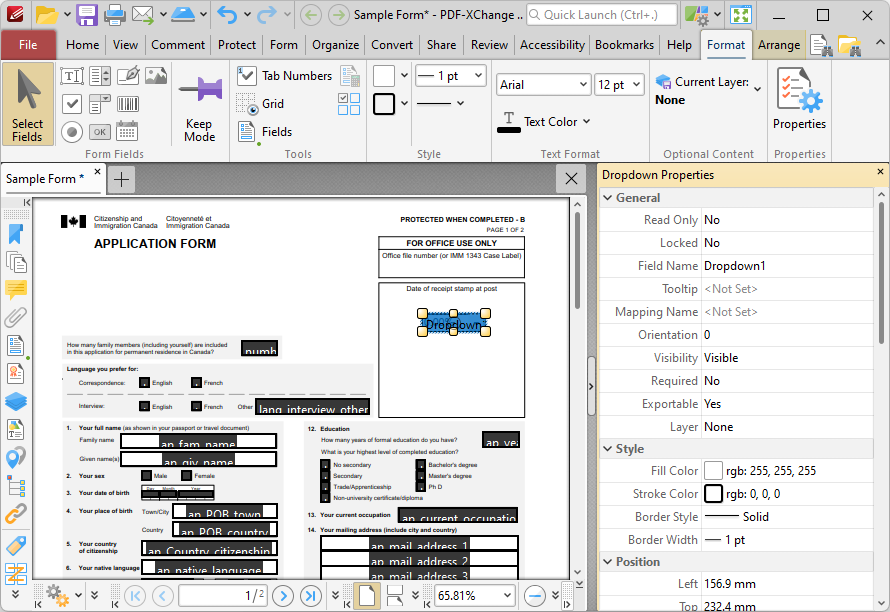
Figure 4. Value Validation Example, Dropdown Properties Pane
3. Scroll down the Dropdown Properties pane to the Format Value tab, then click the Category property and select Number:
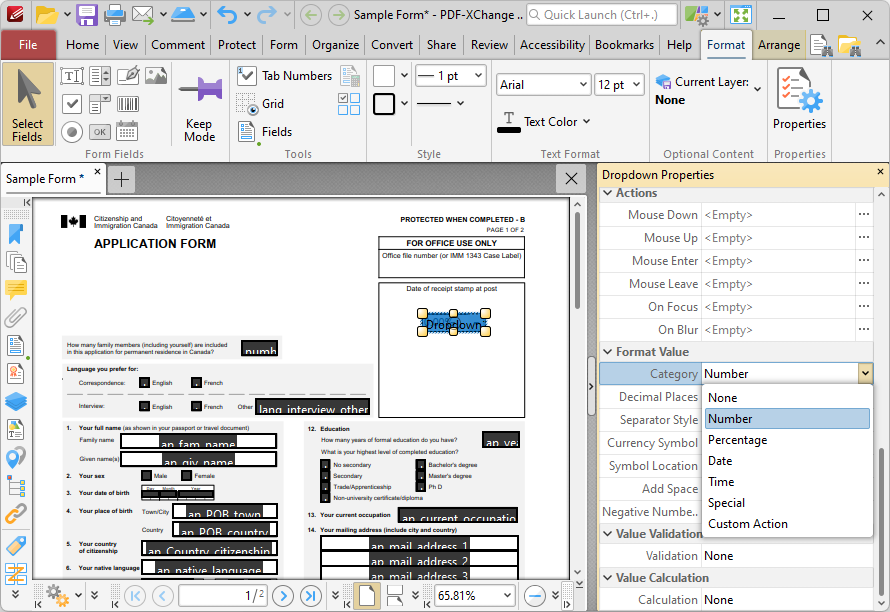
Figure 5. Value Validation Example, Category Property Highlighted
4. Scroll down the Text Field Properties pane to the Value Validation tab, then click the Validation option and select Value in Range:
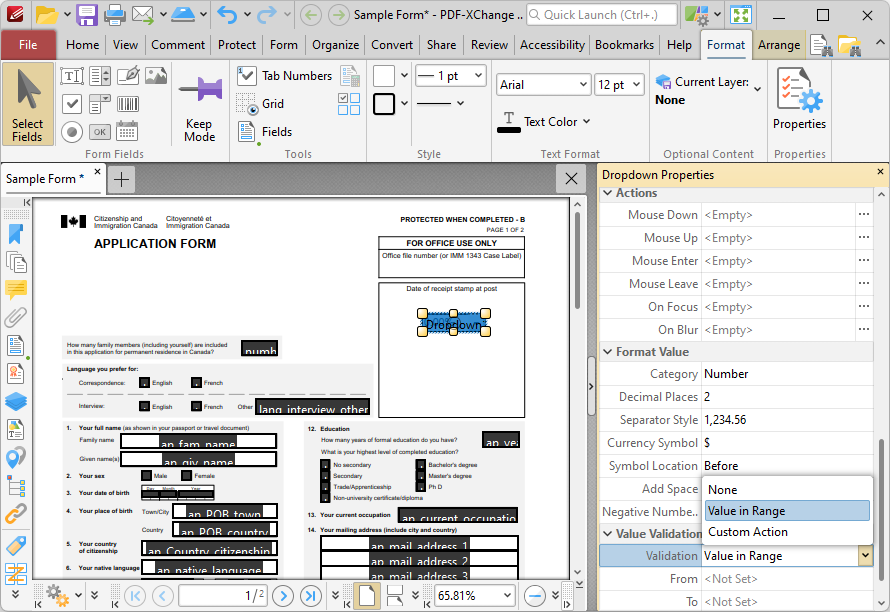
Figure 6. Value Validation Example, Validation Property Highlighted
Note that the From and To options will appear beneath the Validation property.
5. Enter '0' in the From option and '100' in the To option:
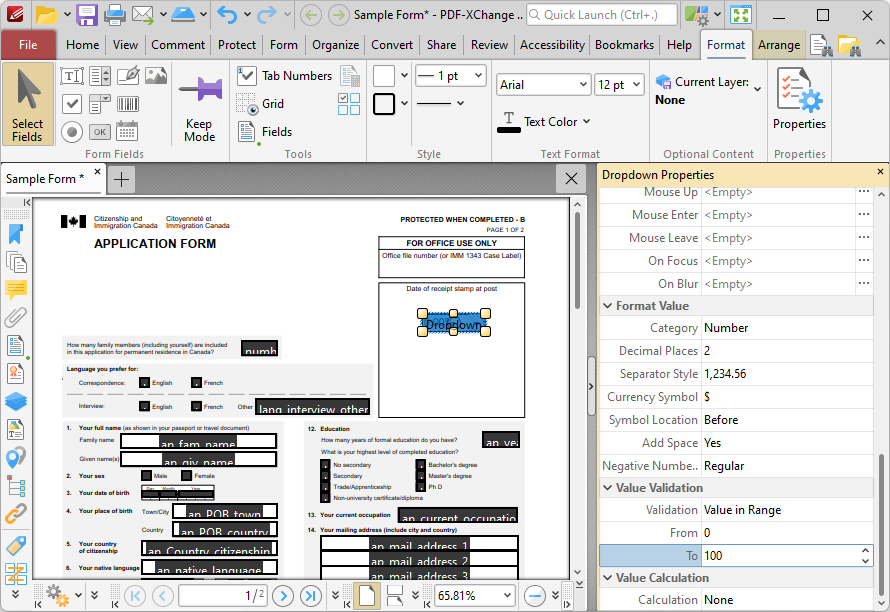
Figure 7. Value Validation Example, From/To Option Highlighted
All values subsequently entered into 'Text1' must fall into the range 0-100. Values outside of the specified range will not be permitted, and if they are entered then an error message will appear.