 Setting Comment Display Options
Click the Show dropdown menu to determine the parameters through which comments are shown/hidden in documents:
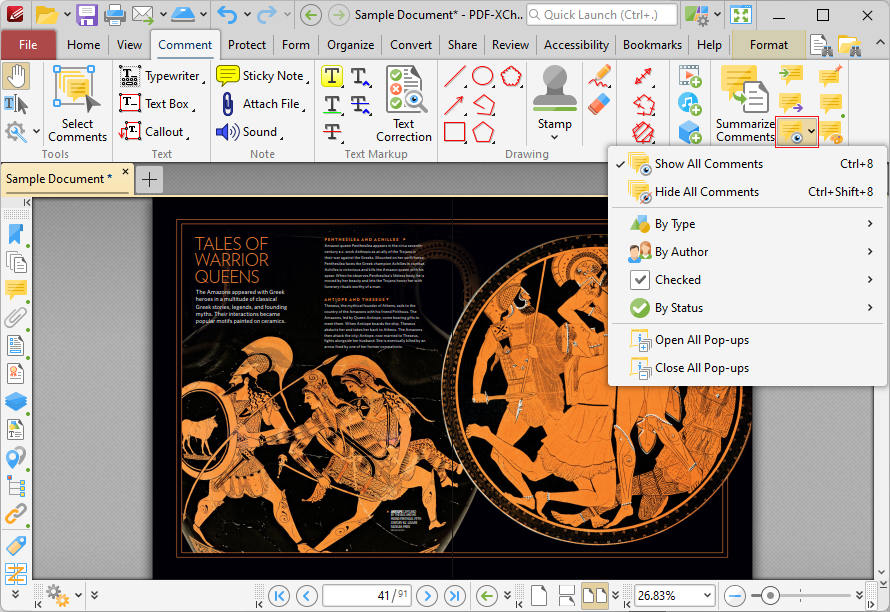
Figure 1. Comment Tab, Show
•Click Show All Comments/Hide All Comments to show/hide all comments.
•Hover over By Type to determine comment display options according to their format. A submenu containing all comment formats in the document will be displayed. Select the check boxes of the desired comment formats to be displayed.
•Hover over By Author to determine comment display options according to their author. A submenu containing all comment authors will be displayed. Select the check boxes of the desired comment authors to be displayed.
•Hover over Checked to determine comment display options according to their checked/unchecked status in the Comments Pane. (Please note that each comment in the Comments pane features a check box, and it is these check boxes that are referenced with regard to this setting). A submenu containing all available options will be displayed. Select the check boxes of the desired comment statuses to be displayed.
•Hover over By Status to determine comment display options according to their current editing status. (Right click comments and hover over Status in the submenu to view/edit the editing status of comments. The options are None, Accepted, Cancelled, Completed and Rejected. Click options to set them as the comment editing status). A submenu containing all available options will be displayed. Select the check boxes of the desired comment statuses to be displayed.
•Select Open All Pop-ups or Close All Pop-ups to open/close the pop-up annotations of all comments.
Example
The document below contains both text box and sticky note comments:
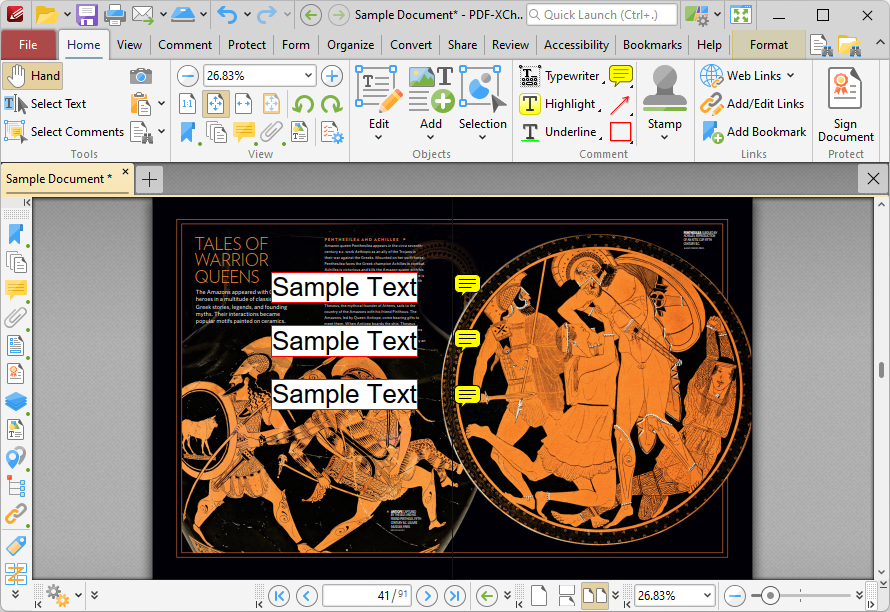
Figure 2. Sample Document with Text Box and Sticky Note Comments
If you wanted to display only the text box comments, then you could click the Show dropdown menu, hover over By Type and select only the Text Box check box:
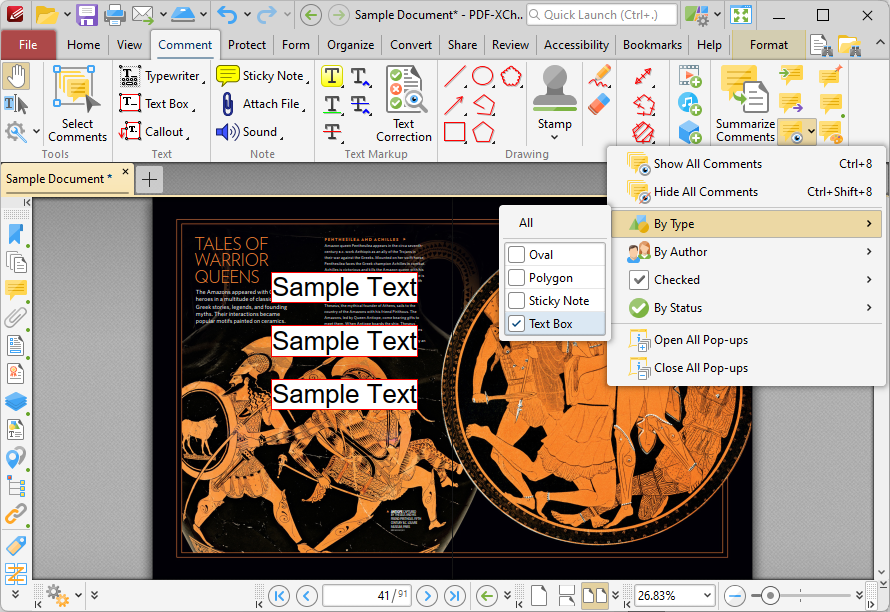
Figure 3. Sample Document with Sticky Notes Hidden