 Security and Electronic Signatures
PDF documents can contain features such as interactive forms, multimedia content and JavaScript. Whilst there are a range of uses for these features, they can also result in PDFs being vulnerable to malicious scripts or actions that can steal data from and/or damage your computer. The security options in PDF-XChange Editor block (or selectively permit) actions for untrusted locations and files, which enables the protection of your computer against such threats. If the security options are enabled and a PDF attempts to perform a restricted action, then a security warning will appear in order to inform the user about the security concern. If you want to view the current security settings in your version of PDF-XChange Editor, then click the File tab, click Preferences and then click Security:
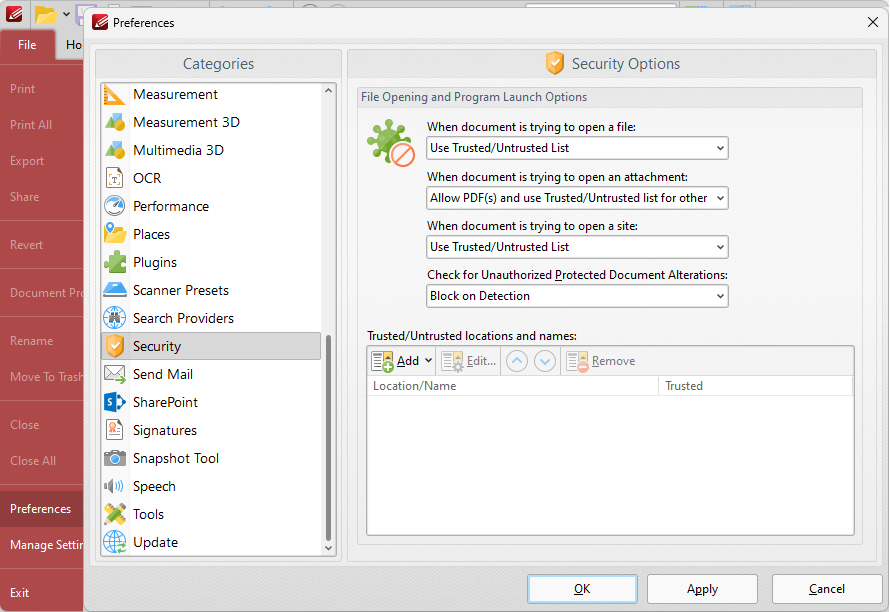
Figure 1. File Tab Submenu, Preferences Dialog Box, Security Category Selected
The security options are enabled by default in PDF-XChange Editor, but it is necessary to enter trusted/untrusted locations/names as required in order to maximize their effectiveness, especially in cases where there are known files and/or sites that the user wants to avoid. Click the Add dropdown menu to add files, folders, hosts (root URLs) or file/host name patterns to the trusted/untrusted list, then click Edit to edit their trusted/untrusted status.
Choosing a Security Method
The type of security method that is best for you depends on what you want to achieve. When you add security to documents you can restrict viewing, editing, printing and several other options so that they are permitted for only the desired recipients of the document.
•If you want only certain people to be able to view a document, then you should simply add a password to it, as detailed here, and send the document to the desired recipients.
•If you want to make it impossible for viewers of the document to print or edit it, then you should add a password that applies only to those editing restrictions for the document, as detailed here.
•If you want to ensure to recipients of the document that it came from you, then the best option is to purchase a digital ID from a certificate authority and then use the digital ID to sign the document. If you are sending the document to individuals that you trust then you can use the option for creating a self-signed digital ID that is available in PDF-XChange Editor, as detailed here.