 Opening PDFs
Click the File tab, then click Open to open documents:
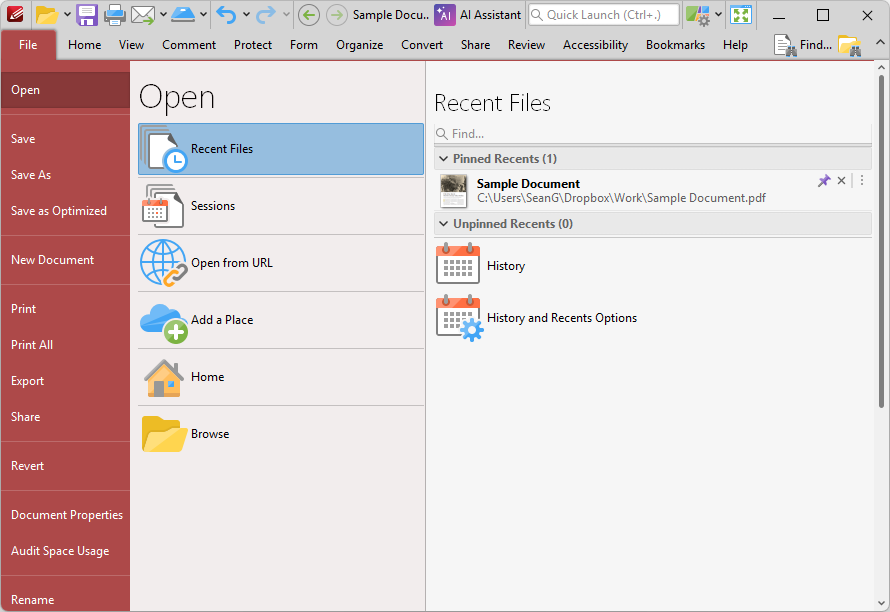
Figure 1. File Tab Submenu, Open Submenu, Recent Files Options
•Click Recent Files to view/open recent files.
•Click Sessions to view/open saved sessions. A session is defined as an active instance of using PDF X-Change Editor to view/edit documents. When a session is saved, PDF-XChange Editor remembers which documents were open, their order/layout within the main window, the location of the main window on the screen and the status of editing panes.
•Click Open from URL to open a document from a URL.
•Click Add a Place to add new places to the Open list, such as Dropbox, Google Drive and SharePoint folders.
•Click Browse to open a file from the local computer.
Note that non-PDF documents that are compatible for conversion will be converted to PDF automatically when they are opened in PDF-XChange Editor.