 Adding and Editing Images in PDFs
Adding Images to Documents
If you want to add an image to a document, click the Home tab, then click the Add dropdown menu and click Add Image:
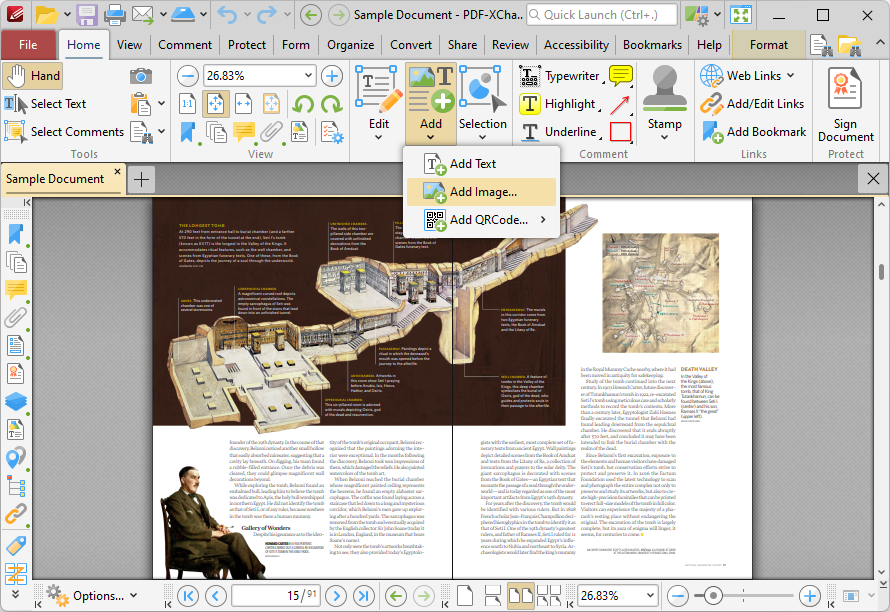
Figure 1. Home Tab, Add Dropdown Menu, Add Image
The pointer will become a crosshairs icon. Click the location in the document at which you want to place the image. The Open Files dialog box will open. Select the desired image and click Open. The Add Image dialog box will open:
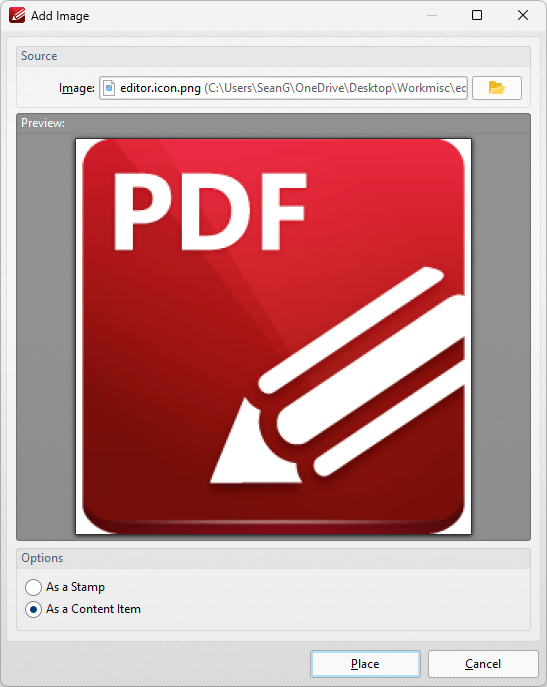
Figure 2. Add image Dialog Box
•Click the folder icon to select an alternative file.
•Select an option to determine how the image is added:
•As a Stamp adds images as stamp annotations, as detailed here.
•As a Content Item adds images as content items.
Note that stamps and content items feature different editing options.
Moving and Resizing Images
If you want to move or resize an image that you have added to a document, or otherwise edit images, then click the Edit Content dropdown menu in the Home tab and click Images:
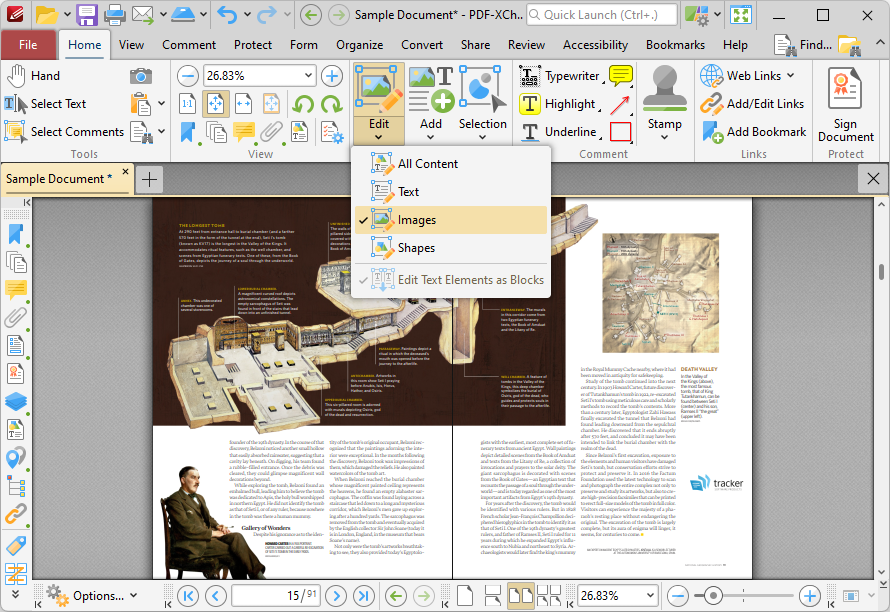
Figure 3. Edit Content Dropdown Menu, Images Highlighted
Click to select the image. The image will become highlighted and control points will appear around it:
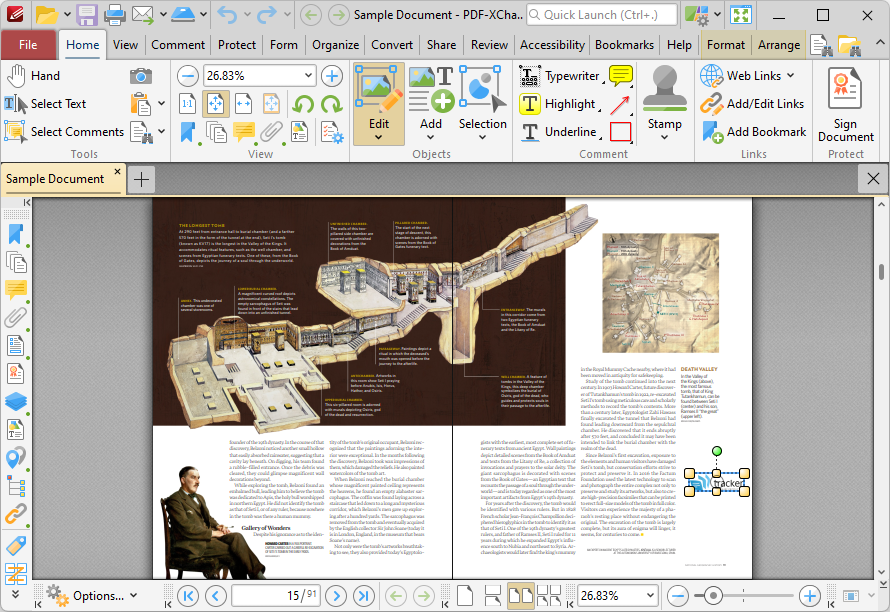
Figure 4. Selected Image
•Click and drag the image to move it, or click and drag the yellow control points to resize it. Hold down the Shift key to constrain proportions when you are resizing images.
•Click and drag the green control point at the top to rotate images. Hold down Shift to rotate at increments of fifteen degrees.
•You can also use the arrow keys to reposition images. Hold down Shift to move at an increased increment. Use the Nudge feature to customize how far content is moved when using the arrow keys to reposition images.
•You may find it useful to enable the grid (Ctrl+#) when repositioning images.
Editing Images
Click the Format tab to edit selected images:
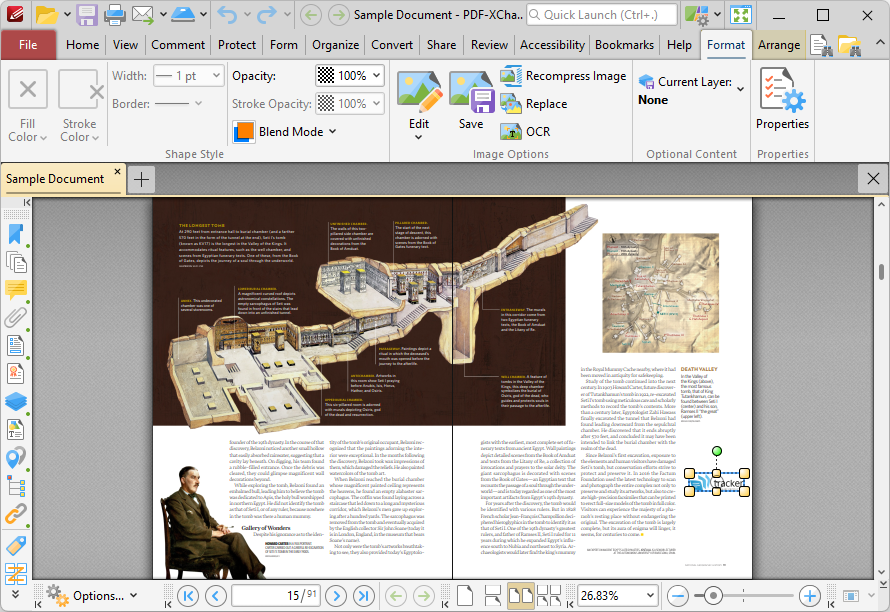
Figure 5. Format Tab for Selected Images
•Use the Opacity dropdown menu to determine the transparency of the image.
•Use the Blend Mode to determine the blend mode used when content overlaps with other content, as detailed here.
•Click Edit to edit the image in either the default application for editing images or an alternative application. When you edit and save an image in another application, it will update in PDF-XChange Editor.
•Click Save to save the image to file.
•Click Recompress to recompress the image. The Recompress Image dialog box will open, as detailed below.
•Click Replace to replace the image with an alternative image.
•Click OCR to perform optical character recognition on the image.
•Click Properties to view/edit the properties of the image.
Recompressing Images
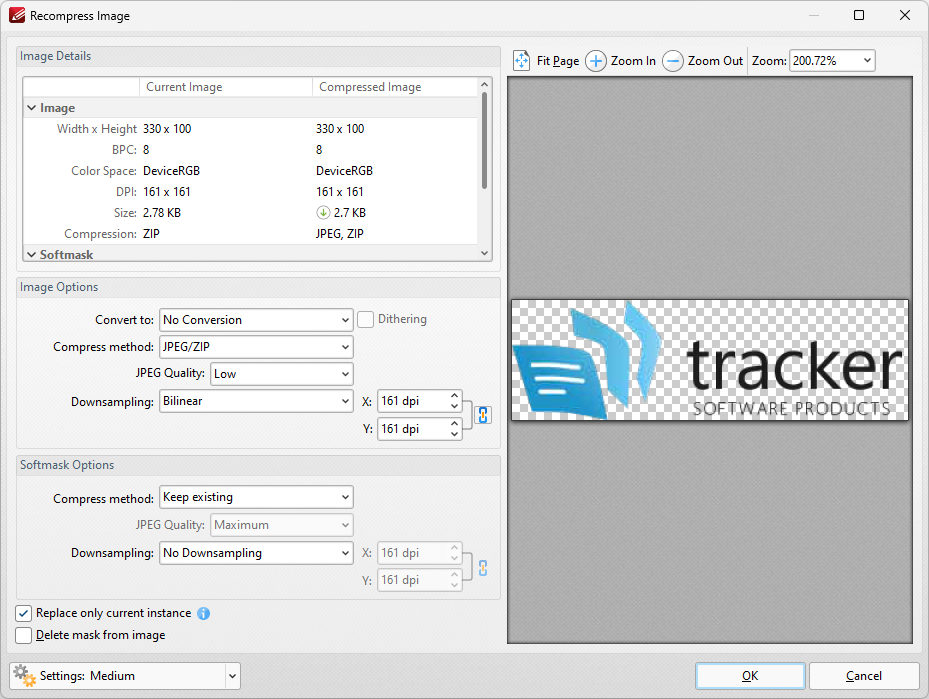
Figure 6. Recompress Image Dialog Box
•Use the Conversion Options dropdown menu to select a new compression format for images. Note that the selection made in this dropdown menu determines the options for the two dropdown menus below.
•Use the Compression Options dropdown menu to select a new compression format for images.
•Use the Downsampling Options dropdown menu to determine downsampling options as desired. The X and Y text boxes determine the downsampled resolution on the X and Y axes respectively.
•Select the Replace current instance only text box to replace only the current instance of the image in documents where the same image is used multiple times.
Note that the values in the Image Details pane display details about the current image and the image after compression has taken place using the values entered in the Recompress Image dialog box. Additionally, the preview pane will update according to any changes made.
Rotating Images and Moving Images In Front of or Behind other Content
Click the Arrange tab to perform these operations on selected images:
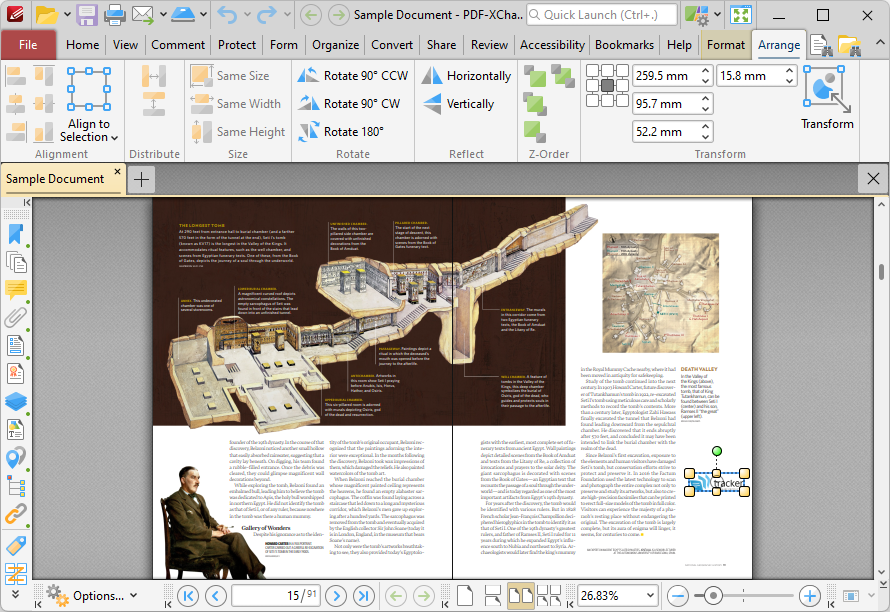
Figure 7. Arrange Tab
•Click Rotate 90° CCW to rotate images ninety degrees counterclockwise.
•Click Rotate 90° CW to rotate images ninety degrees clockwise.
•Click Rotate 180° to rotate images one hundred and eighty degrees.
•Click Bring Forward to bring the image up a step in cases where multiple items overlap.
•Click Send Backward to send the image back a step in cases where multiple items overlap.
•Click Bring to Front to bring the image to the top in cases where multiple items overlap.
•Click Send to Back to send the image to the back in cases where multiple items overlap.
Arranging Images
If you are editing a document that contains multiple images, then it may be useful to align, distribute evenly or homogenize the dimensions of images. The Arrange tab is also used for these purposes, and the Alignment/Distribute/Size tab groups become available when multiple images are selected:
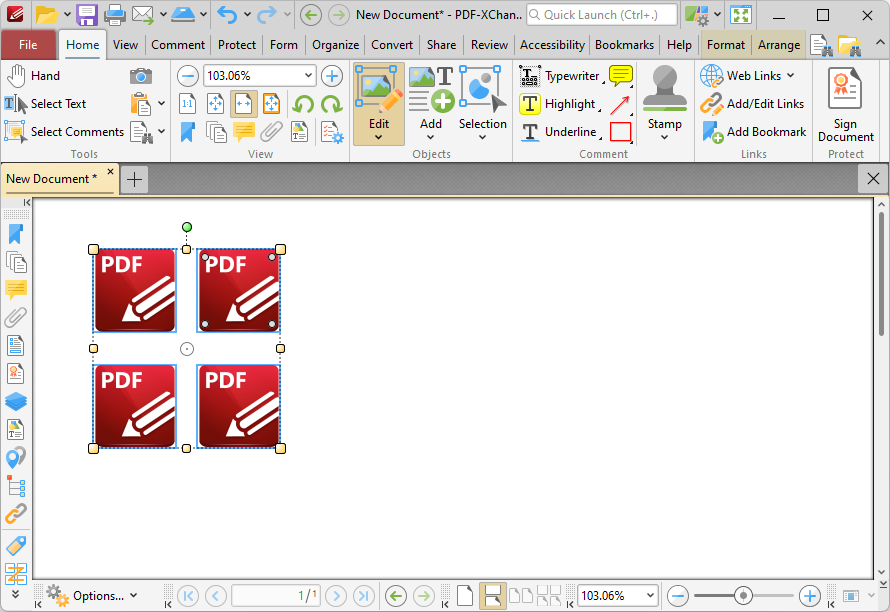
Figure 8. Arrange Tab, Alignment, Distribute and Size Groups Highlighted
•Click Left to align images to the left edge of the first image added to the document.
•Click Top to align images to the top edge of the first image added to the document.
•Click Centre to align images to the vertical centre of the first image added to the document.
•Click Middle to align images to the horizontal middle of the first image added to the document.
•Click Right to align images to the right side of the first image added to the document.
•Click Bottom to align images to the bottom edge of the first image added to the document.
•Click Horizontally to distribute images horizontally.
•Click Vertically to distribute images vertically.
•Click Same Size to make all images the same size as the first image added to the document.
•Click Same Width to make all images the same width as the first image added to the document.
•Click Same Height to make all images the same height as the first image added to the document.
Additional Options for Editing Images
Additional options are available for editing images in the right-click shortcut menu for images. Click the Edit Content dropdown menu in the Home tab, then click Images and right-click images to view these options:
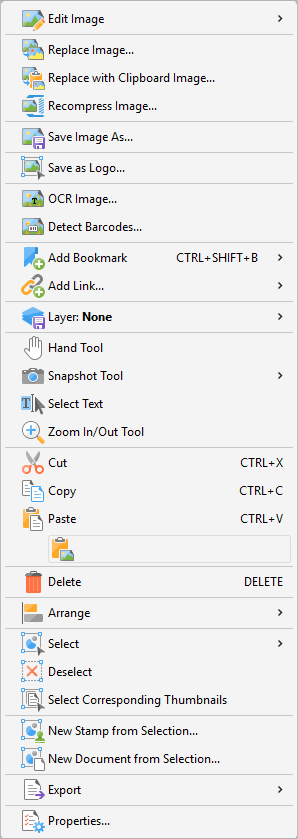
Figure 9. Right-Click Shortcut Menu for Images
•Hover over Edit Image to view editing options for images:
•Click Default Application to edit the image in the default application for editing images. Note that changes made to images in the application will be updated in the current document when the image is saved.
•Click Open With to select a non-default application with which to edit the image. The Open with dialog box will open. Selected the desired application and click OK to launch it.
•Click Edit/Save Images Without Display Transformations to enable/disable this feature. When it is enabled, images can be edited/saved in the state that they were in when added to the document. All subsequent rotations, transformations and scaling operations applied to the image/page are ignored.
•Click Edit All Image Instances to edit all instances of images simultaneously in documents. When this option is enabled and an image is edited, all identical images in the document will be edited in the same manner.
•Click Replace Image to replace selected images with an image from file. Note that replacement images are automatically scaled to match the dimensions of images that they replace.
•Click Replace with Clipboard Image to replace images using the current clipboard content.
•Click Recompress Image to recompress images, as detailed below.
•Click Save Image As to save a copy of selected images to file. The Save File As dialog box will open. Enter a file name in the File name text box, then click Save to save the image.
•Click OCR Image to perform optical character recognition on selected images. The OCR Image dialog box will open. Select the desired language and accuracy then click OK to perform OCR.
•Click Add Bookmark to add a bookmark at the selected location. Further information on bookmarks is available here.
•Hover over Add Link to view the options for adding links:
•Click Add Goto Link to create a link from the selected location to a location within the current document. The Browse for Link Target dialog box will open. Move to and select the desired document location and then click Set Link to create the link.
•Click Add Weblink to create a link from the selected location to an internet location. The Add Action: "Open a Web Link" dialog box will open. Enter the desired URL in the text box and then click OK to create the link.
•Click Add Open File Link to create a link from the selected location to a file on the local computer. The Add Action: "Open a File" dialog box will open. Determine options as detailed here then click OK to create the link.
•Click Add Custom Link to create a custom link. Custom links can be used to create a range of dynamic links, such as links that launch JavaScript actions, move to pages in other documents, open files, execute PDF-XChange Editor commands, reset/submit forms, play sounds and show/hide form fields. The Edit Action List dialog box will open. Determine options as detailed here then click OK to create the link.
•Current Layer displays the current layer to which selected content belongs. Hover over this option to view a list of all layers in the document. Click a layer to move the selected content there, or click New Layer to move the selected content to a new layer. Further information about layers and layer creation is available here.
•Click Hand Tool, Snapshot Tool, Select Text or Zoom In/Out Tool to enable these tools.
•Click Cut, Copy, Paste or Delete to perform these actions on selected content. If you have selected text then additional options are available:
•Click Paste as plain text to paste text as plain text.
•Click Paste as Rich Text to paste text as rich text.
•Hover over Arrange to view arrangement options for selected content:
•Use the Align options to align selected content items.
•Use the Distribute options to distribute selected content items evenly on the horizontal or vertical axis as desired.
•Click Make Same Width/Height/Size to make selected content items the same width/height/size as desired.
•Use the Rotate/Flip options to rotate/flip selected content.
•Click Transform to edit the position, size and/or rotation of selected content, as detailed here.
•Click Duplicate to to duplicate selected content items, as detailed here.
•Click Bring Forward to bring content items forward one step in cases of multiple items overlapping.
•Click Send Backward to send content items back one step in cases of multiple items overlapping.
•Click Bring to Front to bring content items to the front in cases of multiple items overlapping.
•Click Send to Back to send content items to the back in cases of multiple items overlapping.
•Hover over Select to view options for selecting all content of a specific format in documents:
•Click All to select all content items in the document.
•Click Text to select all text in the document.
•Click Images to select all images in the document.
•Click Shapes to select all shapes in the document.
•Click XForms to select all XForms in the document.
•Click Deselect to deselect selected content.
•Click Select Corresponding Thumbnails to select the thumbnails of currently selected content. The corresponding thumbnails will then be selected in the Thumbnails pane.
•Click New Stamp from Selection to create a new stamp from selected content, as detailed here.
•Click New Document from Selection to create a new document from selected content. The new document will open in a new window in PDF-XChange Editor.
•Hover over Export to view export options for selected content, then click Export to Images or Export Selection to Microsoft Word Document/Excel/Powerpoint Presentation as desired. If you are exporting to image format then you can customize options as detailed here. If you are exporting to MS Office format then the Save File dialog box will open. Enter a name/location for the new file and then click Save to export the content.
•Click Properties to open the Page Content Properties pane for selected content. This pane is used to view/edit content properties, as detailed here.