 Sorting Bookmarks
Click the Bookmarks tab, then click Sort Bookmarks to sort bookmarks:
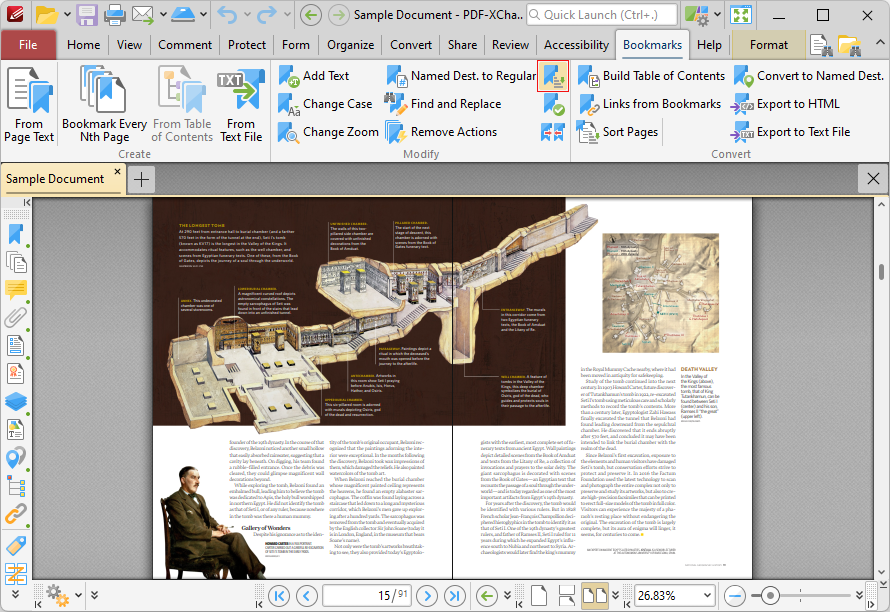
Figure 1. Bookmarks Tab, Sort Bookmarks Highlighted
The Sort Bookmarks dialog box will open:
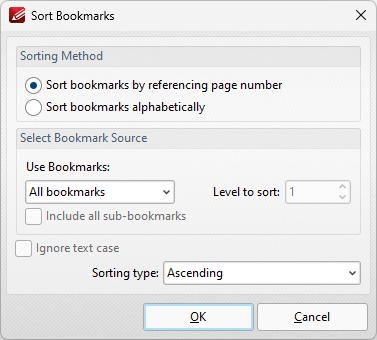
Figure 2. Sort Bookmarks Dialog Box
•Select either Sort bookmarks by referencing page number or Sort bookmarks alphabetically as desired.
•Select an option in the Use Bookmarks dropdown menu to determine the bookmarks to be sorted:
•Select All bookmarks to sort all bookmarks.
•Select Selected bookmarks to sort only selected bookmarks.
•Select Children of selected to sort child bookmarks of the bookmark currently selected.
•Select Bookmark level to sort a level of bookmarks, then use the Level to sort number box to specify the level.
•Select the Ignore text case box to ignore the text case when the sorting bookmarks alphabetically.
•Use the Sorting type dropdown menu to select either Ascending or Descending as the sort mode for bookmarks.
Click OK to sort bookmarks.