 Setting up PDFs for a Presentation
A range of settings in PDF-XChange Editor are designed for setting up PDF documents in order to perform a presentation. The most important of these is the Full Screen mode, which displays the pages of PDF documents at maximum size within the user interface and hides most of the toolbars and other UI features. This enables the intended audience to focus on the content of the document itself. Additionally, you can adjust the settings for the initial page view of the document, which determine how it appears when it is first opened, and set page transitions, which determine the visual effect when moving between pages, as well as a range of additional preferences, as detailed below.
Full Screen Preferences
Click the File tab, then click Preferences and select the Full Screen category to determine Full Screen Preferences:
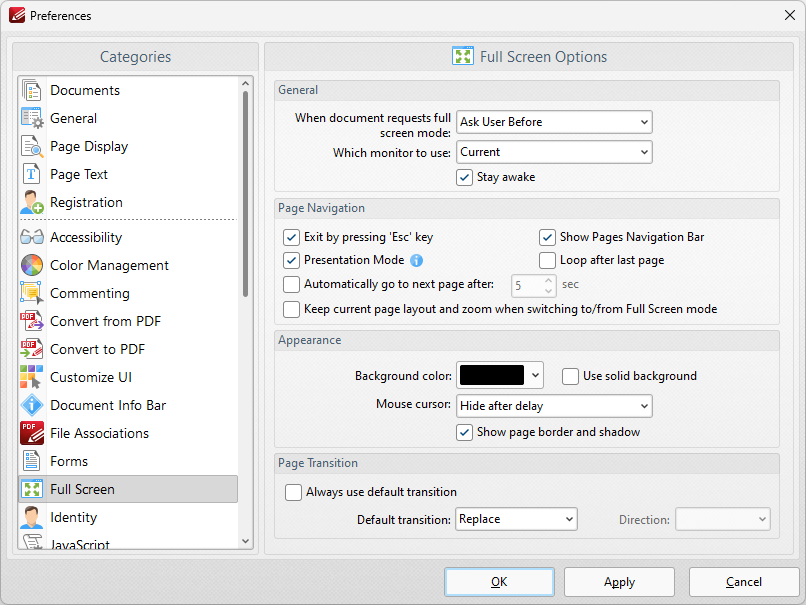
Figure 1. Preferences Dialog Box, Full Screen Category
•The General settings determine parameters for full screen mode:
•Use the upper dropdown menu to determine what happens when documents request full screen mode.
•Use the lower dropdown menu to determine which monitor is used for full screen mode.
•Select the Stay awake box to prevent the computer from going into screensaver/sleep/hibernate mode.
•The Pages Navigation settings determine navigation parameters for full screen mode:
•Select the Exit by pressing 'Esc' key box to enable the use of the Esc key to exit full screen mode.
•Select the Show Pages Navigation Bar to enable the Page Navigation Toolbar when full screen mode is active.
•Select Presentation Mode to enable Presentation Mode when full screen is enabled. This is a unique mode that is designed for giving presentations. When it is enabled the following settings are active:
•Left-click moves to next page.
•Right-click moves to previous page.
•Press 'B' or 'W' to make the entire screen black or white.
•Press 'P' to pause/resume the automatic scrolling of documents.
•Commenting is disabled.
•Select the Loop after last page box repeat documents when the last page is reached and Presentation Mode is enabled.
•Select the Automatically go to the next page after box to enable the automatic page-browsing feature. Enter a value in number box to determine the rate of browsing.
•Select/clear the Show page border and shadow box as desired.
•The Appearance settings determine further options of the software when full-screen mode is enabled:
•Use the Background color dropdown menu to determine a background color when full screen mode is enabled.
•Select the Use solid background box set a solid background color in full screen mode.
•Select an option from the Mouse Cursor dropdown menu to determine the setting for the mouse cursor in full screen mode.
•The Page Transition settings determine the page transition settings:
•Select the Always use default transition box to use the transition determined in the dropdown menu immediately below.
•Select an option from the Default Transition menu to determine the page transition style in full screen mode.
•Use the Direction dropdown menu to determine the direction of the transition style selected in the Default transition dropdown menu.
Click Apply to apply changes and OK to save changes.
Once you have determined the settings as desired, and connected PDF-XChange Editor to a presentation device, click the Full Screen option to begin the presentation:
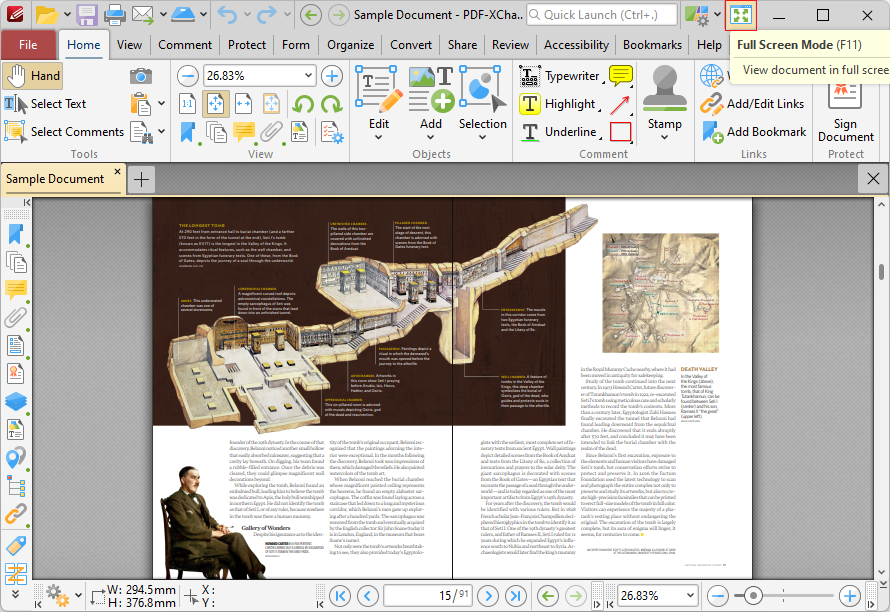
Figure 2. Full Screen Mode Highlighted
Note that you can use the Initial View option in Document Properties to determine the initial view of documents, and to enable full screen mode automatically when they are opened:
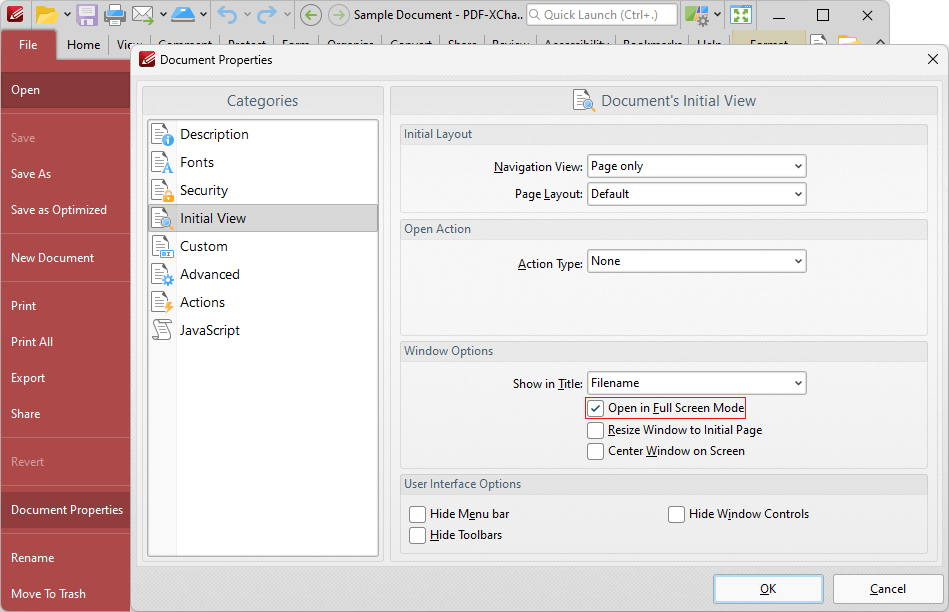
Figure 3. File Tab, Document Properties, Initial View Options