 Navigating the Workspace
PDF-XChange Editor contains multiple features that enable the navigation of documents in the workspace:
Browsing Open Documents
The Hand Tool is the default tool in PDF-XChange Editor, and it is used to browse through documents. It is available on the left side of the interface in most of the ribbon tabs:
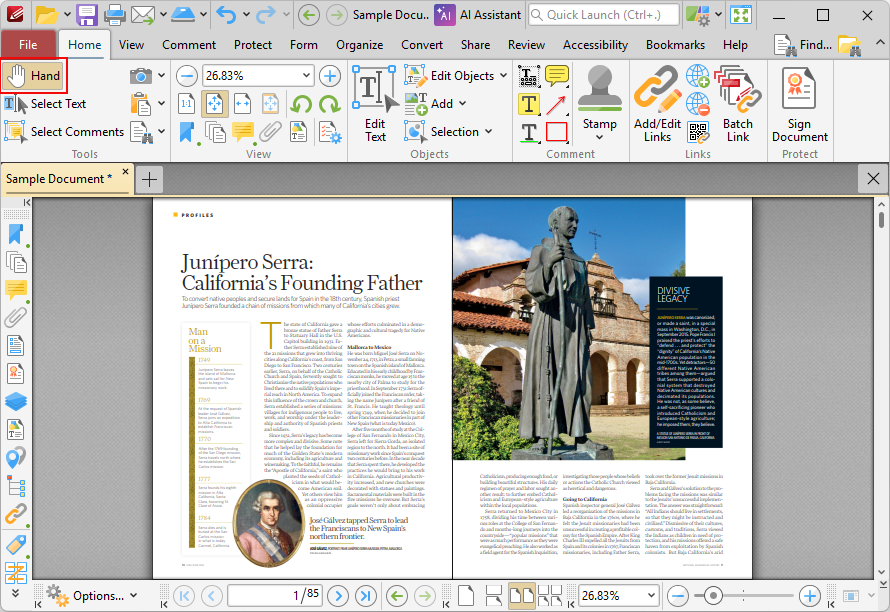
Figure 1. Home Tab, Hand Tool Highlighted
Click the Hand Tool icon to select it, then click and drag on empty document space to scroll through pages. If you are using a different tool and want to switch briefly to the hand tool, then press and hold the space bar in order to enable the hand tool temporarily.
Note that the Page Navigation Toolbar, detailed below, also provides several useful shortcuts for browsing open documents.
Using Autoscroll
Autoscroll can be used to scroll through documents at a continuous, steady rate until the end of the document is reached. If you use the Page Navigation toolbar to move to a new document location/view when autoscroll is enabled, then the auto-scrolling will continue from the new location. Click the View tab, then click Autoscroll to enable/disable autoscroll:
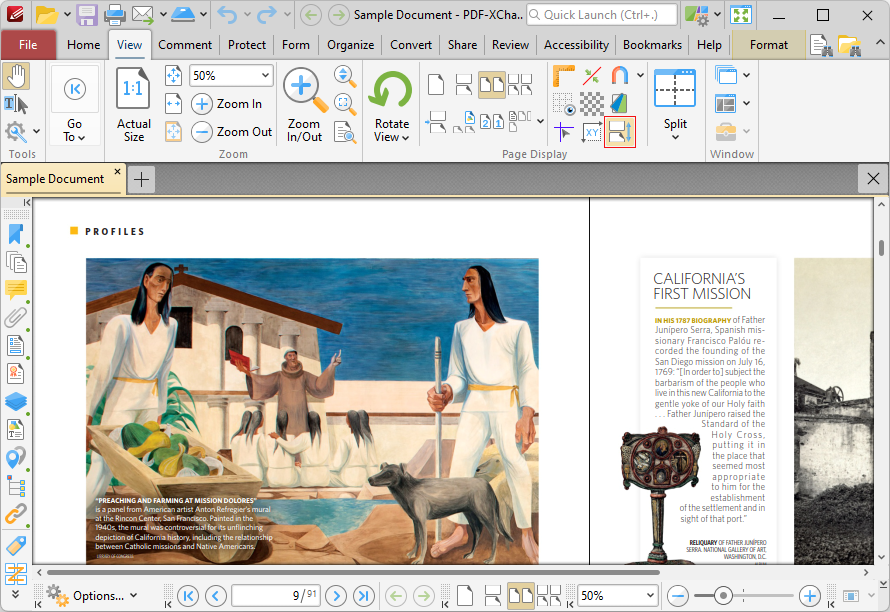
Figure 2. View Tab, AutoScroll Highlighted
Use the up and down arrows to adjust the autoscoll speed, and/or press the minus key to change the autoscroll direction.
Retracing the Viewing Path
The Page Navigation Toolbar can be used to navigate documents. The buttons on the Page Navigation Toolbar can be used to move between the previous/next pages and previous/next views. When you are navigating documents, it is often useful to be able to move between the most recent sequence of views and thus retrace your viewing path of the document. For example, if you have used the Thumbnails pane to move between pages of a document that are not located next to each other, then you can use the options in the Page Navigation Toolbar to move backwards/forwards between the pages that you viewed. The Page Navigation Toolbar is located at the bottom of the user interface:
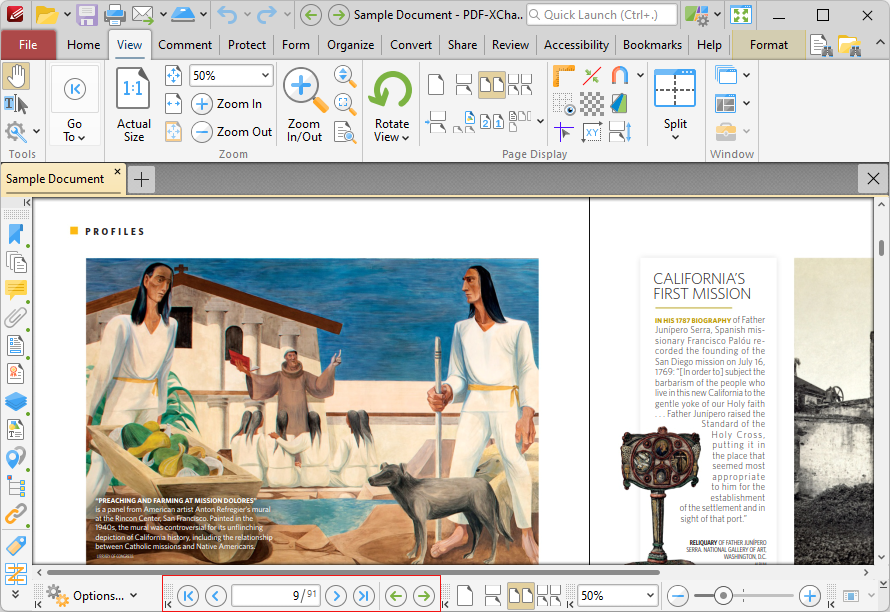
Figure 2. Page Navigation Toolbar
•Click the blue arrow icons to move to the first page, previous page, next page or last page of documents.
•Click the green arrow icons to move between the most recent views within documents.
•The number box at the center shows the current page and the total number of pages in the active document. Enter a page number and press Enter to move to it.