 Managing and Editing Comments
There are a range of features and functionality in PDF-XChange Editor that you can use to manage and edit comments. These options are available in the Comment tab:
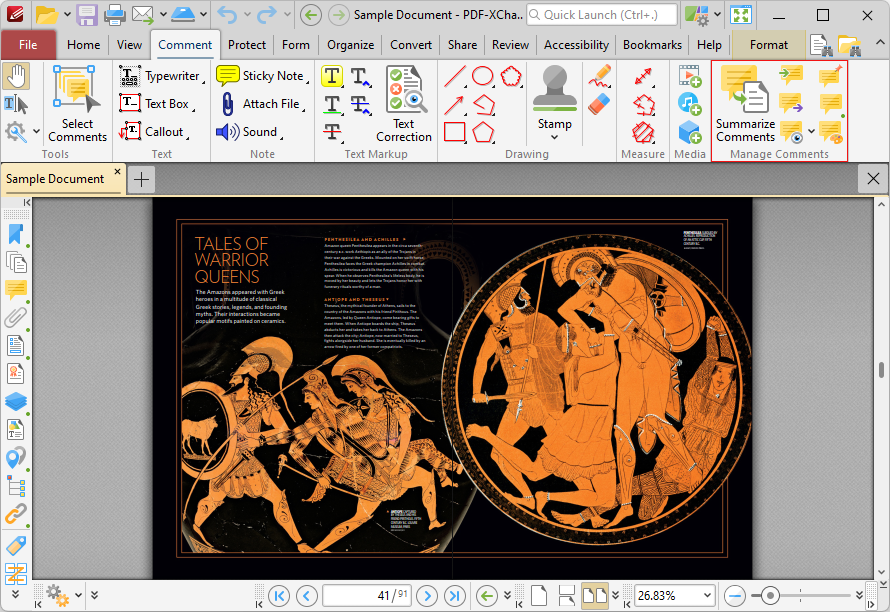
Figure 1. Comment Tab, Manage Comments Group Highlighted
•Click Summarize Comments to create a summary of comments in the current document, as detailed here.
•Click Import to import comments to the current document from file, as detailed here.
•Click Export to export comments from the current document to file, as detailed here.
•Click the Show dropdown menu to determine which comments are shown/hidden in the current document, as detailed here.
•Click Flatten to flatten comments to base content, as detailed here.
•Click Comments List to open/close the Comments pane.
•Click Comment Styles to open the Comment Styles Palette and edit comment styles, as detailed here.
Additionally, please note that several of the keyboard shortcuts relate to comments. See here for a comprehensive list of available shortcuts.