 Adjusting Page Display and Layout Options
A range of page layout and viewing options are available in PDF-XChange Editor:
Page Layout
The Page Layout Toolbar is used to determine how pages are displayed in the main window:
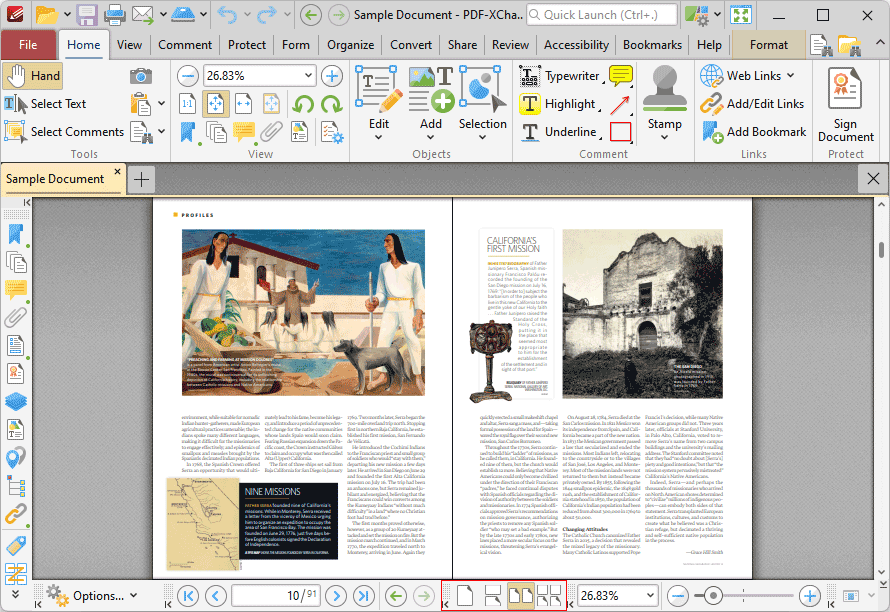
Figure 1. PDF-XChange Editor UI, Home Tab, Page Layout Toolbar Highlighted
•Single Page displays one page at a time.
•Continuous displays single pages continuously.
•Two Pages displays two pages at a time.
•Two Pages Continuous displays two pages continuously.
The Page Zoom toolbar is used to determine the zoom level:

Figure 2. Page Zoom Toolbar
Enter the desired zoom level and press Enter to move to it, or select an option in the dropdown menu. Alternatively, use the slider to adjust the zoom level manually.
View Tab
The commands in the View tab can also be used to determine page display and zoom options:
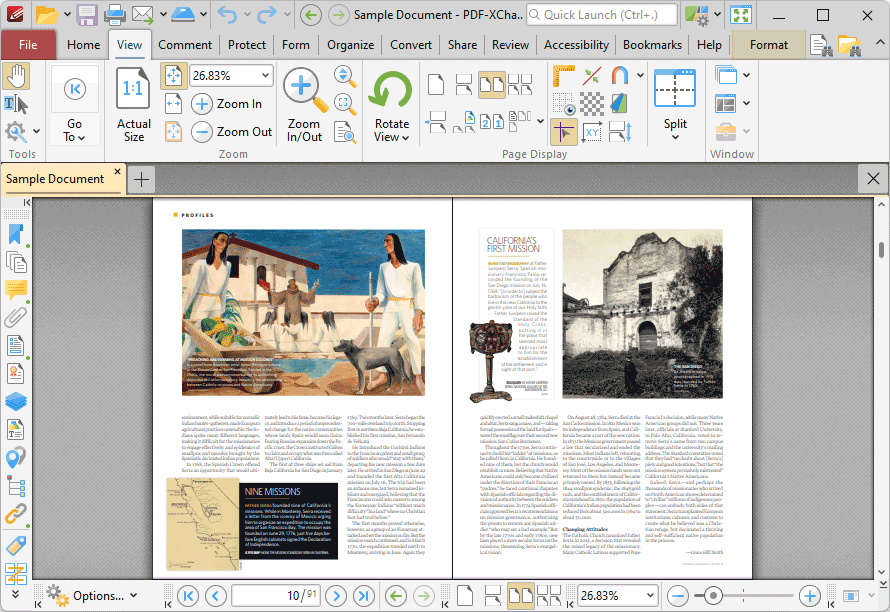
Figure 3. View Tab, Page Display Options
•Click  Actual Size to set the zoom level to 100% and view pages at their actual size.
•Click  Fit Page to fit the page length to the editing space of the user interface.
•Click Fit Width to fit the page width to the editing space of the user interface.
•Click  Fit Visible to fit the page width to the editing space of the user interface and ignore white page margins.
•Click  Zoom In or
  Zoom Out to zoom in on/out from the active document.
•Click  Zoom In/Out Tool to zoom in on/out from the active document. The pointer becomes a magnifying glass icon when this tool is enabled. Move it to the desired location and then click to zoom. Hold down Ctrl and click to zoom out.
•Click  Loupe Tool to enable the Loupe Tool, which utilizes a zoom pane that magnifies page portions to assist in document editing. Further information on this tool is available here.
•Click  Pan and Zoom Tool to enable the Pan and Zoom Tool, which utilizes a zoom pane that enables dynamic page navigation. Further information on this tool is available here.
•Click  Rotate View to view rotation options:
•Click Rotate CCW to rotate the current view ninety degrees counter-clockwise.
•Click  Rotate CW to rotate the current view ninety degrees clockwise.
Please note that rotations are intended for viewing/editing purposes only and will not be saved. (The Rotate Pages feature can be used to rotate pages permanently).
•Click  Single Page to display documents one page at a time.
•Click  Continuous to display documents one page at a time continuously.
•Click  Two Pages to display documents two pages at a time.
•Click  Two Pages Continuous to display documents two pages at a time continuously.
•Click  Show Gaps Between Pages to enable/display the display of gaps between pages.
•Click  Show Cover Page in Two Pages View to include/exclude the first page of documents in Two Pages/Two Pages Continuous layout when these modes are enabled.
•Click  Right-to-Left Page Layout to enable/disable right-to-left page layout when the Two Pages/Two Pages Continuous modes are enabled.
•Click  Page Layout to switch between Standard Layout, which displays pages in top-to-bottom order, and Ribbon Layout, which displays pages in left-to-right order.
•Click  Show Rulers to show/hide rulers, which can be used to assist in measuring documents and document content. The Rulers feature is detailed here.
•Click  Thin Lines to enable/disable the Thin Lines feature, which displays all annotation lines at a thickness of one pixel. This is a useful feature in cases where important document content is obscured as a result of multiple annotations/annotations with large borders. Annotation lines are those created using the annotation tools, which are detailed here.
•Click  Snap to enable/disable the Snapping feature, which is used to assist in the placement of document content, as detailed here.
•Click  Show Grid to enable/disable the editing grid. The editing grid is transposed onto documents and used to ensure that objects are aligned correctly.
•Click  Transparency Grid to enable/disable the transparency grid. A grid is displayed behind transparent objects when this option is enabled.
•Click  Page Transitions to determine how PDF-XChange Editor transitions between pages when fullscreen mode is enabled. The Page Transition settings are detailed here.
•Click  Show Guides to show/hide guides, which are used in conjunction with rulers to simplify the process of aligning document objects. Click and drag from rulers to launch guides, as detailed here.
•Click  Show Page Size/Position to show/hide the current page size and pointer location. These details are displayed in the Document Options toolbar, which is in the lower-left section of the user interface.
•Click  Autoscroll to enable/disable autoscroll, which scrolls automatically through documents. The keyboard shortcut to enable/disable autoscroll is Ctrl+Shift+H. Use the up and down arrows to adjust the autoscoll speed, and/or press the minus key to change the autoscroll direction.
•Click  Split to split the current document into two views, which is a useful editing aid. Click the dropdown arrow to select Horizontal Split, Vertical Split or Spreadsheet Split as desired.