 Adding/Editing Attachments in PDFs
PDF-XChange Editor can be used to view, add and edit links to PDF documents. When a document is attached to a PDF, it moves with the PDF whenever the PDF is moved to a new location. Attachments can include links to/from the parent document or to other attachments, and provide a useful method for grouping associated documents together.
Adding Attachments to PDFs
1. Click the View tab, then click the Panes dropdown menu and click Attachments:
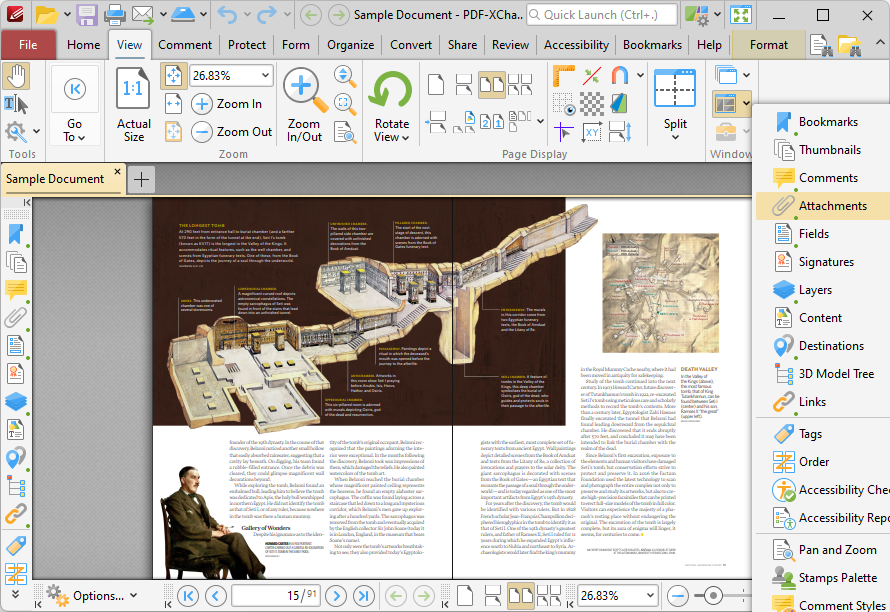
Figure 1. View Tab, Panes Dropdown Menu, Attachments Pane Selected
The Attachments pane will open:
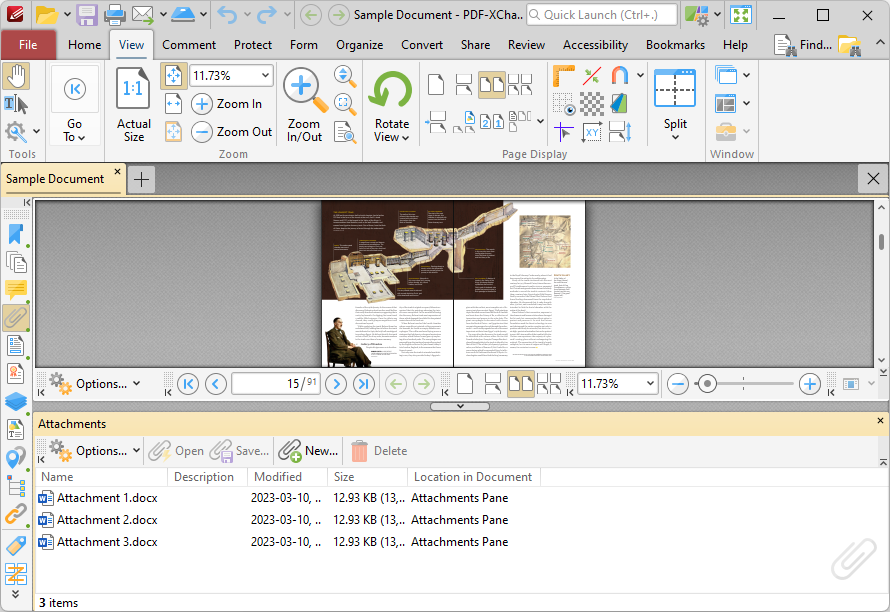
Figure 2. Open Attachments Pane
2. Click New to add a new attachment to the document. The Open Files dialog box will open. Select the desired files and click Open to add them as attachments. Alternatively, click and drag documents into the Attachments pane. The following options are also available for attachments:
•Double-click attachments, or click Open, to open attachments.
•Click Save to save selected attachments to file.
•Click Delete to delete to delete selected attachments
Searching Attachments
If you want to search the text of attached documents, then you can perform a modified execution of the Search feature:
1. Click Search in the top-right section of the user interface.
The Search pane will open.
2. Click the Options dropdown menu, then click Include Attachments:
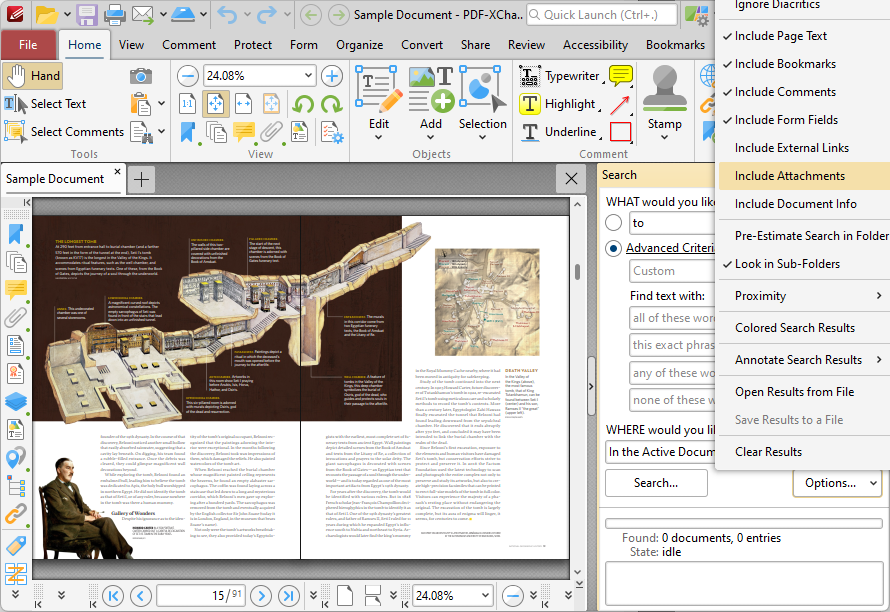
Figure 3. Search Pane, Options Dropdown Menu, Include Attachments Highlighted
3. Enter the desired search terms and then click Search to search attachments. Further information on the Search feature is available here