 Find and Search Features
Click Find (or press Ctrl+F) to launch the Find function:
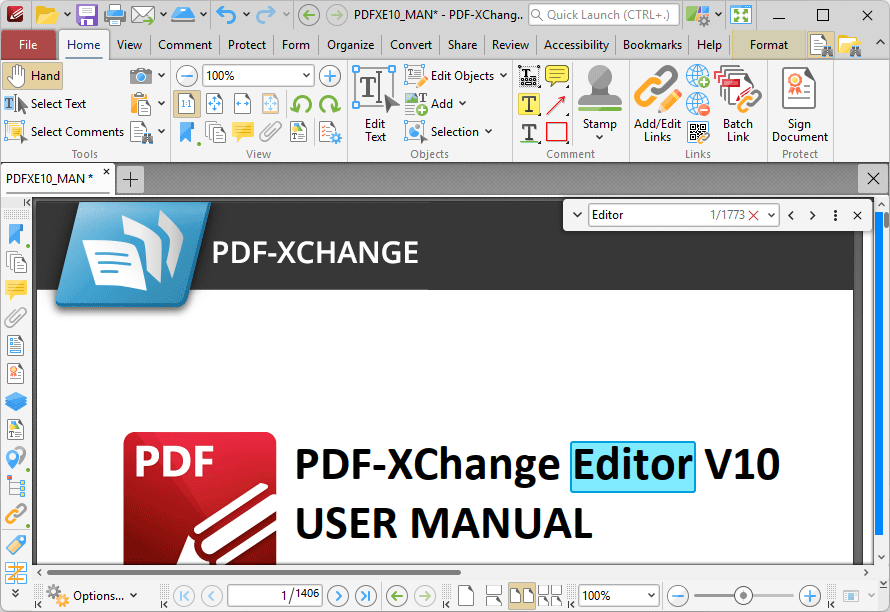
Figure 1. Find Function
The Find function is used to find specified text in the current document:

Figure 2. Find Function
•Enter the search terms in the text box and press enter to search the active document. Text that matches the search terms will be highlighted. Click the red 'x' icon, detailed in (figure 1), to reset the search.
•Use the arrow in the text box to browse previous searches.
•Use the second arrow to customize the parameters and location of searches.
•Use the left and right arrow icons, or press F3/Shift+F3, to move backwards and forwards between search results.
Find and Replace
Click the arrow on the left side of the find function to enable the Find and Replace feature:
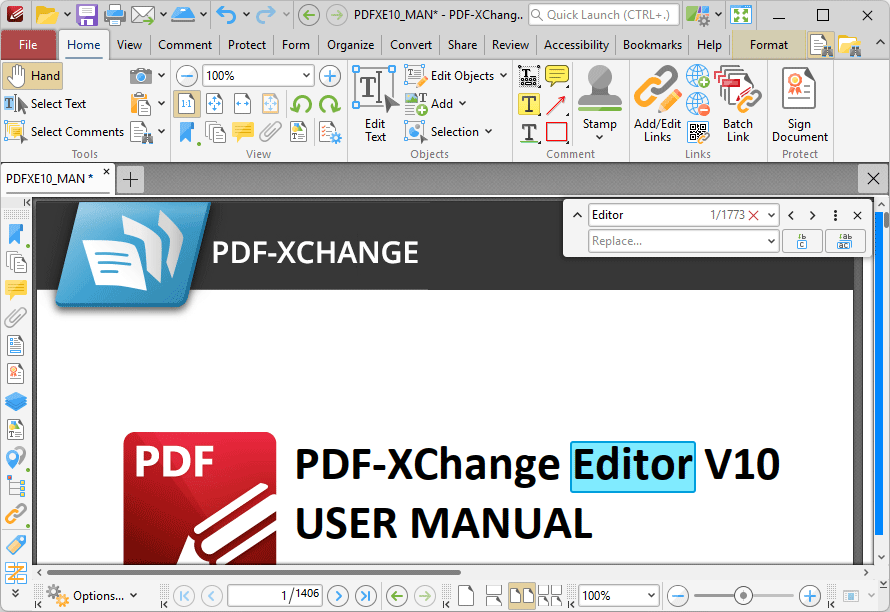
Figure 3. Find and Replace
You can use this feature to search for and replace words in documents. Simply enter the words that you want to find in the upper text box, then enter the words you want to replace them with in the lower text box. You can then click Replace to replace each instance one at a time, or Replace All to replace all instances in one go.
Search
Click Search (or press Ctrl+Alt+F) to launch the Search pane:
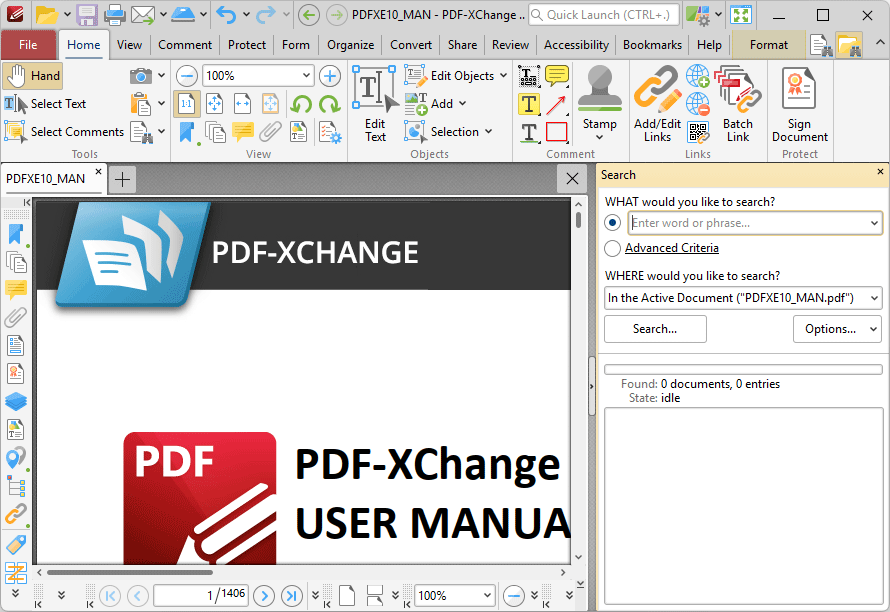
Figure 1. Search Function
The Search pane is used to search documents open in PDF-XChange Editor or folders on the local computer:
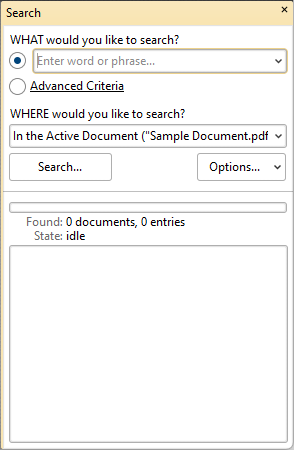
Figure 2. Search Pane
•Enter the search terms in the upper text box or select Advanced Criteria, which is explained below.
•Use the lower text box to select where the search will take place:
•In the Active Document searches only the active document.
•In All Open Documents searches all documents currently open in PDF-XChange Editor.
•In All Documents from this Window searches all documents open in the current window of PDF-XChange Editor.
•Browse for Folder launches the Select Folder dialog box. Select the desired folder on the local computer and then click Select. The folder will be added to the search location box.
•Click the Options button to determine further search variables. These are explained beneath (figure 4) below.
•If you want to search for a specific combination of words then enter the words in double quotations.
•Click the Search button to execute the search. The results will be displayed in the lower section of the pane.
Click Advanced Criteria to enable additional search options:
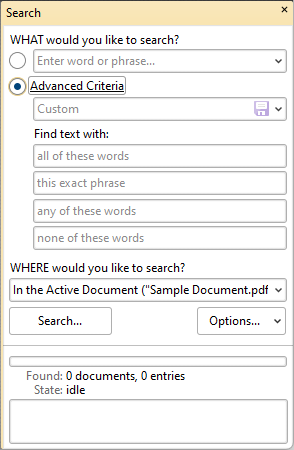
Figure 3. Advanced Criteria Options
•Use the arrow on the right side of the Custom text box to select a predefined search. If no searches have been predefined then the Custom option is not available. Click the blue disk icon to save custom search terms as a predefined search for subsequent use.
•Use any combination of the three Find text with: text boxes to determine the search parameters:
•If search terms are entered in the all of these words text box, then the results will include only text strings that contain all the entered search terms.
•If search terms are entered in the any of these words text box, then the results will include text strings that contain any of the entered search terms.
•If search terms are entered in the none of these words text box, then the results will exclude text strings that contain any of the entered search terms.
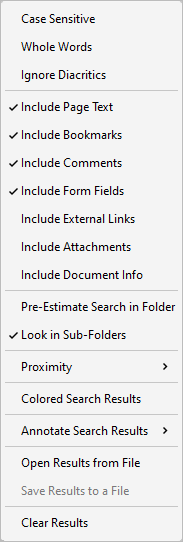
Figure 4. Search Options
•Select Case Sensitive to include the case of search terms in the search.
•Select Whole Words to return only whole words.
•Select Ignore Diacritics to ignore accents, cedillas and other similar symbols in the search.
•Select Include Page Text to include text on pages of the document in the search.
•Select Include Bookmarks to include bookmark names in the search.
•Select Include Comments to include comment text in the search.
•Select Form Fields to include form field text in the search.
•Select Include External Links to include links to external locations/files in the search.
•Select Include Attachments to include embedded documents in the search.
•Select Include Document Info to include document metadata/information in the search.
•Select Pre-Estimate Search in Folder to have PDF-XChange Editor perform a folder count prior to the search. This facilitates exact search progress in the progress bar when searches take place.
•Select Look in Sub-Folders to include all directory subfolders in the search.
•Select Proximity to determine the proximity of returned results. The options are:
•Only Adjacent Words
•Words from the Same Paragraph
•Words from the Same Page
•Words from the Same Document
•Select Colored Search Results to highlight matching terms after the search has taken place.
•Click an option in the Annotate Search Results submenu to enable annotation options after the search has taken place. The options are:
•Highlight Search Results
•Underline Search Results
•Strikeout Search Results
•Redact Search Results
•Click Comment Styles Palette to launch the Comment Styles Palette for further annotation options.
•Click Open from file to open a previous search that was saved to file using the option below.
•Click Save Results to save the results of the most recent search operation.
•Click Clear Results to the clear the search results list.