 License Keys and the Windows Registry
License keys applied to PDF-XChange products during can be available on either a Per Machine or Per User basis depending on how they are installed.
When the software starts it look to both HKLM and HKCU, specifically:
oHKEY_LOCAL_MACHINE\SOFTWARE\Tracker Software\Vault
oHKEY_CURRENT_USER\SOFTWARE\Tracker Software\Vault
and uses any valid keys found.
Adding keys to HKLM requires elevated rights, the application installers also require elevated rights. The impact of this is that keys passed to the installer are always "Per Machine" as the key will be placed in HKLM.
Adding keys post install defaults to Per User unless an elevated command prompt is used to call XCVault.exe with the /M option. (See XCVault Command line options.)
Using the GUI to add a license, even is using "The Administrator" account for a machine will put the key in HKCU as the software is running as that user, it goes into the Administrator's HKCU - not HKLM.
To reiterate - to have a Per Machine key it MUST be applied during install or by calling XCVault.exe with elevated rights AND /M
This exasmple shows a 10 user "Per Machine" key that is in HKLM and a single user key in HKCU:
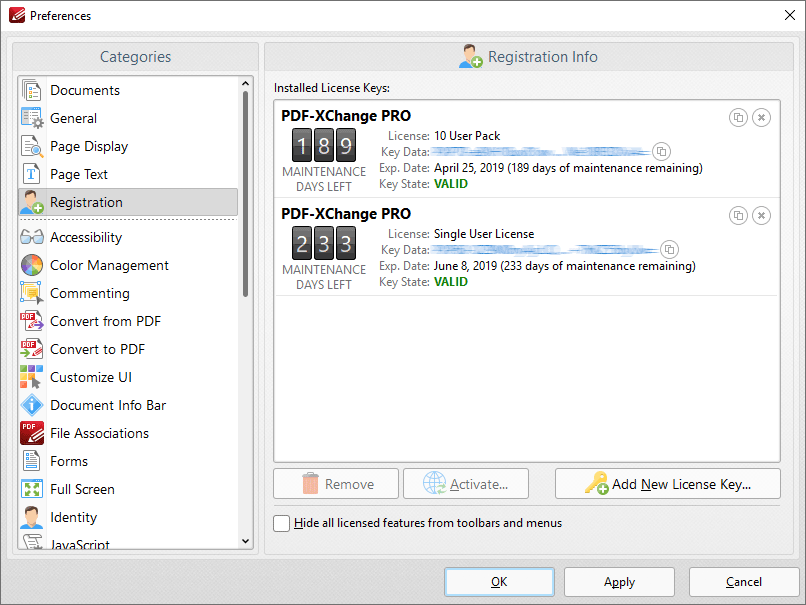
Figure 3. PDF-XChange Editor Registration Preferences, Keys for HKLM and User-Specific HKCU Displayed
One advantage of this method is that separating keys into All Users/Per User enables the creation of a mixed licensing environment in which some users have access to all features of the software and other users have access to only the free features. This is of particular benefit on Terminal Servers (RDS) where it may be necessary to limit the number of licensed users but still make the unlicensed version available to other users.
Per-User License Application
Keys must be applied from within a user's Windows session in to apply them in a per-user context, as this ensures that the key is stored in that user's HKCU. This can be performed:
By the in-session user:
•Through the application GUI - either during installation, or via the application preferences after installation.
•Using XCVault.exe at the command line or in a script.
•Double-clicking the key file.
Remotely/unattended:
•As a login, runonce or other script that runs as the user.
•Via a Group Policy script applied to the user context.
Note that copying the registry key from an installed machine will not be sufficient without taking additional steps, as the keys are encrypted with machine-specific seeds. Further information about this process is available here.
Per-Machine License Application
Keys must be placed in HKLM in order to be applied for all users. This requires administrative rights and can be performed:
•During installation - keys applied during installation are always placed in HKLM and available to all users.
•Through an administrator's account (or unattended) using XCVault.exe at the command line or in a script.
Note that applying the key through the GUI (for example via the application preferences or double-clicking the xcvault file) will not put the license in HKLM as desired, but in HKCU for the administrator's account.