 Applying Keys After Product Installation
PDF-XChange licenses can be downloaded from your account in two forms:
As a KeyFile - a file with the extension .xcvault that contains licensing information and the license key string.
•Users can double-click KeyFiles to apply a per-user license.
•KeyFiles can be passed to XCVault.exe.
•KeyFiles can be passed to an installer
As KeyData - the license key string.
•Can be copy/pasted into the software GUI to apply a per-user license.
•Can be passed to XCVault.exe.
•Can be passed to installers.
XCVault.exe
The XCVault.exe utility is put in %programfiles%\Tracker Software\Vault when PDF-XChange products are installed, and .xcvault license files are associated with it.
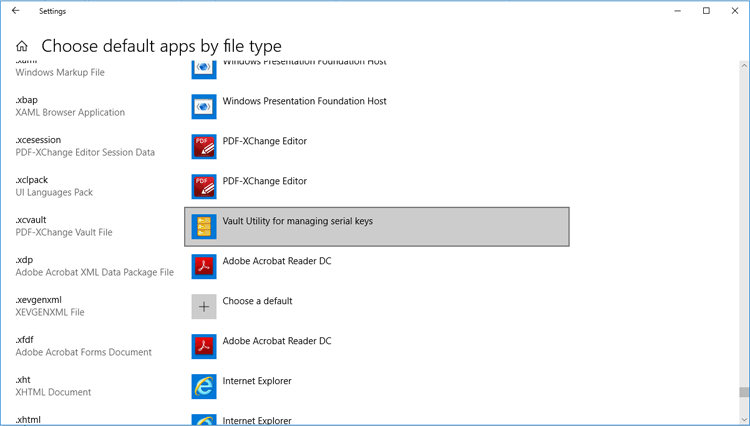
Figure 1. Windows Settings, Default Apps by File Type
All the options available to XCVault.exe are detailed here.
KeyFiles can be passed to XCVault.exe by using the switch /AddKeys:
xcvault.exe [/AddKeys] <xcvault_file> [/M|/S|/R]
/M – specifies that new keys are added in the HKEY_LOCAL_MACHINE registry section and administrative rights are required.
/S – specifies that the command is not permitted to show error/information messages.
/R – specifies that new keys will be unencrypted when added. Please note that this does not affect existing keys.
KeyData can be passed to XCVault.exe by using /AddKeyData:
xcvault.exe [/AddKeyData] <key string> [/M|/S|/R]
/M – installs key into HKLM for per-machine use. This option requires administrative rights. If this option is not specified then key will be installed in HKCU for per-user use, and administrative rights are not required.
/S – specifies that the command is not permitted to show error/information messages.
/R – specifies that new keys will be unencrypted when added. Please note that this does not affect existing keys.
Use a script to apply licenses remotely/in an unattended setup by calling XCVault.exe and passing the license key to it.
Per-user licensing requires that XCVault.exe is run as the target user. A logon script or Group Policy based script can also be used and, it must be run in the user session so it can put the key in the user's HKCU hive at:
HKEY_CURRENT_USER\Software\Tracker Software\Vault
Per-machine licensing requires that XCVault.exe is run with elevated rights. This will put the key in the HKLM hive at:
HKEY_LOCAL_MACHINE\SOFTWARE\Tracker Software\Vault
Per-User Examples Run as the Target User
xcvault.exe /AddKeys "c:\\UNC\path\to\Personal.xcvault" - Adds the license defined in Personal.xcvault to HKCU that applies to only the current user.
xcvault.exe /AddKeys "c:\\UNC\path\to\Personal.xcvault" /S - Adds the license defined in Personal.xcvault to HKCU that applies to only the current user, and suppresses information about the result.
xcvault.exe /AddKeys "c:\\UNC\path\to\Personal.xcvault" /R - Adds the license defined in Personal.xcvault in plain text (not encrypted) to HKCU that applies to only the current user.
xcvault.exe /AddKeyData "PXP10-CxL56n1SDEgUuF...+LB7kDyA" - Adds the license defined in "<KEYDATA>" to HKCU that applies to only the current user.
xcvault.exe /AddKeyData "PXP10-CxL56n1SDEgUuF...+LB7kDyA" /S - Adds the license defined in "<KEYDATA>" to HKCU that applies to only the current user, and suppresses information about the result.
xcvault.exe /AddKeyData "PXP10-CxL56n1SDEgUuF...+LB7kDyA" /R - Adds the license defined in "<KEYDATA>" in plain text (not encrypted) to HKCU that applies to only the current user.
Per-Machines Examples Run as Admin - /M is Required
xcvault.exe /AddKeys "c:\\UNC\path\to\Personal.xcvault" /M /R - Adds the license defined in Personal.xcvault in plain text (not encrypted) to HKLM that applies to all users. This must be run with elevated privileges.
xcvault.exe /AddKeyData "PXP10-CxL56n1SDEgUuF...+LB7kDyA" /M /R - Adds the license defined in "<KEYDATA>" in plain text (not encrypted) to HKLM that applies to all users. This must be run with elevated privileges.
Please note the following when using xcvault.exe to perform unattended installations:
•The command must be issued by the user for whom the license is to be applied.
•System accounts can only be used for per-machine licensing. They cannot be used for per-user licensing, as they do not have access to the target user's HKCU registry hive.
•Although relative paths can be used, using the full literal paths to both the xcvault.exe executable and the .xcvault file is recommended.
•An .xcvault file can only be used on a network resource when the user running the command has read access to the file.