 Applying Keys After Product Installation
After installation has taken place, it is possible to deploy license keys on either a per-user or per-machine basis. License keys can be deployed through a GUI session or unattended in both cases. When PDF-XChange products are installed, the default setup installs a utility called XCVault.exe and associates .xcvault files with that utility:
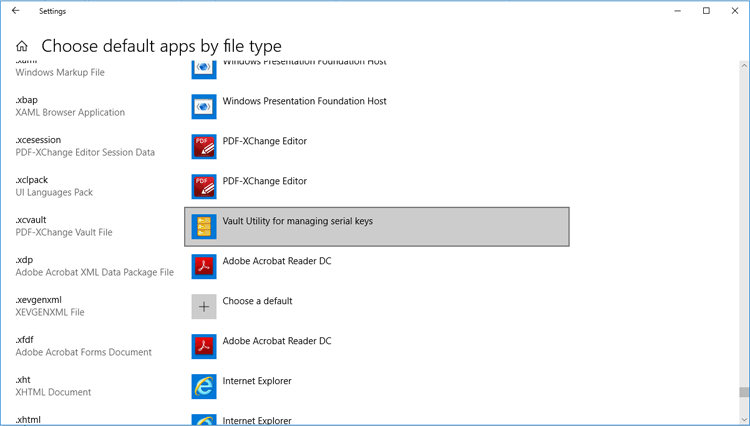
Figure 1. Windows Settings, Default Apps by File Type
.xcvault files are files that PDF-XChange provide that contain the license information and serial key. The default location of XCVault.exe is:
%programfiles%\Tracker Software\Vault\XCVault.exe.
Per User
Using Key File
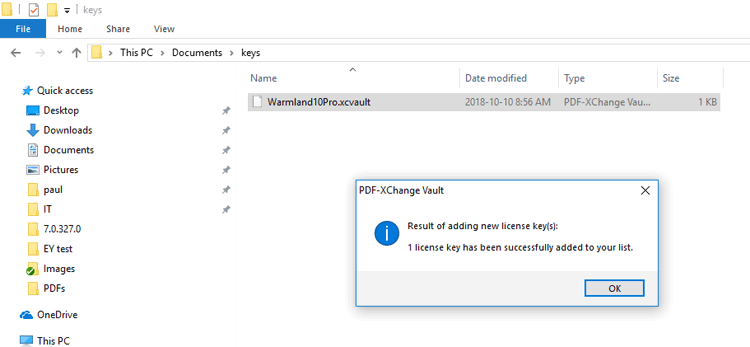
Users can simply double-click the .xcvault key file in order to apply their license key, which will then apply even when no PDF-XChange products are running:
| Using Key Data |
The "key data" is the license key string, which can be entered via the GUI of the products:
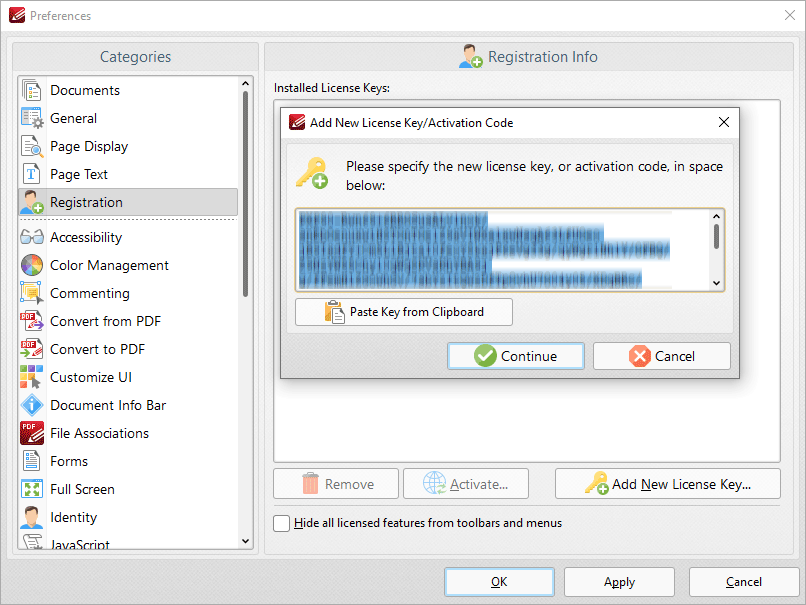
Figure 2. PDF-XChange Editor GUI, Registration Preferences, Add New License Key Dialog Box
Use the XCVault.exe in conjunction with the /AddKeys command line in order to apply licenses remotely/in an unattended setup. Further information about the XCVault.exe utility and its options is available on the licensing page of the online manuals:
•The licensing page for PDF-XChange Editor is available here.
•The licensing page for PDF-Tools is available here.
•The licensing page for PDF-XChange Printer Standard is available here.
•The licensing page for PDF-XChange PRO is available here.
Please note that the XCVault utility must be run as the logged-in user. The simplest way to achieve this is through the use of a login script. The most common reason for the failure of unattended installations is when pushing scripts that run under a system account that does not have access to the current user's HKCU hive.
Examples
"%programfiles%\Tracker Software\Vault\XCVault.exe" /AddKeys "\\UNC\path\to\Personal.xcvault"
"C:\Program Files\Tracker Software\Vault\XCVault.exe" /AddKeys "C:\Users\fred\Desktop\Personal.xcvault"
Please note the following when using XCVault.exe to perform the unattended installation of a license key on a per-user basis:
•XCVault.exe can only be used in conjunction with .xcvault files and does not accept the license key itself.
•The command must be issued by the user for whom the license is to be applied. System accounts cannot be used as they do not have access to the target user's HKCU registry hive.
•Although relative paths can be used, using the full literal paths to both the XCVault.exe executable and the .xcvault file is recommended.
•An .xcvault file can only be used on a network resource when the user running the command has read-access to the file
Per Machine
Please note that it is not possible to add a license for all users via the GUI when logged in as an administrator. Using the GUI settings (or the .xcvault file) in that case will place the key in HKCU for the administrator's account and from there it is not available to other users.
Applying license for all users (per machine) after installation for all users requires the use of the XCVault.exe utility with administrative privileges and the /M switch.
Examples
"%programfiles%\Tracker Software\Vault\XCVault.exe" /AddKeys /M "\\UNC\path\to\Personal.xcvault"
"C:\Program Files\Tracker Software\Vault\XCVault.exe" /AddKeys /M "C:\Users\fred\Desktop\Personal.xcvault"
"C:\Program Files\Tracker Software\Vault\XCVault.exe" /AddKeys /M /R "C:\Users\fred\Desktop\Personal.xcvault"
- /R instructs XCVault.exe to apply this key without encryption, which is required for load balancing. See here for further information on this topic.
Appying a License to HKLM
The image below shows a license applied on a per-user basis (and therefore in HKCU):
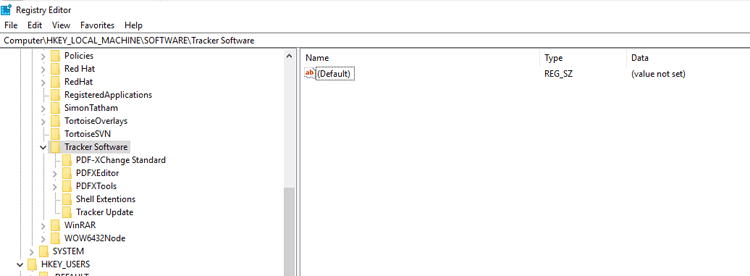
Figure 3. License Applied in HKCU
The following command line (used at an administrative command prompt) can be used to apply the license to be available to all users (HKLM):
"c:\Program Files\Tracker Software\Vault\XCVault.exe" /AddKeys /M "<path to .xcvault file>"
For example:
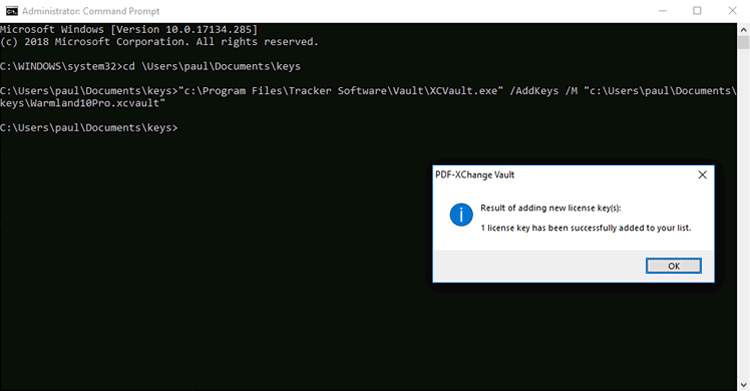
Figure 4. Administrative Command Prompt, Sample Command Line
This puts the license key detailed in (path/to/XCVault file) into HKLM and makes it available to all users:
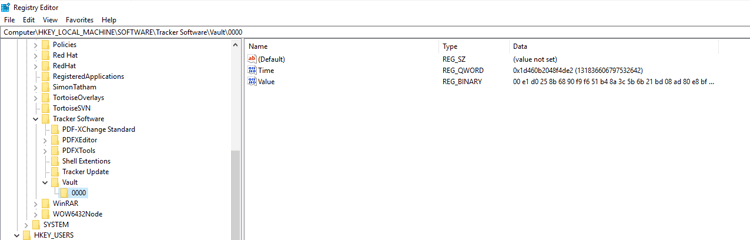
Figure 5. License Key in HKLM