 Using the AI Assistant
Click AI Assistant to open the AI Assitant feature in PDF-XChange Editor:
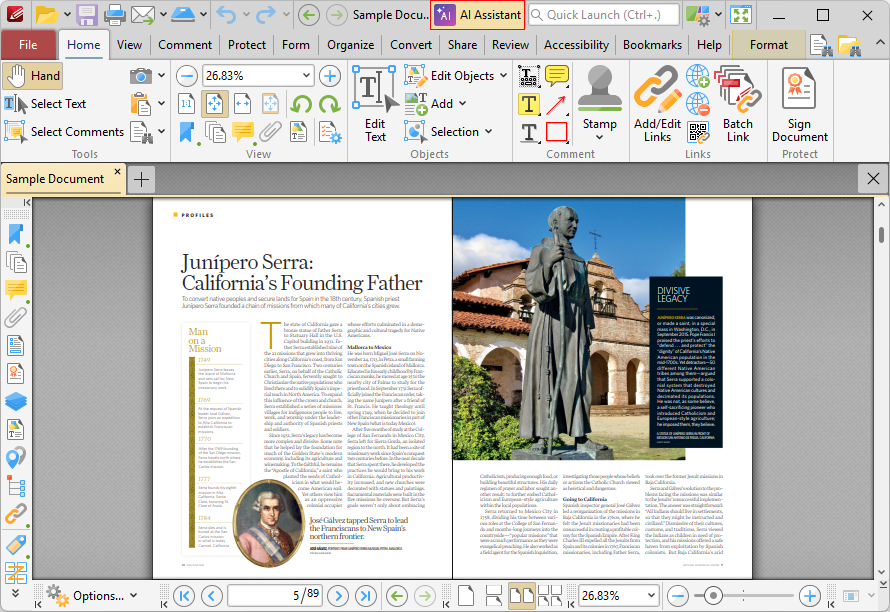
Figure 1. Home Tab, AI Assistant Highlighted
Note that the AI Assistant in PDF-XChange Editor acts as a conduit for your existing AI service. If you don't have an AI service and want to use the AI functionality, please follow the instructions here.
When this feature is enabled, the AI Assistant pane will open:
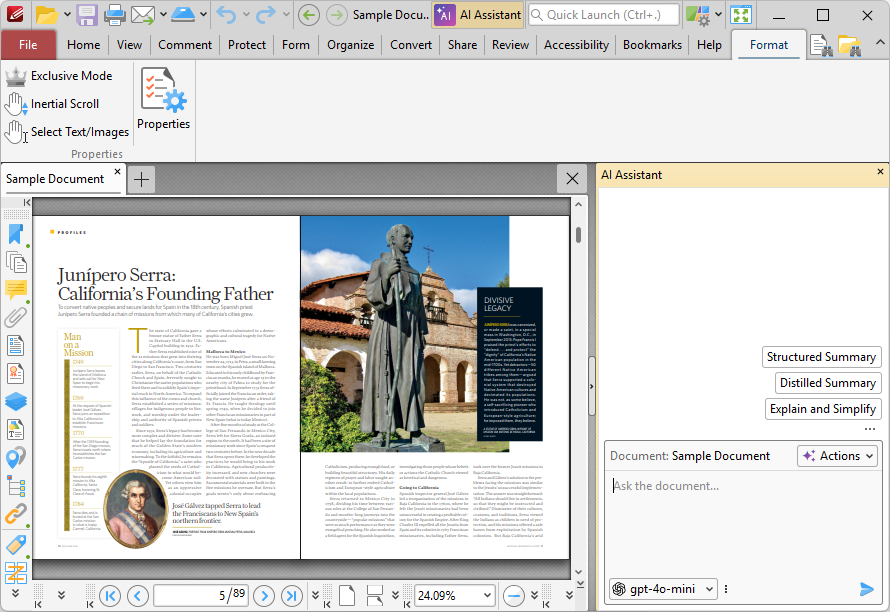
Figure 2. AI Assistant Pane Active
•Click Structured Summary for the AI assistant to create a structured, section-by-section summary of the document.
•Click Distilled Summary for the AI assistant to create a more refined summary that details only the core components of the document.
•Click Explain and Simplify for the AI assistant to rewrite the document in plain language, while retaining the meaning and structure of the source document.
•Click the Actions dropdown menu for further automated actions:
•Click Extract Contact Info for the AI to scan and present contact information in the document.
•Click Extract Key Dates for the AI to identify and present key dates such as deadlines and time-sensitive events from the document.
•Click Extract Tasks and Deadlines for the AI to identify and present tasks, responsibilities and next-steps in the document.
•Click Extract Key Facts and Figures for the AI to scan and present quantitative claims, statistics and measurements in documents.
•Click List Names, Organizations and Dates for the AI to scan the document and group it into the lists of names, organizations and dates.
•Click Exact Requirements and Specs for the AI to extract explicit requirements/specifications from the text.
•Click Identify Key Trends and Insights for the AI to identify recurring themes and patterns in the document.
•Click Highlight Risks and Assumptions for the AI to highlight risks, assumptions and conclusions drawn in the document.
•Click Check for Inconsistencies for the AI to check the document for internal contradictions.
•Click Expert Critical Analysis for the AI to perform a critical evaluation of the document's arguments, evidence and conclusions.
•Click Insights and Recommendations for the AI to detail the most significant findings from the document, and to derive actionable recommendations from it.
•Enter questions for the AI Assistant in the text box and press return to ask them.
•Use the dropdown box to change the LLM model as desired. Click the ellipsis icon to determine AI assistant preferences, as detailed here.
Please note that PDF-XChange do not access or use your private data for our own purposes. Data is processed solely by the designated AI model to deliver requested functionality. All communications between the application and the AI service are encrypted and secure. API keys are stored locally using secure storage mechanisms and are not transferable or accessible outside your device.