 The Typewriter Tool
Click Typewriter to add typewriter-style text comments to documents:
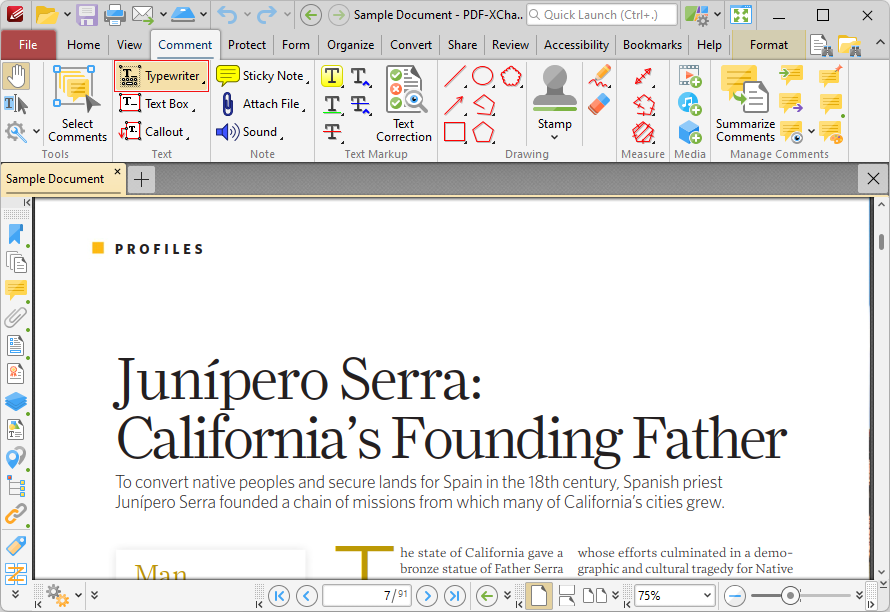
Figure 1. Comment Tab, Typewriter Tool
Typewriter comments appear as text on the page of documents and can be used to highlight or otherwise communicate information to readers of the document. When the Typewriter Tool is enabled, the text 'Typewriter' will appear beneath the pointer, as detailed in the upper example in the image below. This text displays at the location where text will be located if the comment is created at the current location. Click to add typewriter comments:
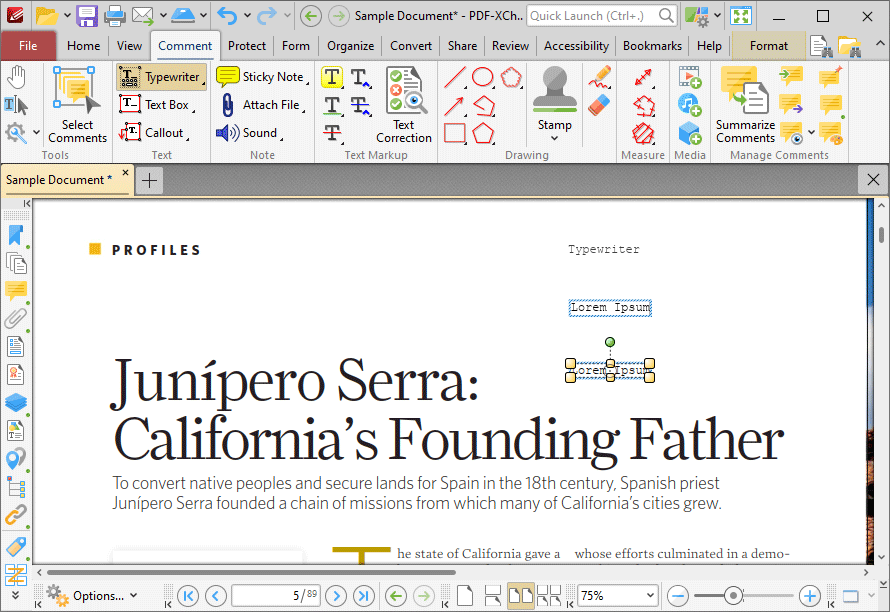
Figure 2. Typewriter Tool Examples
•The upper image is how a typewriter comment appears before it is first inserted into a document. Click to add a typewriter comment at the current location.
•The central image is how a typewriter comment appears when text is being entered. Right-click typewriter comments to customize text and paragraph options, as detailed here.
•The lower image is how a typewriter comment appears when it is completed and subsequently selected. You can edit the size and location of comments as follows:
•Click and drag the control points to resize typewriter comments.
•Click and drag to reposition typewriter comments.
•Click and drag the green control point to rotate typewriter comments. Hold down Shift to rotate at increments of fifteen degrees.
•Use the arrow keys to reposition typewriter comments. Hold down Shift to reposition typewriter comments at an increased increment.
•Use the editing aids detailed here to assist in the precise placement of typewriter comments.
•Right-click typewriter comments for further options, as detailed here.
•Press Ctrl+' to open the Properties pane for selected typewriter comments and view/edit properties:
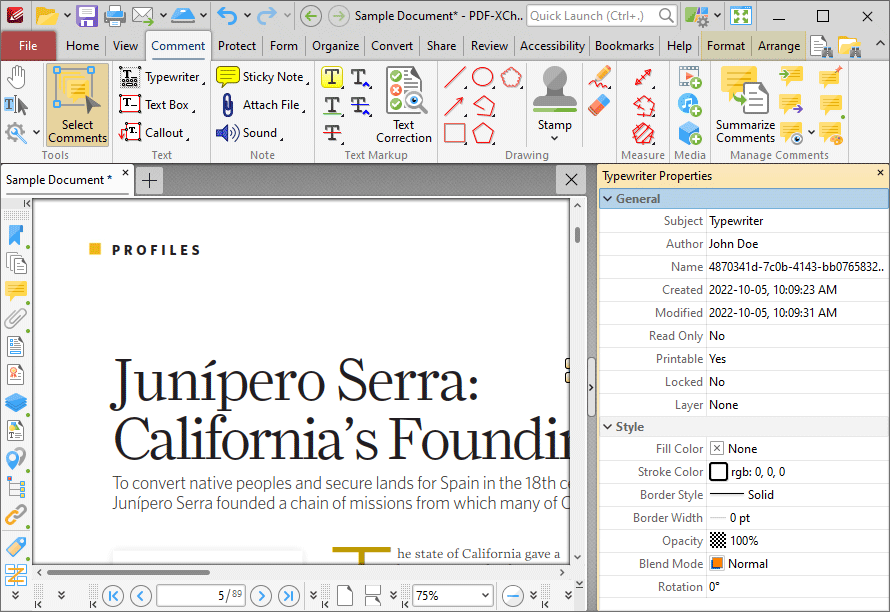
Figure 3. Typewriter Tool, Typewriter Properties Pane Enabled
•Subject is the name of the typewriter comment, as referenced in the Comments pane.
•Author is the name of the user that created the typewriter comment.
•Name is the unique name of the typewriter comment, as referenced within the application.
•Created is the date and time at which the typewriter comment was created.
•Modified is the date and time at which the typewriter comment was last modified.
•Read Only is the read only status of the typewriter comment. If this property is enabled then users cannot interact with the comment.
•Printable is the print status of the typewriter comment. If this property is enabled then the comment is printed with the document. If this property is not enabled then the comment is not printed.
•Locked determines the locked status of the typewriter comment. If this property is enabled then the comment cannot be deleted and its properties (including its position and size) cannot be modified by users.
•Layer determines the optional content layer to which the typewriter comment belongs. Further information about layers is available here.
•Fill Color determines the color of the typewriter comment.
•Stroke Color determines the border color of the typewriter comment.
•Border Width determines the border width of the typewriter comment.
•Opacity determines the level of transparency in the typewriter comment.
•Blend Mode determines how the typewriter comment blends with overlapping content, as detailed here.
Note that when the Typewriter Tool is enabled, the Format tab is available and can be used to customize the default properties of typewriter comments:
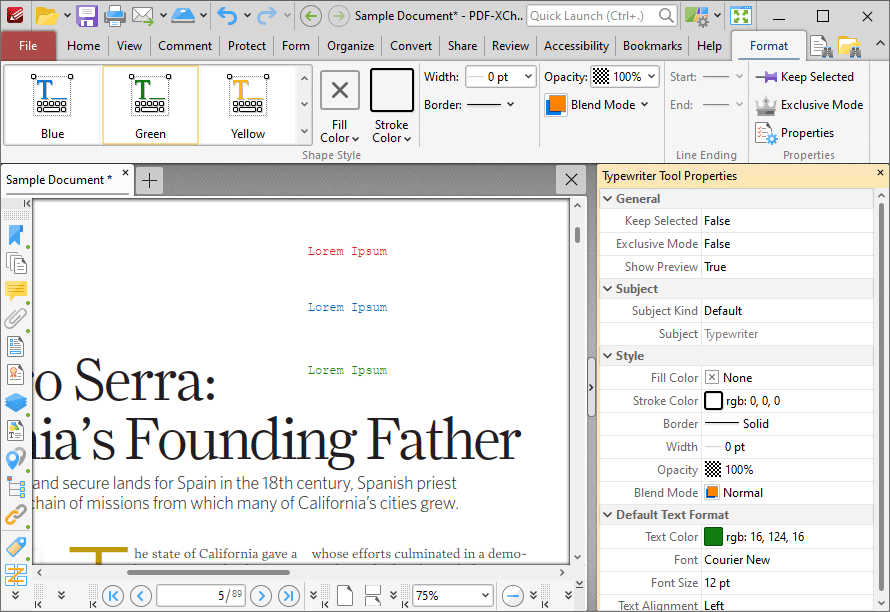
Figure 4. Format Tab, Typewriter Tool
•Click options in the Shape Style group to select alternative default typewriter comment styles.
•Click Keep Selected to keep the Typewriter Tool enabled and add multiple typewriter comments to the document. If this option is not enabled then PDF-XChange Editor will revert to the designated default tool immediately after creating one typewriter comment.
•Click Exclusive Mode to enable exclusive mode, which simplifies the process of using the Typewriter Tool. When Exclusive Mode is enabled, the pointer ignores all interactive elements of documents other than base content. This makes it possible to create typewriter comments on areas that overlap with other content without the risk of accidentally selecting undesired items. When Exclusive Mode is disabled, the pointer recognizes and interacts with all underlying elements in the usual manner.
•Click Properties to open the Properties pane and view/edit typewriter tool properties, as detailed above. Note that when the tool is enabled but no comments are selected, there are additional options available in the Properties pane:
•Text Color determines the default text color for typewriter comments.
•Font determines the default font for typewriter comments.
•Font Size determines the default font size for typewriter comments.
•Text Alignment determines the default text alignment for typewriter comments.
•When typewriter comments are selected, the Style Tools dropdown menu is available in the Format tab. It contains the following options:
•Click Copy Comment Style to copy the style properties of comments.
•Click Apply Copied Comment Style to apply a copied comment style to selected comments, including the text properties.
•Click Apply Copied Comment Appearance to apply copied comment styles to selected comments.
•Click Apply Copied Text Style to apply copied text styles to selected comments.
•Click Make Current Properties Default to set the properties of the selected comment as the default properties for subsequent comments.
•Click Apply Default Properties to apply the default comment properties to selected comments.
•Click Make Current Text Format Default to set the text format of selected comments as the default format for subsequent comments.
•Click Apply Default Text Format to apply the default text format to the text of selected comments.
•When typewriter comments are selected, the Arrange tab is also available and can be used to manipulate comments as detailed here.
Note that the the Comment Styles Palette can be used to edit and save customized typewriter comment styles for subsequent use, and the Commenting preferences can be used to view/edit preferences for all comments.
Note that to select text in an annotation after it has been completed, it is necessary to click to select the annotation and then click again to select the text. This is because PDF-XChange Editor must recognize annotations and the text that annotations contain as separate items as they feature different editing options.