
Preferences

<< Click to Display Table of Contents >>

Navigation:  Tabs Guide > Edit >

Preferences


Editor-Icon Preferences


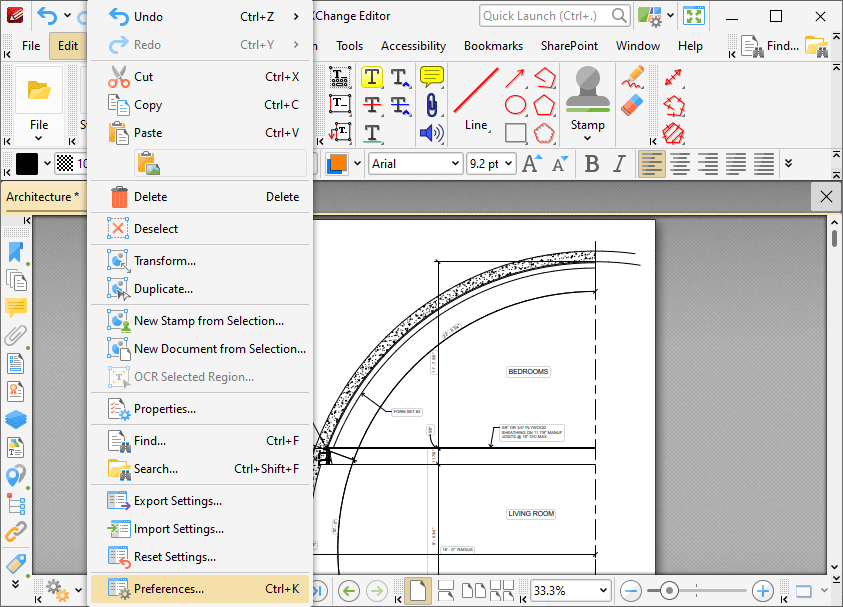
Click Preferences (or press Ctrl+K) to view/edit the PDF-XChange Editor preferences:
 

editor.preferences.v7

Figure 1. Edit Tab Submenu, Preferences


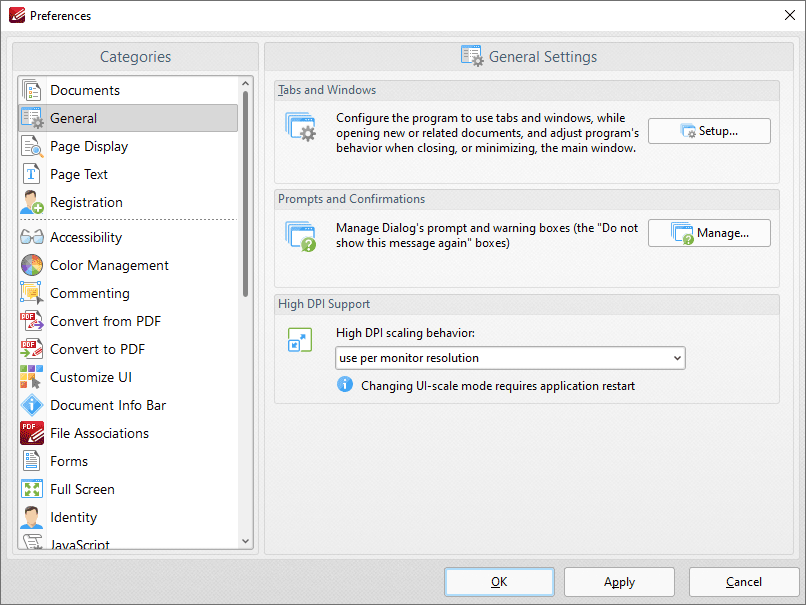
The Preferences dialog box will open:
 

preferences.documents

Figure 2. Preferences Dialog Box


Use the options in the Categories pane to determine the settings of the associated section of the software. Click the links for further information:


•Documents

•General

•Page Display

•Page Text

•Registration

•Accessibility

•Color Management

•Commenting

•Convert to/from PDF

•Customize UI

•Document Info Bar

•File Associations

•Forms

•Full Screen

•Identity

•JavaScript

•Languages

•Launch Applications

•Measurement

•Measurement 3D

•Multimedia 3D

•OCR

•Performance

•Places

•Plugins

•Scanner Presets

•Search Providers

•Security

•Send Mail

•SharePoint

•Signatures

•Snapshot Tool

•Speech

•Tools

•Update