 Finding and Replacing Bookmark Text
Click the Bookmarks tab, then click Find and Replace Bookmark Text to locate and replace text in bookmark titles with alternative text:
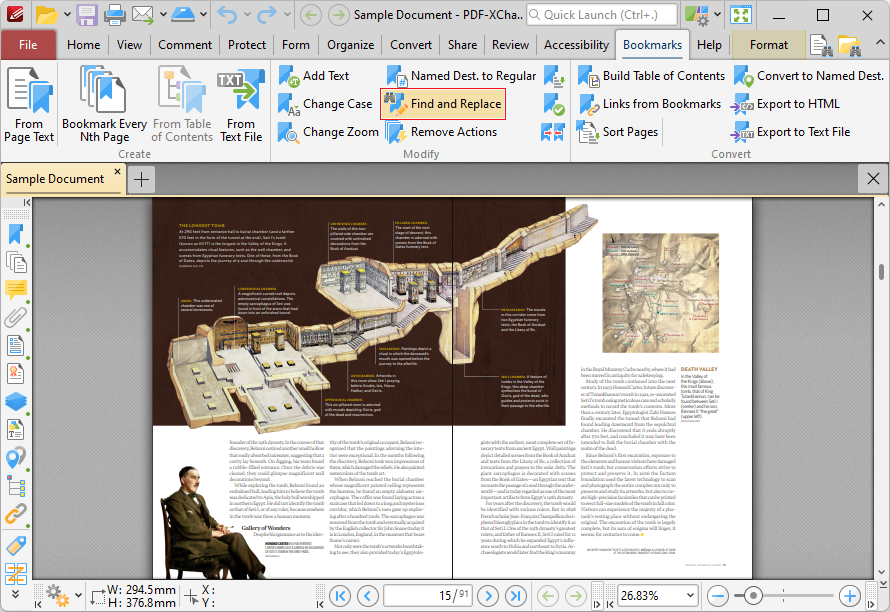
Figure 1. Bookmarks Tab, Find and Replace Bookmark Text Highlighted
The Find and Replace Bookmark Text dialog box will open:
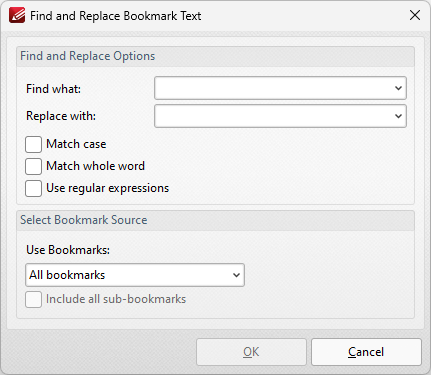
Figure 2. Find And Replace Bookmark Text Dialog Box
•Enter the terms to be replaced in the Find what text box.
•Enter the replacement terms in the Replace with text box.
•Select the Match case, Match whole word and Use regular expressions boxes as desired. Further information on regular expressions is available here.
•Select either All Bookmarks or Selected Bookmarks in the Use Bookmarks dropdown menu to determine which bookmarks are updated. Select bookmarks in the Bookmarks pane in order to use the Selected Bookmarks option.
•Select the Include all sub-bookmarks box as desired.
Click OK to find and replace bookmark text.