 Changing the Case of Bookmark Text
Click the Bookmarks tab, then click Change Bookmark Case to edit the case of bookmark text:
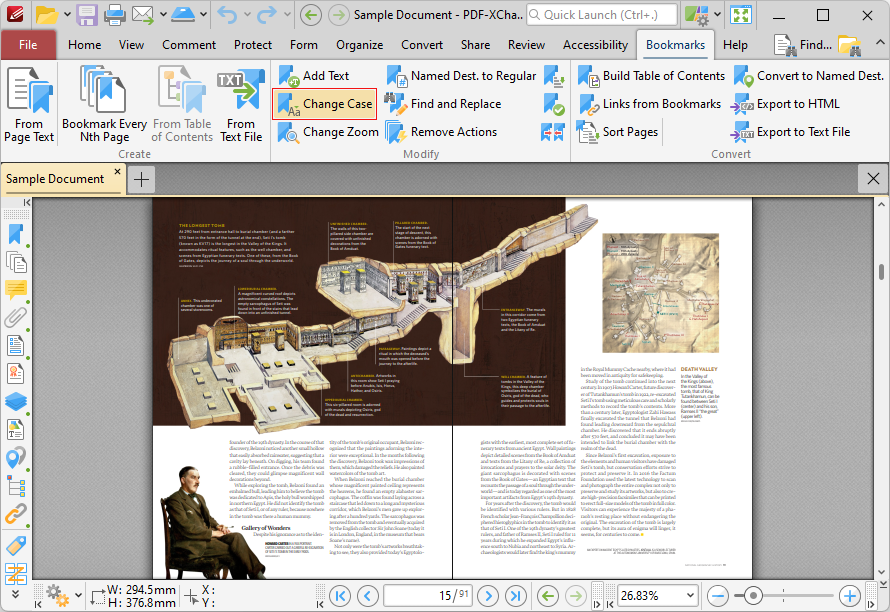
Figure 1. Bookmarks Tab, Change Bookmark Case Highlighted
The Change Bookmark Case dialog box will open:
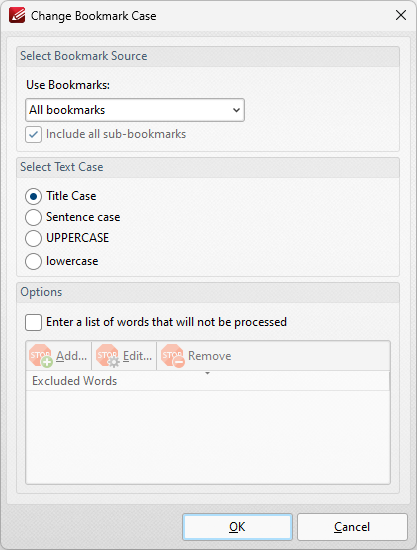
Figure 2. Change Bookmark Case Dialog Box
•Select either All Bookmarks or Selected Bookmarks in the Use Bookmarks dropdown menu to determine which bookmarks are updated. Select bookmarks in the Bookmarks pane in order to use the Selected Bookmarks option.
•Select the Include all sub-bookmarks box to include sub-bookmarks.
•Select an option from the Select Text Case option buttons to determine the new case for bookmark text.
•Select the Enter a custom list of words that will not be processed box to create/edit the list of words excluded from the process. Use the Add, Edit and Remove buttons to add, edit and remove words.
Click OK to update bookmark text.