 Calibrating Scales
When you are adding comments to documents, it many be useful to include measurement scales in order to indicate the distance measured. When the Measuring Tools are selected, click Scale in the Format tab to view/select/manage/calibrate scales:
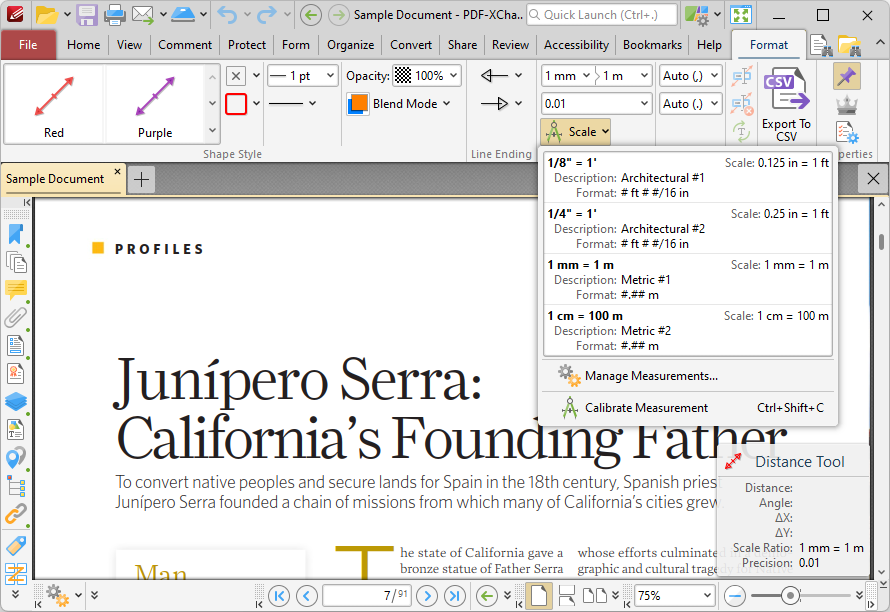
Figure 1. Format Tab, Scale Options
The following options are available:
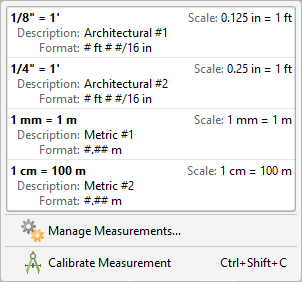
Figure 2. Scale Options
•Click to activate existing scales.
•Click Manage Measurements to view/edit/clone/delete scales.
•Click Calibrate Measurement to calibrate a new measurement. The pointer will become a crosshairs icon. Click and drag to determine a calibration distance. The Calibration dialog box will open:
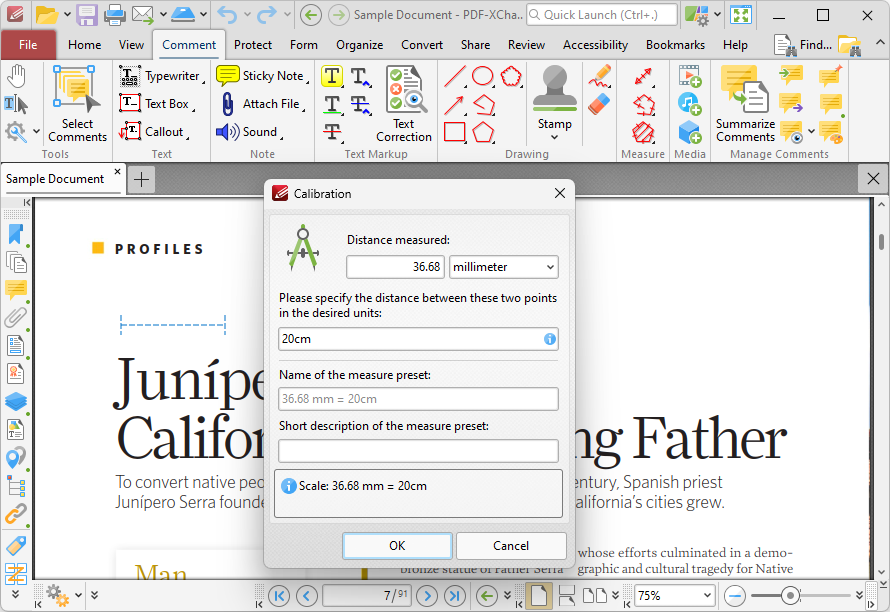
Figure 3. Calibration Dialog Box
•The distance determined in the document is detailed in the upper number box. Use the dropdown menu to select the desired units of measurement.
•Use the lower number box to determine the scale. Enter a numerical value and the desired units of measurement for the scale.
•Name and describe the calibration. The scale will be detailed in Scale pane.
Click OK to save the calibration.
The keyboard shortcut to enable this feature is Ctrl+Shift+C.