 Enforcing File Associations via Group Policy
Setting file associations programatically and without user interaction has become increasingly difficult since the release of Windows 10. Microsoft made this change as a security measure, and while it does limit the risk to individual users of software making unwanted changes, it also presents a challenge to network administrators for pushing file associations via scripts or during the installation of products. This is especially true in cases where users already have existing .pdf file associations set on their machines (and not such an issue for new installations).
It is important to note that users are free to change file association settings through PDF-XChange Editor or through the manipulation of the Windows registry. Therefore, it is best to enforce file associations via a Group Policy in cases where it is necessary to deny users the freedom to make permanent changes to file associations. Users will still be able to make changes, but the settings defined in the policy will be reapplied and the file associations restored when the machine's Group Policy is next applied - either when the client logs in or runs GPUpdate.exe.
Create a File Associations .xml File
The first step in the process is to create an .xml file that defines the file associations to enforce. The DISM tool at an administrative command prompt can be used to do this on a workstation with the following command:
Dism /Online /Export-DefaultAppAssociations:<XML path>\AppAssoc.xml
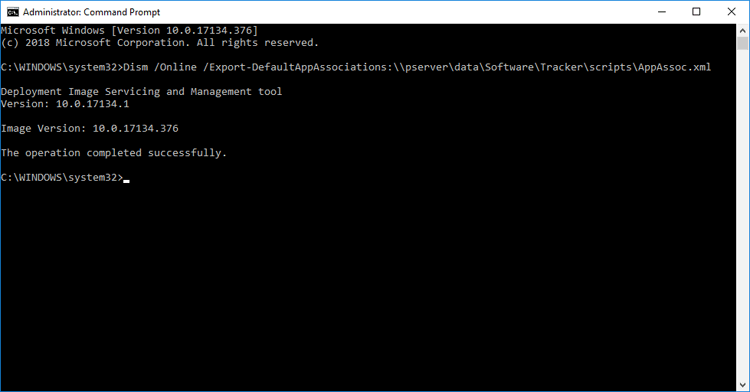
Figure 1. Exporting Current File Associations to an XML File
The output .xml file will list all file associations set on the machine. Please ensure these files are set up as desired before the command is run. The .xml file needs to be available to the clients for whom the Group Policy will be applied - therefore it is necessary to either add it to a shared network location or push it to your target machine's local file system. If the latter option is used then it is important that the location is not user-specific. For example, "C:\Windows\System32" can be used as long as it is copied locally to target machines.
Note that Group Policies are used to enforce file associations for all file formats. Therefore, the next step of the process is to remove the entries from the .xml file that contain the file formats not to be enforced. This example will detail how to enforce .fdf, .xfdf, .pdf, xclpack and .xcesession for PDF-XChange Editor, .pdtex and .pdts for PDF-Tools and .xcvault for XCVault.exe, the utility for managing serial keys:
<?xml version="1.0" encoding="UTF-8"?> <DefaultAssociations> <Association Identifier=".fdf" ProgId="PDFXEdit.FDF" ApplicationName="PDF-XChange Editor" /> <Association Identifier=".xfdf" ProgId="PDFXEdit.XFDF" ApplicationName="PDF-XChange Editor" /> <Association Identifier=".pdf" ProgId="PDFXEdit.PDF" ApplicationName="PDF-XChange Editor" /> <Association Identifier=".xclpack" ProgId="PDFXEdit.XCLPACK" ApplicationName="PDF-XChange Editor" /> <Association Identifier=".xcesession" ProgId="PDFXEdit.XCESESSION" ApplicationName="PDF-XChange Editor" /> <Association Identifier=".pdtex" ProgId="PDFXTools.PDTEX" ApplicationName="PDF-Tools" /> <Association Identifier=".pdts" ProgId="PDFXTools.PDTS" ApplicationName="PDF-Tools" /> <Association Identifier=".xcvault" ProgId="XCVault.XCVAULT" ApplicationName="XCVault Utility" /> </DefaultAssociations> |
Figure 2. App Association XML File with Recommended Entries for PDF-XChange Editor, PDF-Tools and the XCVault Utility
Using the File Associations File in a Group Policy
Please note that in Windows Server 2016 it may be necessary to download the Administrative Policy Templates and add the Windows Explorer (.admx) and (.adml) files from the policy templates to the policy definitions folder for the central store on your domain controller. The Microsoft Administrative Policy Templates are available here. The standard location for the policy definitions folder is:
C:\Windows\SYSVOL\domain\Policies\PolicyDefinitions
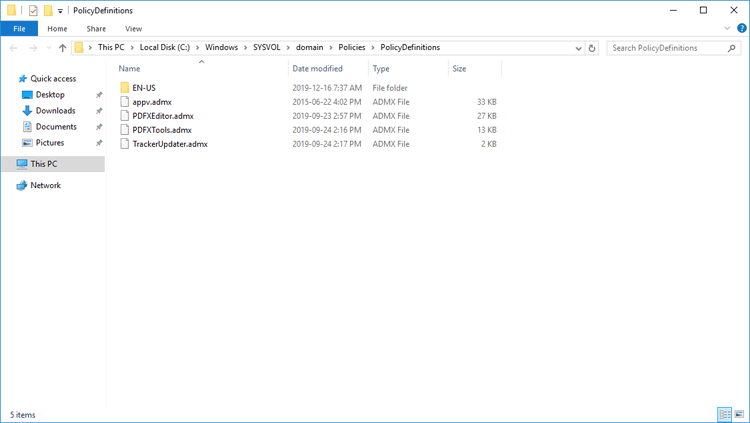
Figure 3. Policy Definitions Folder, Administrative Templates Added
Follow the steps below to use the file associations file in a Group Policy:
1. Open the Group Policy Management Editor, then open the policy "Set a default associations configuration file". This policy is located in Computer Configuration\Policies\Administrative Templates\All Settings:
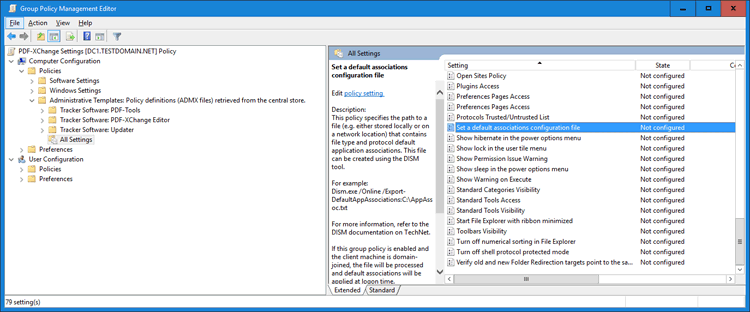
Figure 4. Server 2016 Domain Controller, Group Policy Management Editor, Set a Default Associations Configuration File Highlighted
2. Set the path to the .xml file created above. A network path can be used:
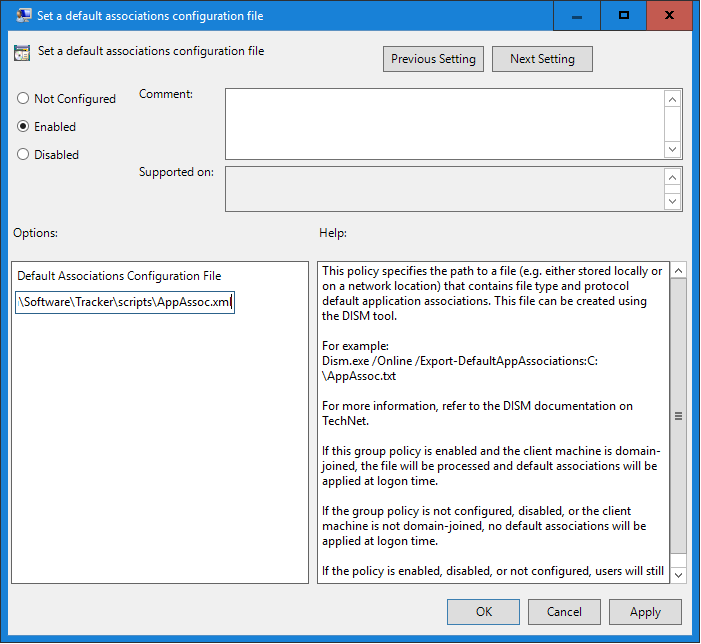
Figure 5. Set a Default Associations Configuration File Dialog Box
3. Update the Group Policy. Run GPUpdate.exe on the client or log off an on again to update the local policy. It will be located in:
Computer\HKEY_LOCAL_MACHINE\SOFTWARE\Policies\Microsoft\Windows\System
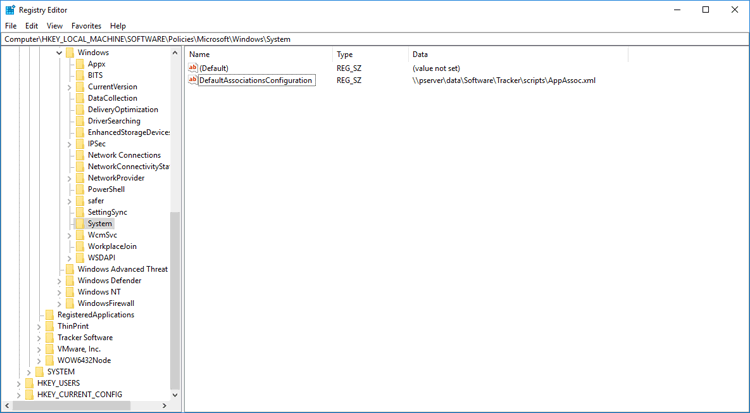
Figure 6. Registry Editor, Default Associations Configuration Policy Set
Please note:
•This example used a domain controller and the policy was applied to domain-joined machines. It can also be applied using a local Group Policy - if you want to do this then simply follow the same steps but use the Local Group Policy Editor instead.
•If users do not have read access to the .xml file then the policy will not be applied. If a network resource is used and it is not persistent, then consider copying it to the local file system of your users, for example to C:\Windows\System32.
•Users can change the file associations during their current sessions, but the policy settings will be restored at the next GPUpdate/login.
•Windows 10 contains a known issue that requires new users to log in twice before policies are set.