 Using The Commenting Tools
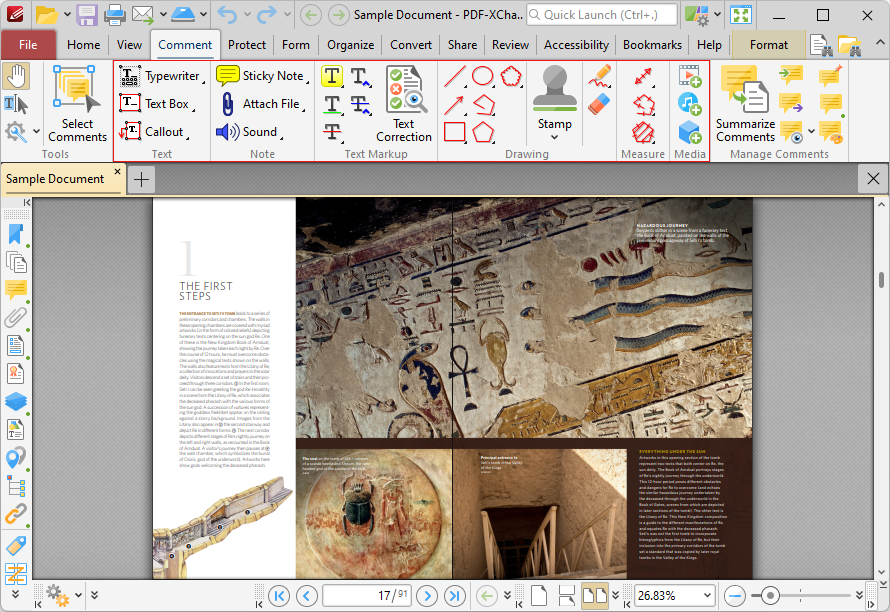
The Commenting Tools enable you to create and edit comments in PDF documents, and each type of comment contains unique features and functionality. These tools are available in the main section of the Comment tab:
 Oka
Oka
Figure 3. Comment Tab, Commenting Tools Highlighted
•The Text tools are used to add text-based comments to documents:
•The Typewriter Tool is used to add typewriter-style annotations to documents, as detailed here.
•The Text Box Tool is used to add text boxes to documents, as detailed here.
•The Callout Tool is used to add callout annotations to documents. These annotations are similar to text box annotations, but they also include an arrow that can be used to highlight a specific point in a document. Further information about this tool is available here.
•The Note tools are used to add notes to documents. These tools add an icon that users can click to view/execute the function of the note:
•The Sticky Note Tool is used to add sticky note annotations to documents. These annotations add a note icon to documents that users can click to view the text-based content of the note, which is custom content that you can write and to which other users can respond. This tool is detailed here.
•The File Attachment Tool is used to attach files to documents, and adds an icon that users can be click to open the attached file, as detailed here.
•The Sound Tool is used to add audio content to documents, and adds an icon that users can click to listen to the content, as detailed here.
•The Text Markup tools are used to add annotations to text-based content of documents:
•The Highlight Text Tool is used to highlight text, as detailed here.
•The Highlight Area Tool is used to highlight document areas, as detailed here.
•The Free Highlight Tool is used to add freehand highlight annotations to documents, as detailed here.
•The Underline Text Tool is used to underline text, as detailed here.
•The Strikeout Text Tool is used to to strikeout text, as detailed here.
•The Drawing tools are used to add shape annotations to documents:
•The Line Tool is used to add line annotations to documents, as detailed here.
•The Arrow tool is used to add arrow annotations to documents, as detailed here.
•The Rectangle tool is used to add rectangle annotations to documents, as detailed here.
•The Oval tool is used to add oval annotations to documents, as detailed here.
•The Polygon Line tool is used to add polygon line annotations to documents, as detailed here.
•The Polygon tool is used to add polygon annotations to documents, as detailed here.
•The Stamp tool is used to add stamps to documents, as detailed here.
•The Pencil tool is used to add freehand annotations to documents, as detailed here.
•The Eraser tool is used to erase Pencil tool annotations, as detailed here.
•The Measuring tools are used to perform document measurements and create annotations based on those measurements:
•Click the Distance tool to measure the distance between two points and insert an annotation that displays the distance measured, as detailed here.
•Click the Perimeter tool to measure the distance between multiple points and insert an annotation that displays the distance measured, as detailed here.
•Click the Area tool to measure the area within user-specified polygons and insert an annotation of the area measured, as detailed here.
•The Media tools are used to add/edit video, sound and 3D annotations:
•Click Add/Edit Video to add/edit video annotations, as detailed here.
•Click Add/Edit Sound to add/edit sound annotations, as detailed here.
•Click Add/Edit 3D Annotations to add/edit 3D annotations, as detailed here.