 Using Fields to Calculate Values
When you are creating forms, it may be useful to include fields that contain value calculations in order to create the values for other fields in the same form. For example, if you are creating a form that will be used to place orders, then you can create a "total" field that will display the sum of the values entered in other fields. Follow the instructions below to calculate values based on the information entered into document fields:
1. Place either a Text Field or a Drop Down field in the document.
2. Click the Form tab, then click Select Fields:
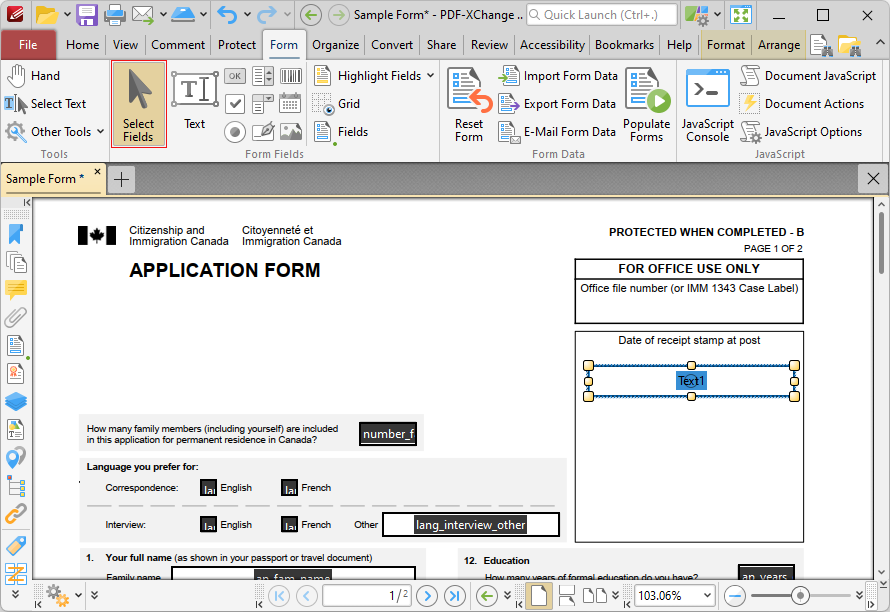
Figure 1. Form Tab, Select Fields Highlighted
3. Right-click the form and select Properties. The Properties pane will open:
4. Scroll down to the Format Value tab and set the Category to Number.
5. Scroll down to the Value Calculation tab and select the desired calculation. After a calculation is selected the Fields option will appear in the Value Calculation tab:
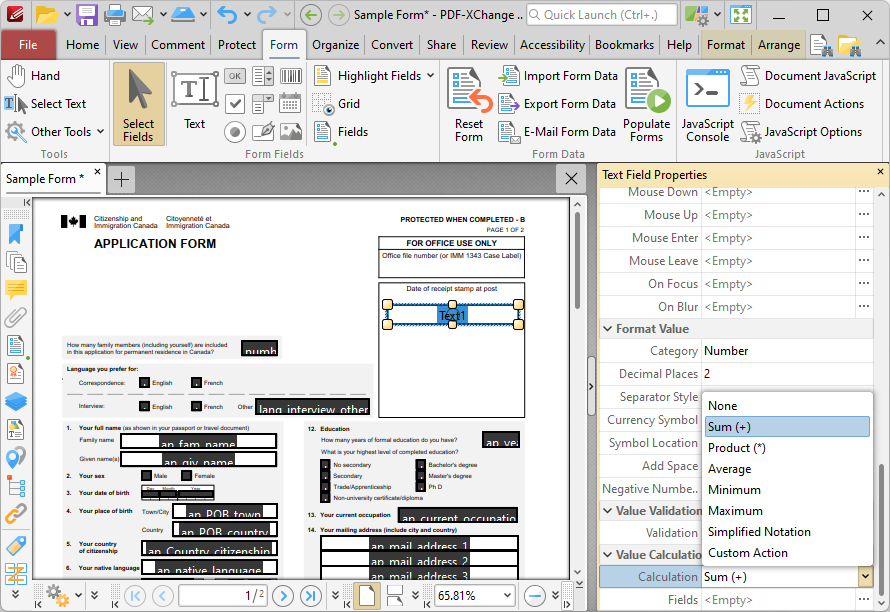
Figure 2. Properties Pane, Format Value Category Set to Number
6. Click the ellipsis icon on the right of the Fields option. The Field Selection dialog box will open.
7. Select the fields to be included in the calculation and click OK. The document will then update with the desired calculations in place. If form data is subsequently changed then forms included in value calculations will update automatically.
Value Calculation Example
The following example details a simple value calculation. There are three text fields: 'Text1', 'Text2' and 'Text3':
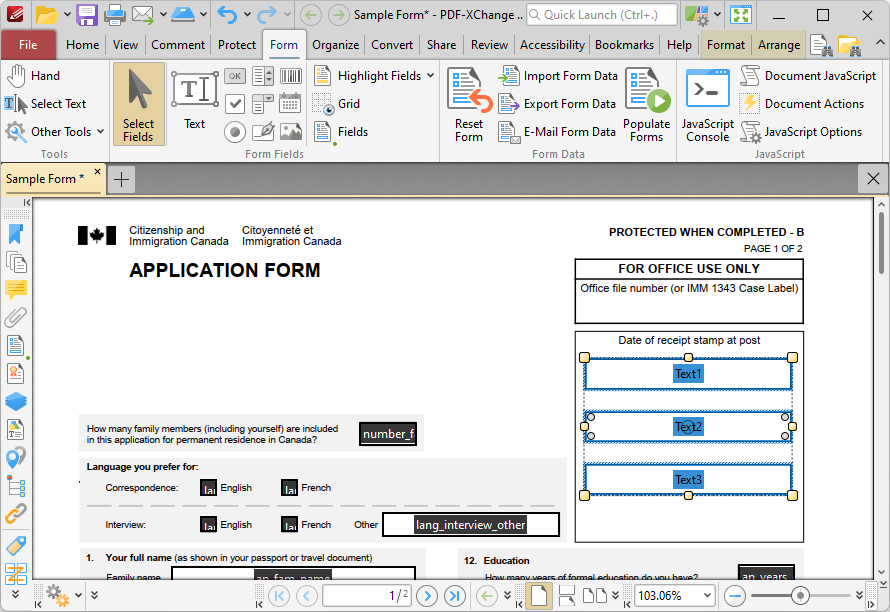
Figure 3. Value Calculation Example, Text Fields Highlighted
This example will detail how to use the product of the values entered in 'Text1' and 'Text2' to create the value for 'Text3':
1. Click the Form tab, then click Select Fields and select 'Text3'.
2. Click the Format tab, then click Properties. The Text Field Properties pane will open:
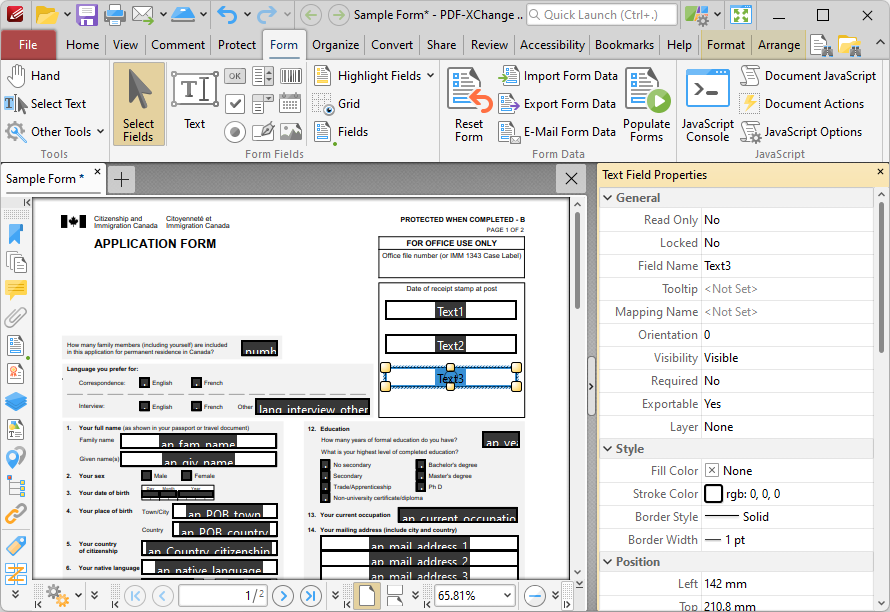
Figure 4. Value Calculation Example, Text Field Properties Pane
3. Scroll down the Text Field Properties pane to the Value Calculation tab, then click the Calculation property and select Product:
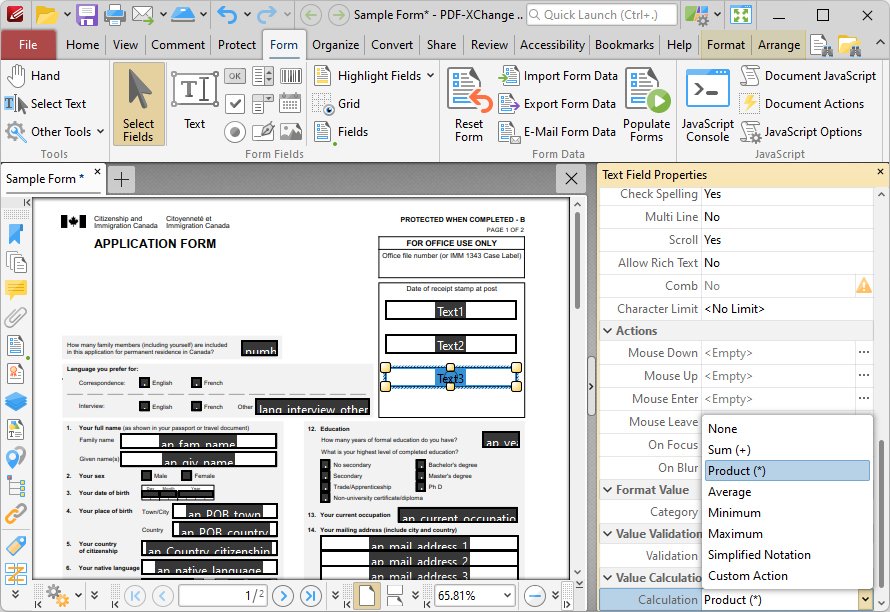
Figure 5. Value Calculation Example, Calculation Property Options
Note that the Fields property will appear beneath the Calculation property, as detailed in the image below. This option is used to specify the source of the values to use in the product calculation that will create the value for 'Text3'.
4. Click the ellipsis icon on the right of the Fields option. The Fields Selection dialog box will open. Select 'Text1' and 'Text2', then click OK:
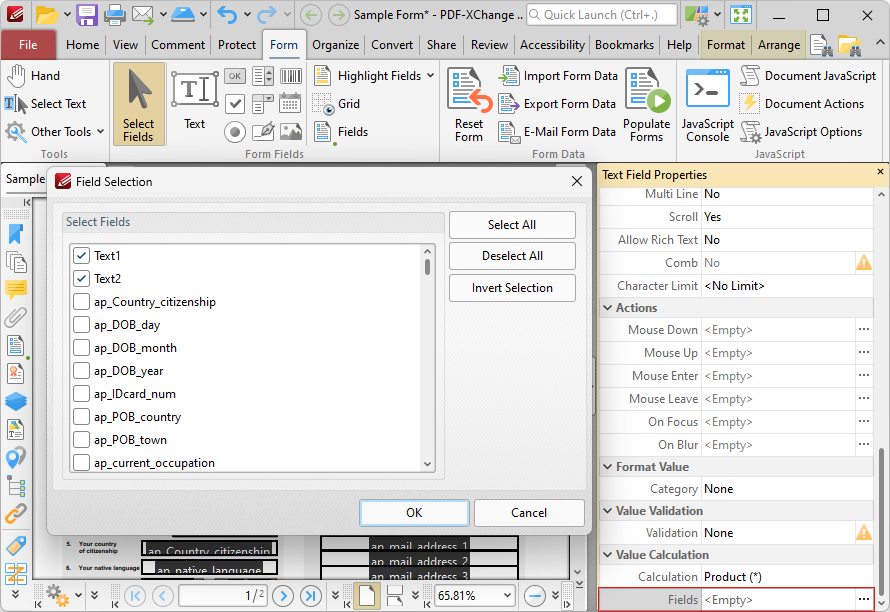
Figure 6. Value Calculation Example, Field Selection Dialog Box
The value of 'Text3' will then be the product of the values entered in 'Text1' and 'Text2':
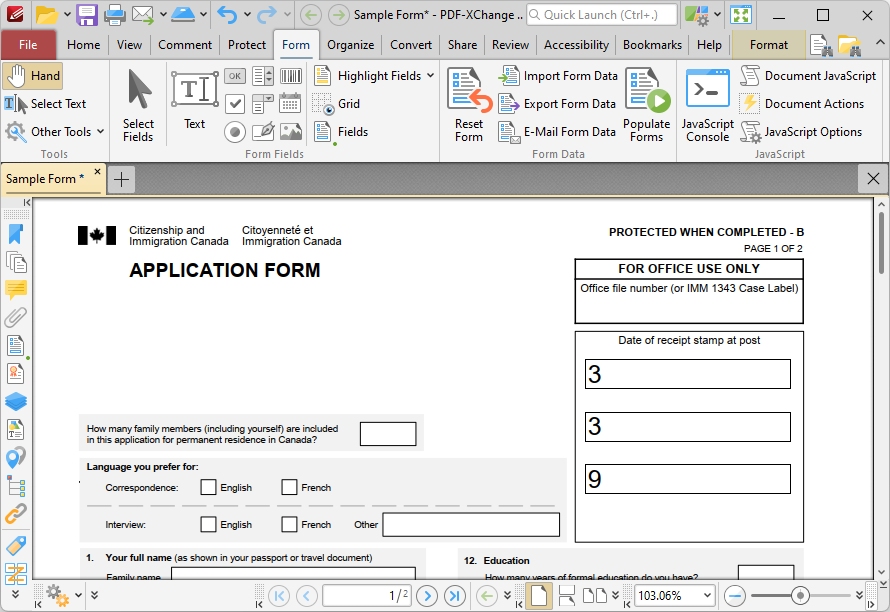
Figure 7. Value Calculation Example, Process Complete
If the values in 'Text1' and 'Text2' are subsequently changed, then the value in 'Text3' will update.