 Securing PDFs with Password Security Policies
You can use passwords in order to restrict access to and editing of PDF documents, such as printing and editing permissions. However, it is not possible to prevent the saving of copies of files - although the copies will have the same password protection and editing restrictions as the original document. Two types of passwords are available in PDF-XChange Editor - a document open password and a document permissions password. If you want to view the password settings of the current document, then click the File tab and click Document Properties, then select Security in the list of categories:
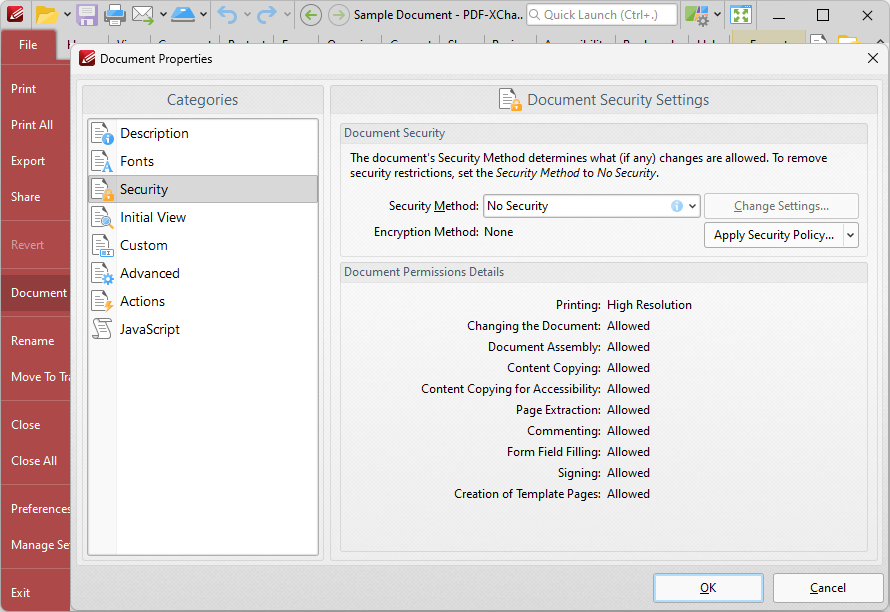
Figure 1. Document Properties, Security Category Selected
The current security method is detailed in the Security Method dropdown menu. If you want to add password security to a document, then click the dropdown menu and select Password Security. (Note that the other security options are currently unavailable as options to use in order to create new Security Methods in PDF-XChange Editor. If different software has been used to add one of those security options to documents, then the type of security policy will be detailed in the dropdown menu and it will not be possible to select an alternative security method). The Password Security Settings dialog box will open:
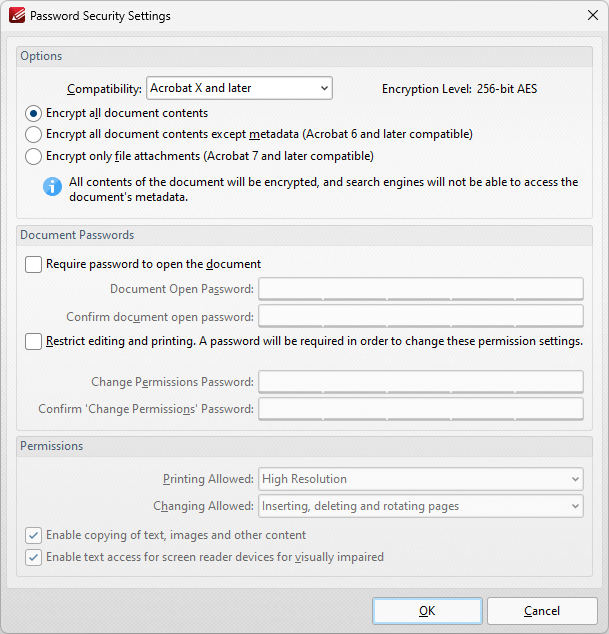
Figure 2. Password Security Settings Dialog Box
•Use the Compatibility menu to set the document security compatibility.
•Select an encryption option button to determine which elements of documents are encrypted.
•Select the Require password to open the document box to set a password for opening the document. Enter the password in the Document Open Password text box and confirm it in the text box below.
•Select the Restrict editing and printing of the document box to set a password for editing and printing the document. Enter the password in the Change Permissions Password text box and confirm it in the text box below. Use the dropdown menus and check boxes in the Permissions section to select the settings that these passwords will enable.
Click OK to save settings.
Removing Password Security from Documents
If you have the password for a document, and want to remove the password security, then simply navigate to the security document properties, as detailed above, and select No Security in the Security Method dropdown menu:
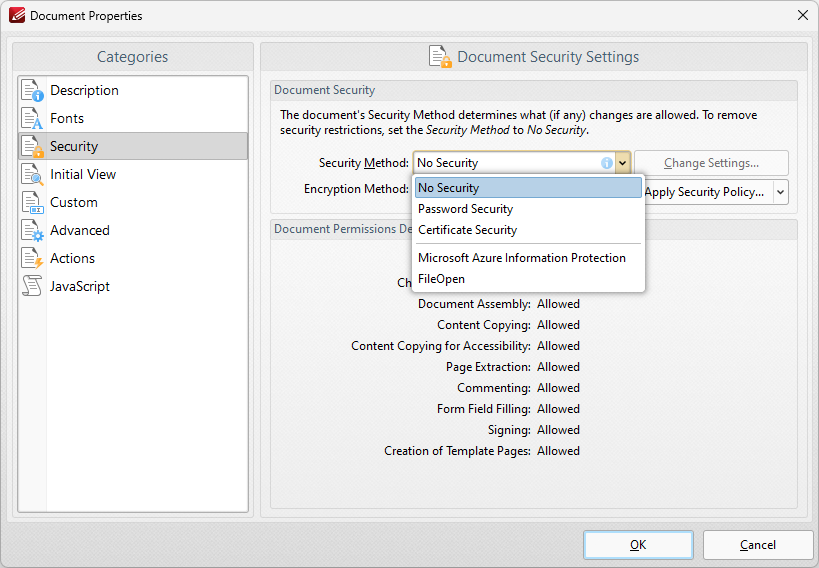
Figure 3. Document Properties, Security Category, No Security Selected
Click Yes in the confirmation box. If the password is a document open password only, then you do not need to do anything further. If the password determines editing permissions, then the Enter Password dialog box will open:
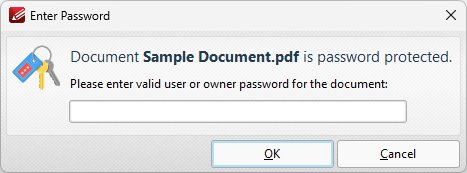
Figure 4. Enter Password Dialog Box
Enter the password and then click OK to remove the password security from the document.