 Printing Booklets and PDF Portfolios
Booklets are documents that contain pages organized on sheets of paper to present the desired page order when they are printed and folded together. For example, in a 2-up saddle stitched booklet two pages are printed on both sides of each printed page, with the first page printed on the same sheet as the last page and so on. When the printed document is collated, folded and stapled, the result is a single booklet with a standard page order. Note that in order to print booklets your printer must support duplex printing. If you have a license for PDF-XChange Editor then the virtual printer PDF-XChange Lite is included with your license, and you can use this printer to print booklets as follows:
1. Open the document you want to print in PDF-XChange Editor, then click the File tab and click Print:
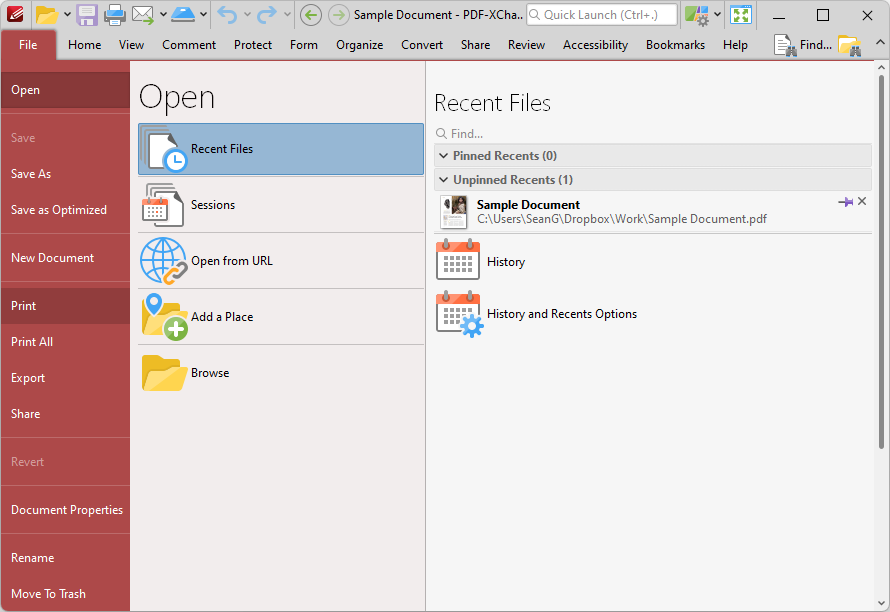
Figure 1. File Tab, Print Highlighted
2. The Print dialog box will open. Ensure the PDF-XChange Lite printer is specified in the Name text box, then click Properties to open the PDF-XChange Lite Properties dialog box:
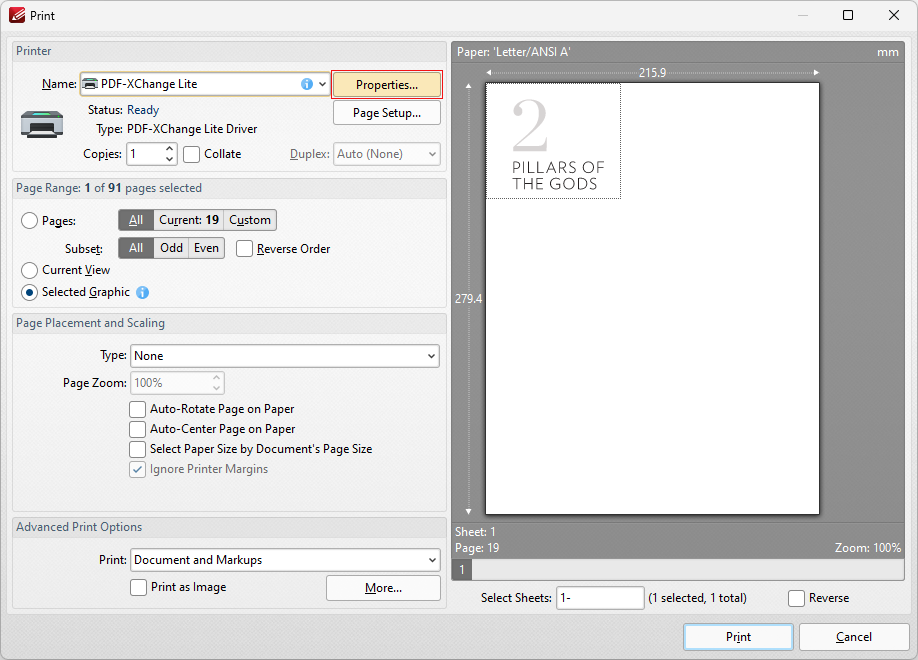
Figure 2. Print Dialog Box, Properties Highlighted
3. The PDF-XChange Lite properties dialog box will open. Click the Layout Type dropdown menu, then select Booklet:
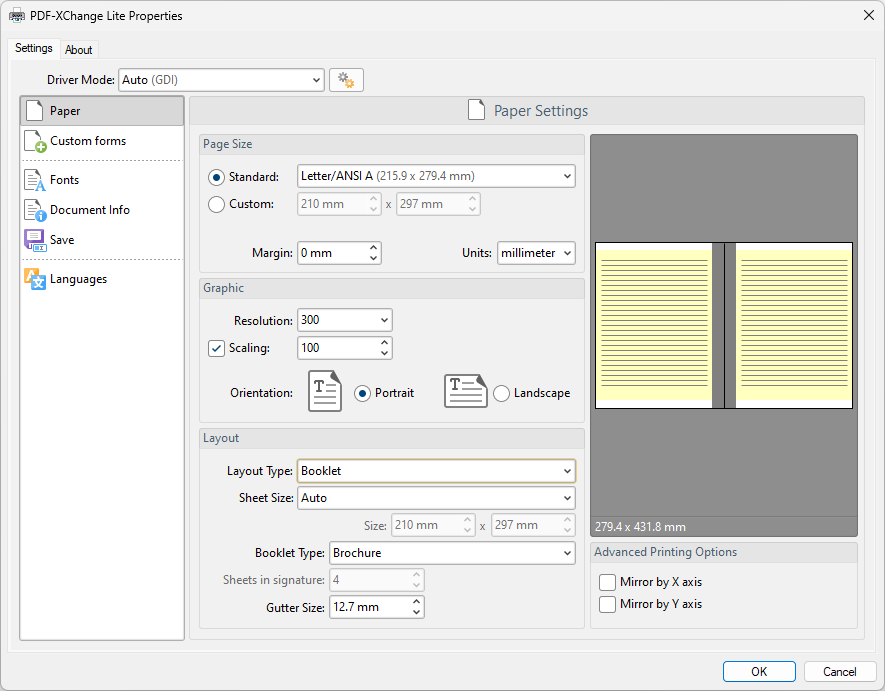
Figure 3. PDF-XChange Lite Properties Dialog Box, Booklet Option Highlighted
4. Determine additional parameters as detailed here, then click OK to print the document as a booklet.
Printing PDF Portfolios
PDF portfolio files contain multiple documents contained in a single PDF. If you want to print a PDF portfolio file, then open the file in PDF-XChange Editor, click the Portfolio tab and then click Print:
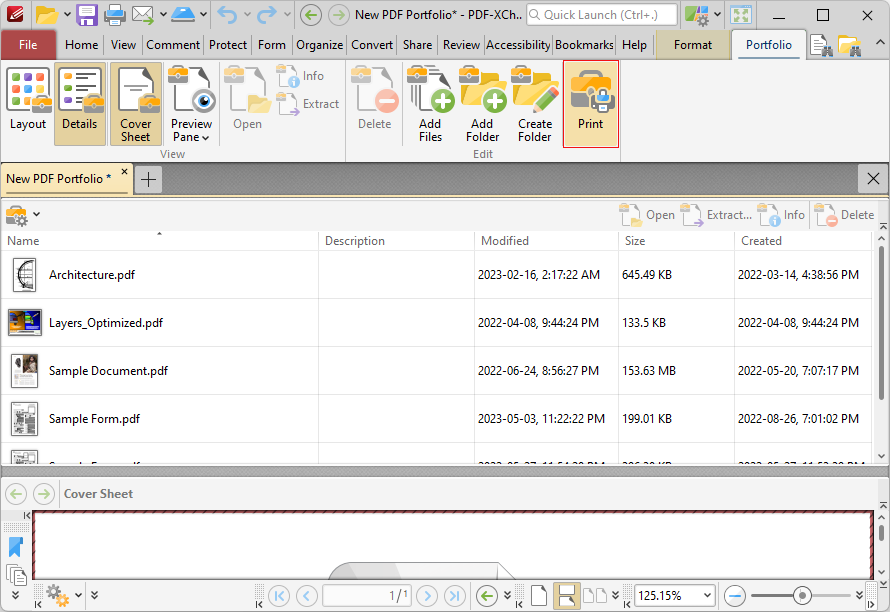
Figure 4. Portfolio Tab, Print Highlighted
Determine parameters as detailed here, then click Print to print the PDF portfolio.