 Adjusting PDF Views
The following settings can be used to adjust the view of PDFs in the PDF-XChange Editor user interface:
Adjust the Page Magnification
Click the View tab, then use the settings in the Zoom group to adjust the page magnification:
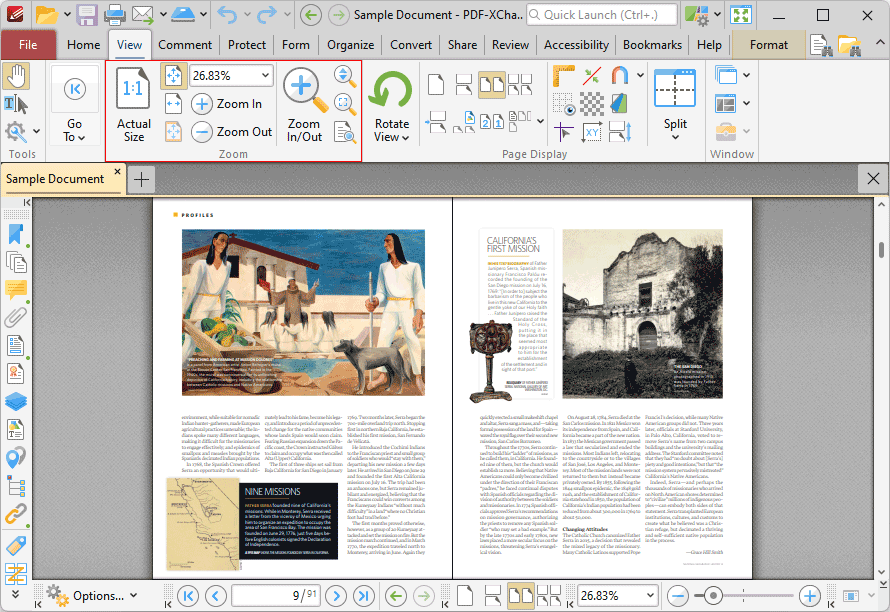
Figure 1. View Ribbon Tab, Zoom Group Highlighted
•Click Actual Size to set the zoom level to 100% and view pages at their actual size.
•Click Fit Page to fit the page length to the editing space of the user interface.
•Click Fit Width to fit the page width to the editing space of the user interface.
•Click Fit Visible to fit the page width to the editing space of the user interface and ignore white page margins.
•Click Zoom In or Zoom Out to zoom in on/out from the active document.
•Click Zoom In/Out Tool to zoom in on/out from the active document. The pointer becomes a magnifying glass icon when this tool is enabled. Move it to the desired location and then click to zoom. Hold down Ctrl and click to zoom out. Click and drag an area in the document to zoom to the area specified.
•Click Loupe Tool to enable the Loupe Tool, which utilizes a zoom pane that magnifies page portions to assist in document editing. Further information on this tool is available here.
•Click Pan and Zoom Tool to enable the Pan and Zoom Tool, which utilizes a zoom pane that enables dynamic page navigation. Further information on this tool is available here.
Using Page Thumbnails to Change the Current View
Thumbnails can also be used to change the current view in PDF-XChange Editor:
1. Click the View tab, then click the Panes dropdown menu and click Thumbnails. The Thumbnails pane will open and the current page view will be displayed as an orange rectangle:
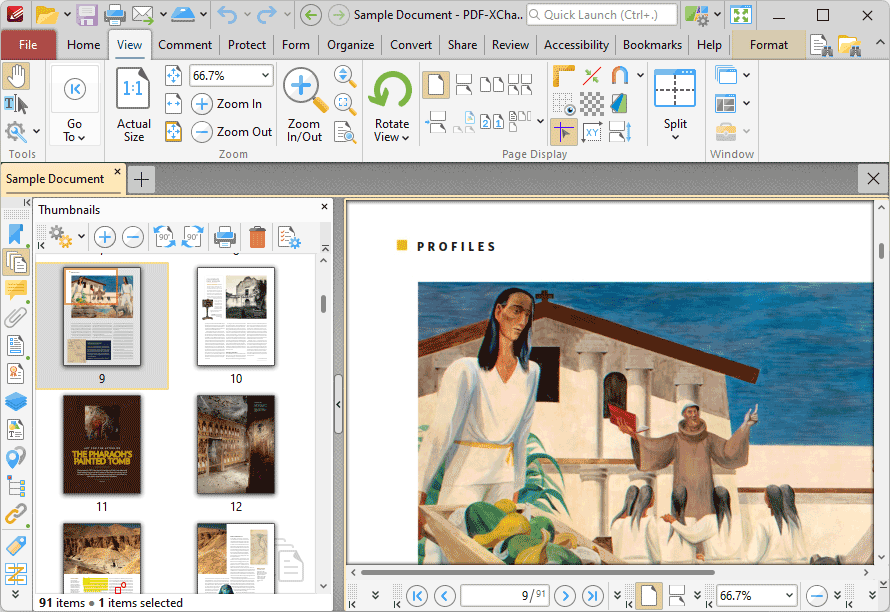
Figure 2. Using Page Thumbnails to Change the Current View, Thumbnails Pane Highlighted in Panes Dropdown Menu
2. Move the pointer to the orange rectangle. A blue crosshairs will appear at the centre, as detailed in the image above.
3. Click and drag the crosshairs in the page thumbnail to adjust the view in the main window.
Changing the Default Page Zoom
1. Click the File tab, then click Preferences:
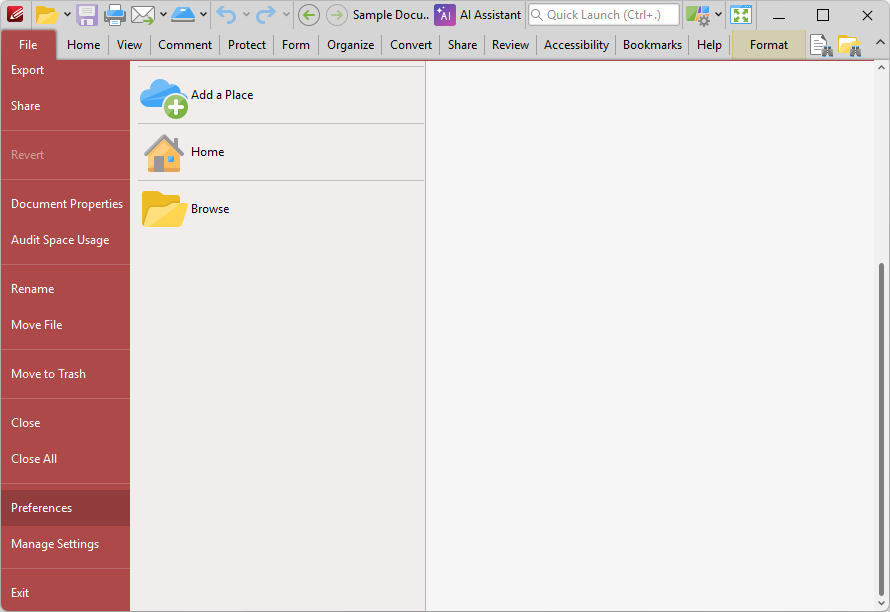
Figure 3. File Tab, Preferences Highlighted
The Preferences dialog box will open.
2. Click the Page Display category in the menu on the left, then select an option in the Default Page Zoom dropdown menu to change the default page zoom:
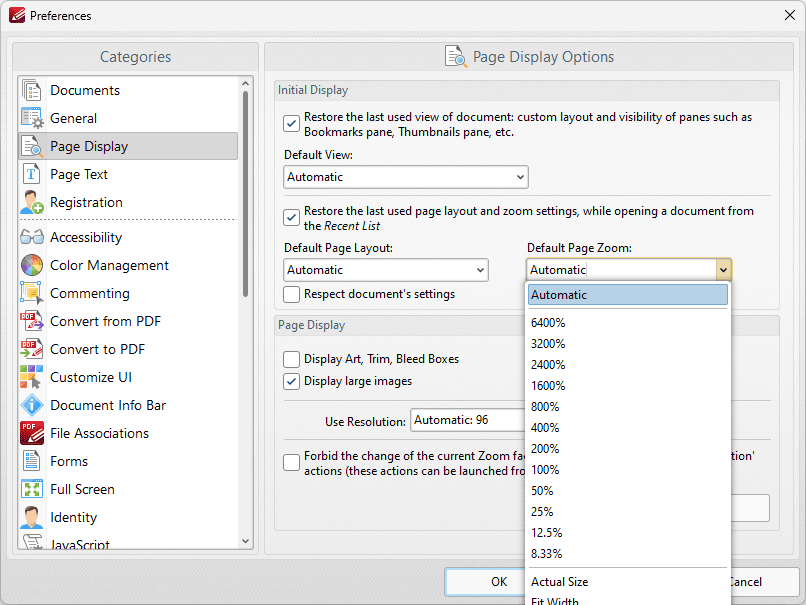
Figure 4. Preferences Dialog Box, Default Page Zoom Dropdown Menu