 Adding Backgrounds to PDFs
Backgrounds are content that appear behind the text/images of a given page. You can use either a solid color or a custom image as a background, and you can apply backgrounds to either a single page or a custom page range as desired. Click the Organize tab, then click Background and click Add to add a background to the current document:
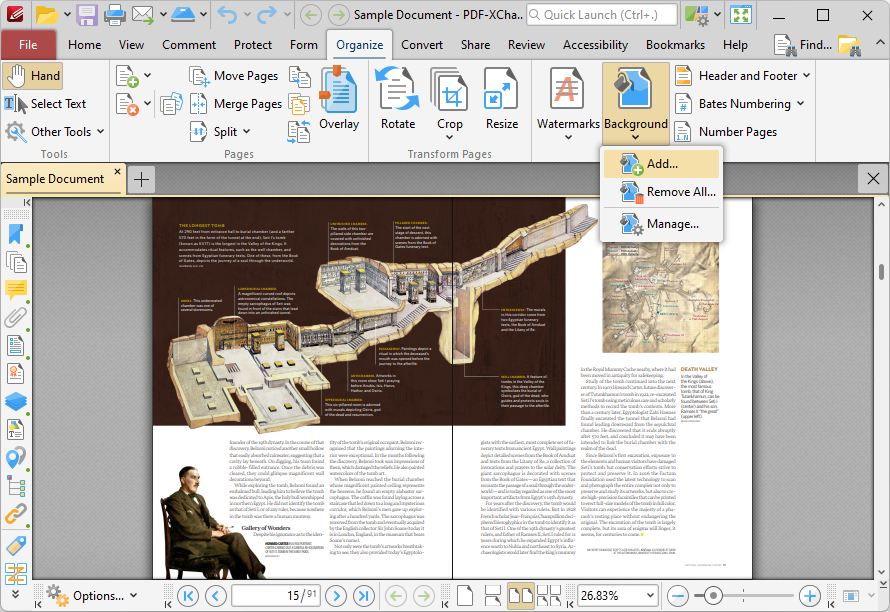
Figure 1. Organize Tab, Background
The Add Background dialog box will open:
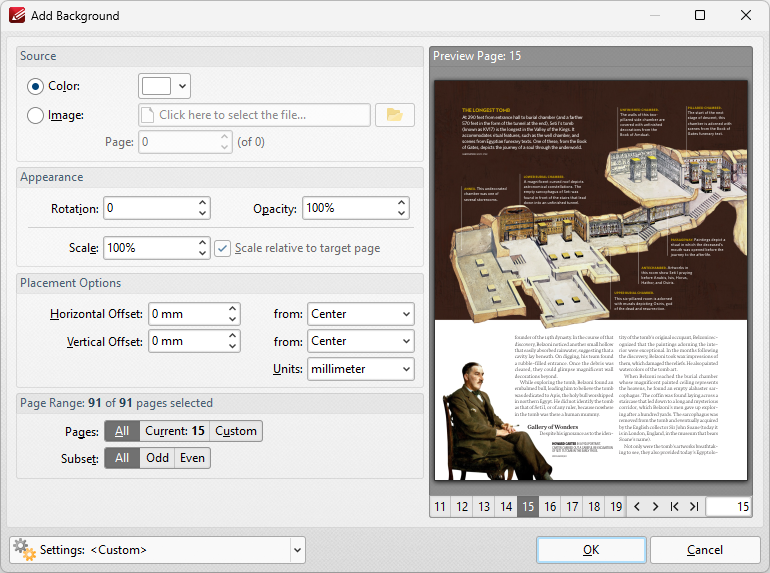
Figure 2. Add Background Dialog Box
•The Source options determine the source of the background:
•Select From Color to add a color-based background, then select a color from the dropdown menu.
•Select Name to specify a file to be used as the background, or click the icon to select a file from the local computer. If you are using a document that contains multiple pages, then use the Page number box to specify the page number of the page/image to be used.
•The Appearance options determine the rotation, opacity and scale of the background:
•The Rotation value determines the rotation (in degrees) of the background.
•The Opacity value determines the opacity (transparency) of the background.
•The Scale value determines the scale of backgrounds. Select the check box to scale backgrounds to the target page. If this box is not selected then the scale is relative to the size of the original image used as the source for the background.
•The Placement options determine the horizontal and/or vertical offset of the background from the left, right or center of the document.
•The Page Range options are as follows:
•Select All to add backgrounds to all pages.
•Select Current Page to add a background to only the current page.
•Use the Pages box to determine backgrounds for specific page ranges. Further information on this process is available here.
•Use the Subset option to select All Pages, Odd Pages Only or Even Pages Only.
•Please note that it is possible to create more than one background for pages within the same document as long as they are not located within the same page/page range.
•The Preview Page pane displays a preview of pages. Select the numbers beneath the pane to preview the corresponding document pages.
•Use the Settings dropdown menu to save/delete customized settings and/or manage existing customized settings:
•Click Save to save settings.
•Click Delete to remove settings.
•Click Manage to manage settings.
Click OK to add backgrounds:
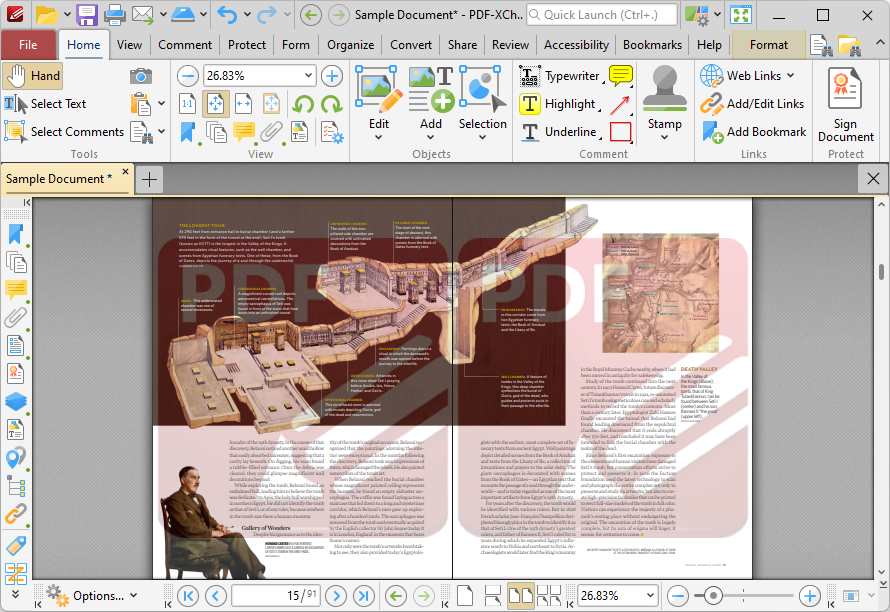
Figure 3. Background Added
Note that if the pages to which you are adding backgrounds contain images, then it may be necessary to adjust their opacity in order for the background to be visible. You can do this using the Content pane, which is available in the Panes dropdown menu of the View tab:
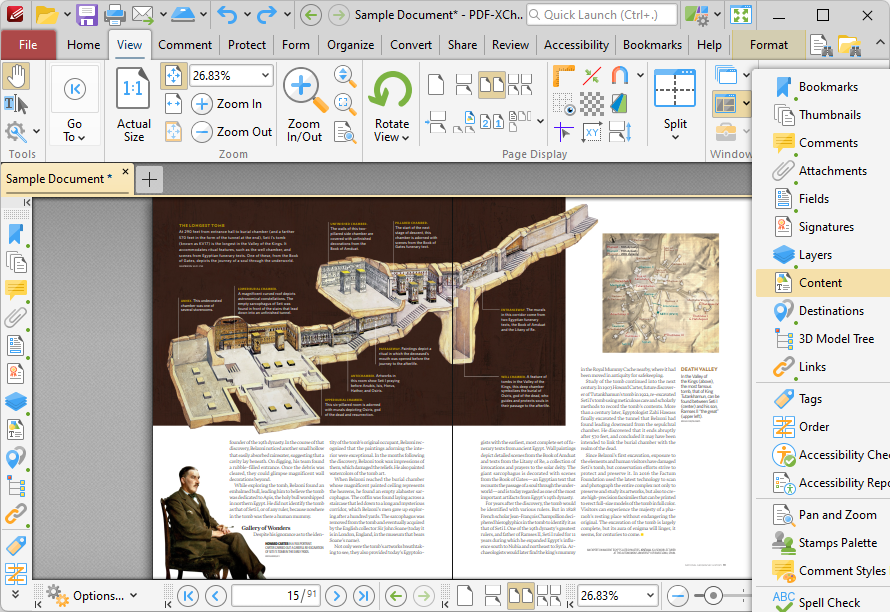
Figure 4. View Tab, Panes Dropdown Menu, Content Pane Selected
The Content pane will open. Click the dropdown arrow of the page you want to edit, then right-click the image and click Properties:
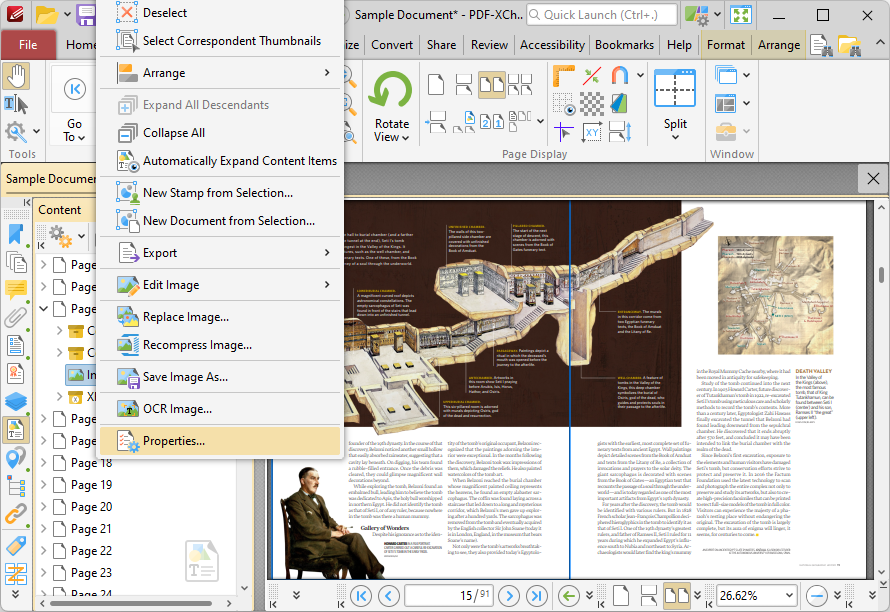
Figure 5. Content Pane, Right-Click Shortcut Menu for Images
The Properties pane will open. Click the Opacity property and then enter a new value as desired, or select an option in the dropdown menu:
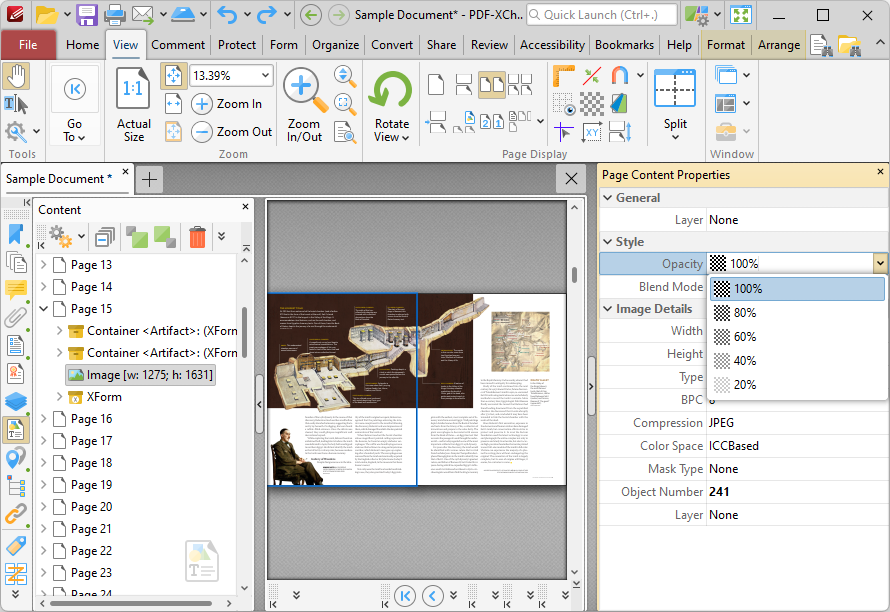
Figure 6. Properties Pane, Editing Image Opacity
The image will then update and the background will become visible.
Removing All Backgrounds
If you want to remove all backgrounds from the current document, then click the Organize tab, click the Background dropdown menu and then click Remove All:
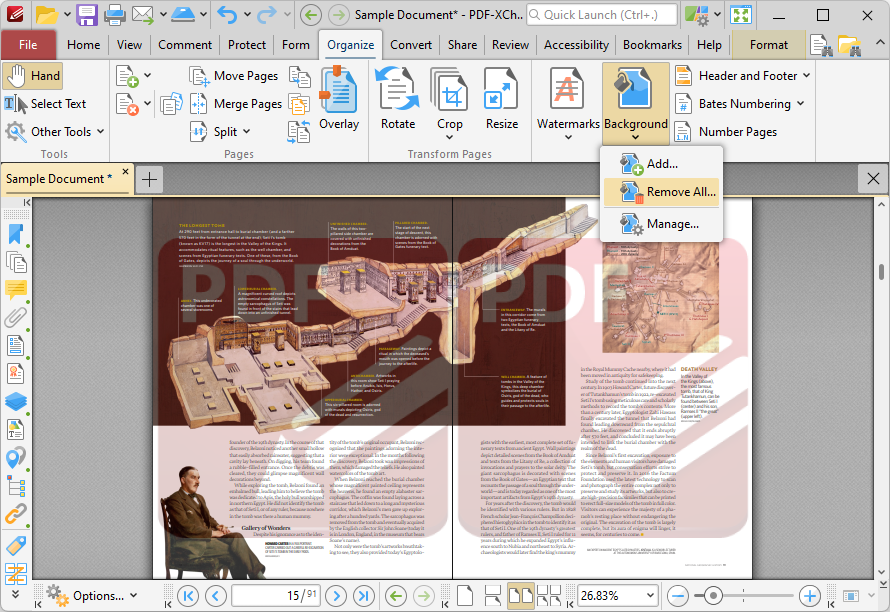
Figure 7. Organize Tab, Background Dropdown Menu, Remove All Highlighted
Managing Backgrounds
If you want to manage current backgrounds, then click the Organize tab, click the Background dropdown menu and then click Manage:
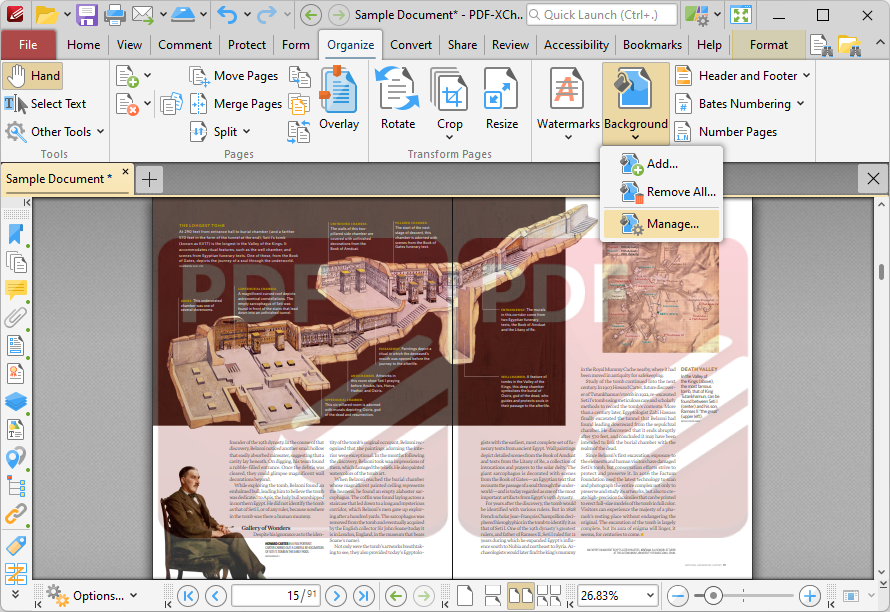
Figure 8. Organize Tab, Background Dropdown Menu, Manage Highlighted
The Manage Backgrounds dialog box will open:
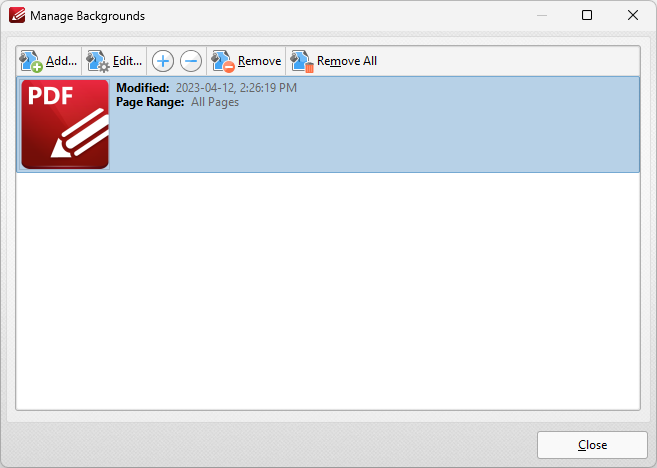
Figure 9. Manage Backgrounds Dialog Box
•Click Add to add a new background to the document, as detailed above.
•Click Edit to edit the background currently selected in the Manage Background dialog box.
•Click the plus/minus buttons to zoom in on/out from backgrounds.
•Click Remove to remove the background currently selected.
•Click Remove All to remove all backgrounds from the document.