 Rasterize Pages
Click Rasterize Pages to rasterize document pages:
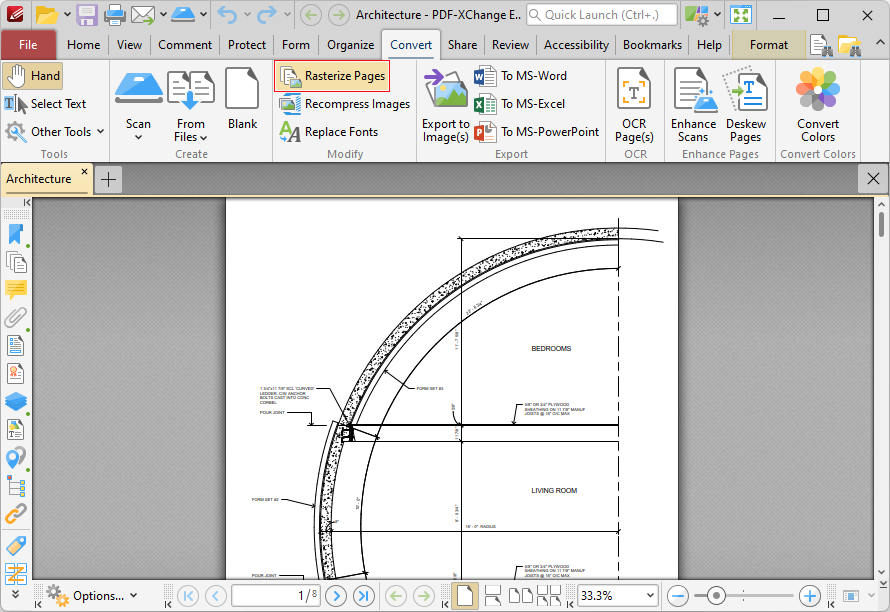
Figure 1. Convert Tab, Rasterize Pages Highlighted
Rasterization converts vector graphics into raster images. The main purpose of this process is to preserve resolution, as rasterized images always display in the the same manner regardless of their size. Vector images may not scale or print to an acceptable standard, and many printers use dots in order to print - which means they must first rasterize the content. This can become a problematic process, and if you instead perform the rasterization before printing then you can avoid these issues.
When this feature is selected, the Rasterize Pages dialog box will open:

Figure 2. Rasterize Pages Dialog Box
•Use the Page Range options to determine the page range to be rasterized:
•Select All to specify all pages.
•Select Current to specify only the current page.
•Select Custom to specify a custom page range, then enter the desired page range in the adjacent number box. Further information about how to specify custom page ranges is available here.
•Use the Subset options to specify a subset of selected pages. Select All, Odd or Even as desired.
•Use the Actions with Objects dropdown menus to determine the action taken for comments, form fields and links when rasterization is performed.
•Use the Type dropdown menu to determine the type of rasterization performed on the document.
•Use the Compression dropdown menu to determine the type of compression used for the rasterization.
•Use the Page Background dropdown menu to determine the fill color for transparent sections of the document when rasterization takes place.
•Use the JPEG Quality dropdown menu to determine the JPEG quality when JPEG compression is used.
•Use the Horizontal and Vertical Resolution number boxes to determine the resolution of rasterized images.
Click OK to rasterize pages.