 Generate Bookmarks from Highlights
Click Generate Bookmarks from Highlights to create bookmarks from document text that is highlighted with highlight comments. The Generate Bookmarks From Highlights dialog box will open:
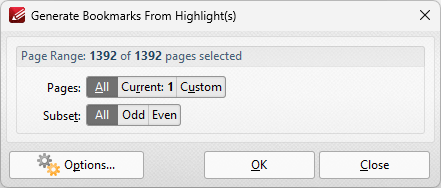
Figure 1. Generate Bookmarks From Highlights Dialog Box
•Use the page range settings to determine the page range from which bookmarks are created. Further information on the specification of page ranges is available here.
•Click Options to determine bookmark generation settings. The Bookmark Generation Properties dialog box will open:
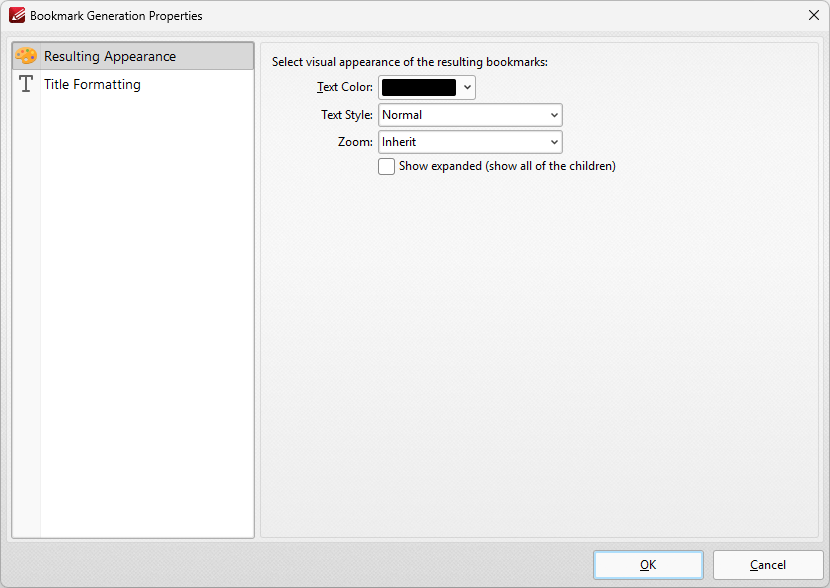
Figure 2. Bookmark Generation Properties Dialog Box
The options selected in the Bookmark Generation Properties dialog box determine the text used to generate bookmarks, and the style of the generated bookmarks:
•Use the Text Color menu to determine the text color of bookmarks.
•Use the Text Style menu to determine the text style of bookmarks.
•Use the Zoom menu to determine the zoom level when bookmarks are clicked. Select Inherit to use the current zoom level.
•Select the Show expanded box to expand all generated bookmarks.
Title Formatting
These options are used to format bookmark titles:
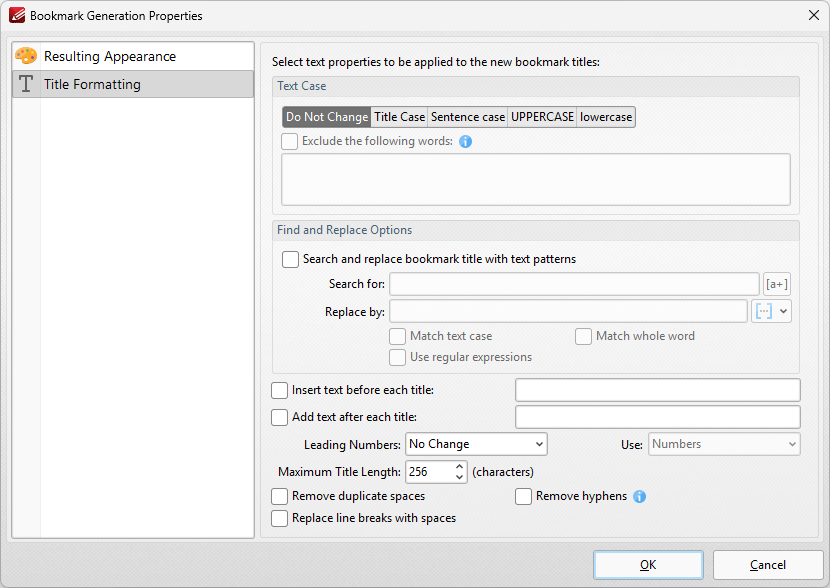
Figure 6. Bookmark Generation Properties Dialog Box
•Select a Text Case option to determine the text case of generated bookmark titles.
•Select the Search and replace bookmark title with text patterns box to search for specific text in bookmark titles and replace it with customized text:
•Enter the text to be replaced in the Search for text box.
•Enter the replacement text in the Replace by text box.
•Select the Match text case, Match whole word and/or Use regular expressions boxes as desired.
•Select the Insert text before each title box to add text before bookmark titles. Enter the desired text in the text box.
•Select the Add text after each title box to add text after bookmark titles. Enter the desired text in the text box.
•The Leading Numbers dropdown menu is used to add/remove/retain leading numbers for bookmarks. Select No Change, Add or Remove as desired. If leading numbers are being added then use the Use dropdown menu to select Numbers, Letters or Roman Numerals.
•Use the Maximum Title Length text box to set the maximum number of characters for generated bookmarks.
•Select the Remove duplicate spaces box to remove instances of adjacent blank characters.
•Select the Replace line breaks with spaces box to use spaces instead of line breaks for bookmarks.
Click OK to generate bookmarks.