 Places
When the Places tab is selected the following options are available:
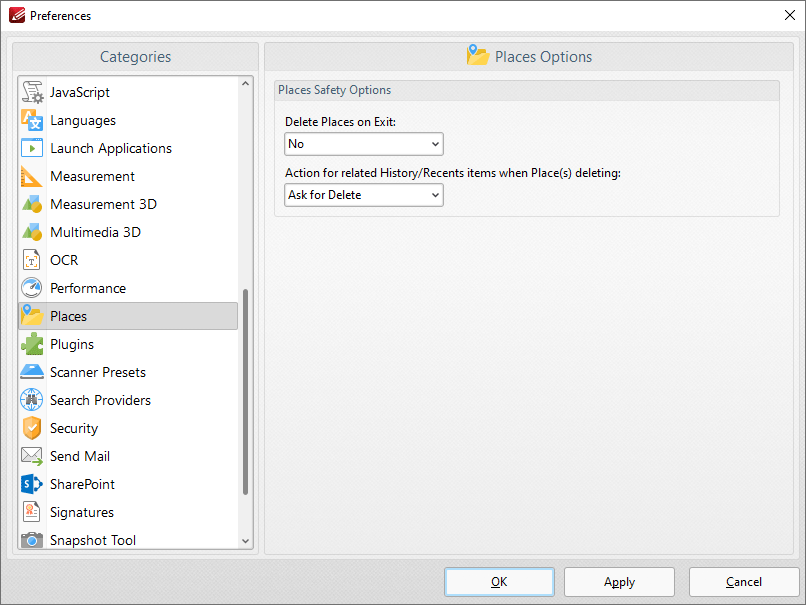
Figure 1. Preferences Dialog Box, Places Tab Selected
•Use the Delete Places on Exit dropdown menu to determine what happens to places when PDF-XChange Editor is closed:
•No retains all places when PDF-XChange Editor is closed.
•All deletes all places when PDF-XChange Editor is closed.
•Only Newly Added deletes only places that have been recently added when PDF-XChange Editor is closed.
•Use the Action for related History/Recents items when Place(s) deleting dropdown menu to determine what happens to items in the history/recents lists when the places from which they came are deleted:
•Ask for Delete displays a message and prompts the user for action to take.
•Delete means that associated items will be removed from the History/Recents lists.
•Keep means that associated items will be retained in the History/Recents lists.
Click Apply to apply changes and OK to save changes.