 Scanning Documents to PDF
PDF-XChange Editor can be used to create PDF files directly from paper documents in conjunction with a scanner. If you want to create PDF files in this manner, click the File tab, then click New Document and click From Scanner:
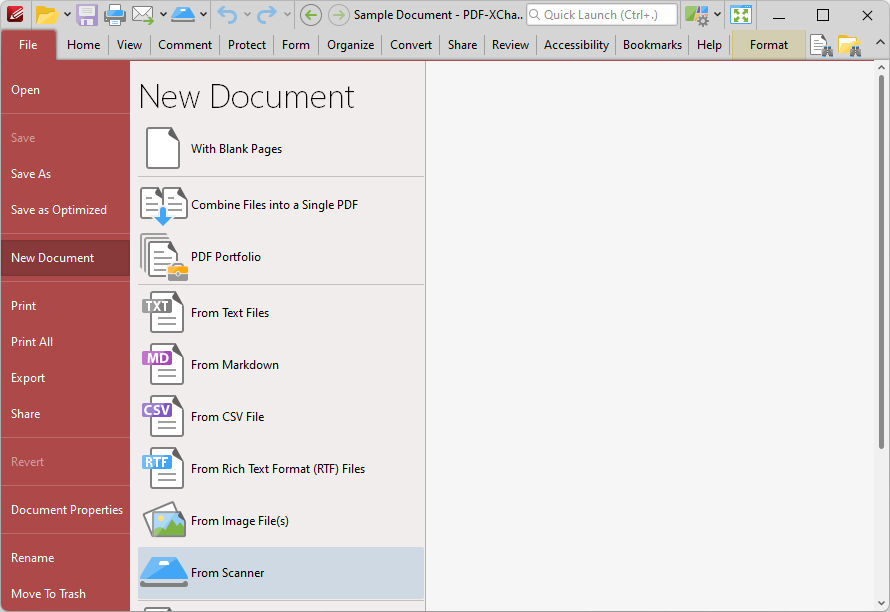
Figure 1. File Tab, New Document Options, From Scanner Highlighted
Select a preset mode as desired, or click Custom Scan to set custom parameters. The Scan Properties dialog box will open:
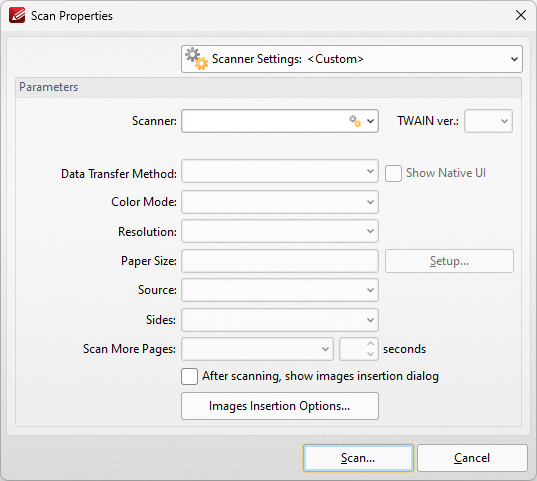
Figure 2. Scan Properties Dialog Box
•Click the Scanner Settings menu to select a preset scanning mode.
•Click the Scanner menu to select a scanner to use.
•Click the Data Transfer Method menu to select either Native Mode or Memory Mode:
•Native Mode uses a single memory buffer. This is the default and fastest mode, and is compatible with the broadest range of scanners.
•Memory Mode enables the use of multiple memory buffers. This is a useful function in cases where memory is low and/or when large images are being scanned.
•The Show Native UI box is selected by default, which means the user interface of the device driver is used. This is the most reliable option, and the scanner will select certain parameters of the scan itself: Color Mode, Resolution, Paper Size and Source. Clear the Show Native UI box to customize these options:
•Color Mode has four options: Auto detect, Color, Grayscale and Black & White. These refer to the format of scanned documents.
•Click the Resolution menu to select the dpi (dots per inch) of scanned documents.
•Paper Size refers to the size of the paper used when scanning. Click Setup for further options, which are as follows:
•The Automatic option determines the paper size automatically.
•The Standard option contains standard sizes such as those used by the ISO and ANSI.
•The Custom option can be used to enter custom dimensions.
•Source has three options Auto, Flatbed and Feeder. These refer to the type of scanner being used.
•Click the Sides menu to determine which sides of documents are scanned. There are three options: Simple Scan, Manual Duplex and Manual Duplex Reversed. Click the arrow for an explanation of these options.
•Click the Scan More Pages menu to select the setting for when additional pages are scanned.
•Select the After scanning, show images insertion dialog box to view the images insertion dialog box after the scan has taken place. This enables the customization of images and images settings.
•Click the Images Insertion Options button to determine further options for inserted images. Those options are explained with (figure 4) below.
When you have selected the desired parameters, click OK to scan the document to PDF.
Scanner Settings
Click the Scanner Settings menu to save custom settings for subsequent use. The following dialog box will open:
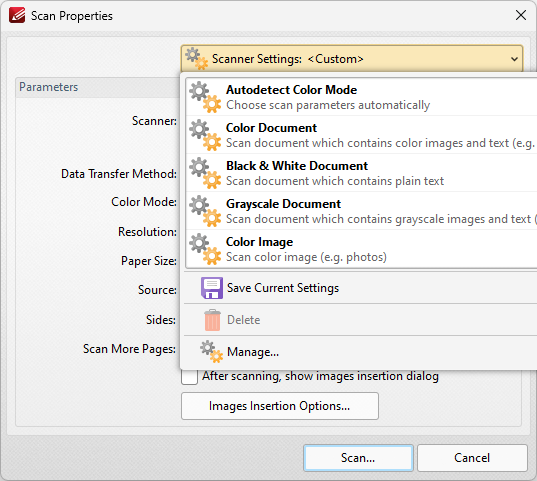
Figure 3. Scanner Settings Options
These options are used to adjust the scanner mode or save custom settings. There are five preset modes that relate to the format of scanned documents. They feature settings that are optimal for their respective modes. These modes can also be selected when choosing the option through which the new document is created. Hover the pointer over the New Document>From Scanner option and a menu will appear. The options to Custom Scan and Configure Presets are also available on this menu. Click Custom Scan to launch the Scan Properties dialog box shown in (figure 2) above. Click Configure Presets to open the Configure Scanner Presets dialog box and determine the presets for scanning.
When custom parameters have been entered in the Scan Properties dialog box they can be saved for subsequent use with the Save Current Settings option. Click the icon/text to save the current settings. Enter a name (and brief description, if desired) for the customized settings. Click Manage to edit customized settings and Delete to remove them.
Image Insertion Options
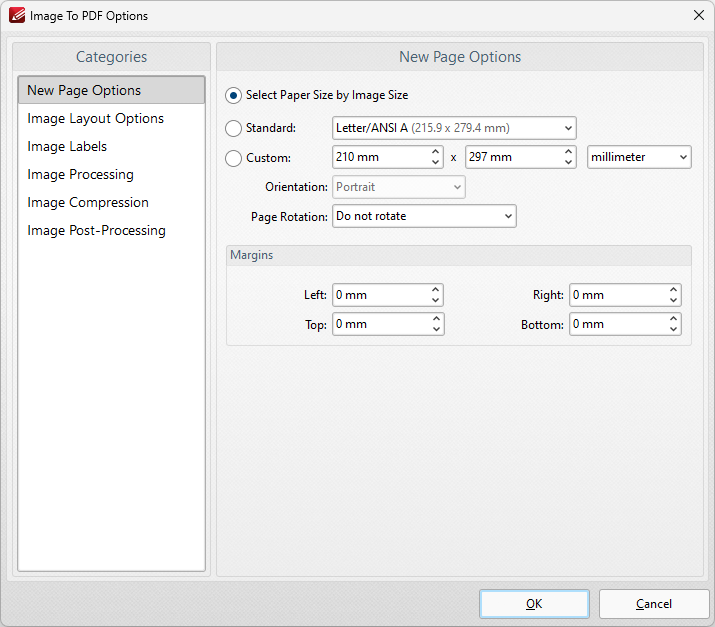
Figure 4. Images to PDF Options Dialog Box
New Page Options
When this option is selected in the Categories menu, the dialog box detailed in (figure 4) opens. The options are as follows:
•The Select Paper Size by Image Size option crops new documents according to the image size converted. I.e. the borders of the original image define the borders of the new document.
•The Standard option centers the original file in a new document of standard size. 'Standard' refers to common sizes such as those used by the ISO and ANSI. Click the menu for a list of available sizes.
•The Custom option allows the user to enter custom dimensions. There is also a choice for portrait or landscape style (unless the Choose Paper Size by Image Size option is selected).
•The Page Rotation option rotates images as required during conversion. Click the menu for rotation options.
•The Margins option facilitates the customization of the image margins. Enter the values desired into the boxes. The new PDF will feature these dimensions.
Click OK to save settings.
Images Layout Options
When this option is selected in the Categories menu the following options are available:
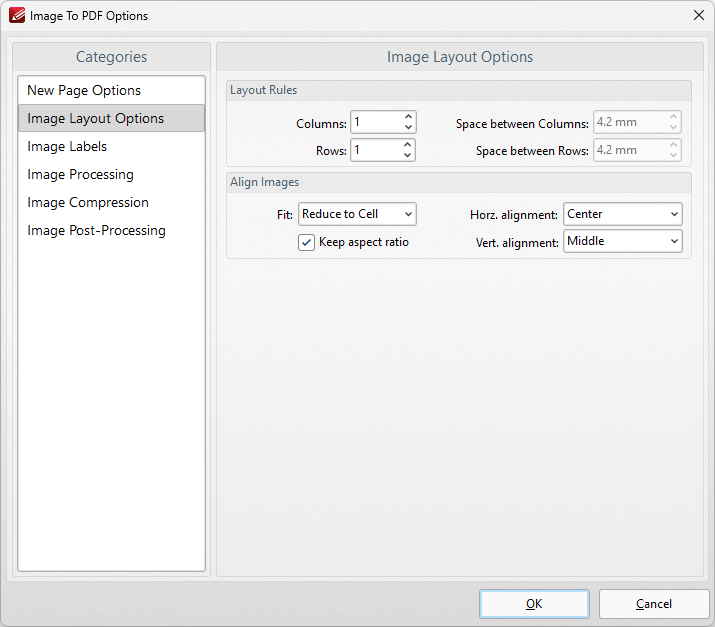
Figure 5. Images Layout Options Dialog Box
•The Layout Rules options determine the layout of images within new documents. Enter the desired dimensions in the Columns and Rows number boxes. Use the Space between Columns and Space between Rows boxes to determine the amount of empty space between columns and rows of images.
•Align Images determines the alignment of images within new documents. There are two options: Reduce to Cell and Fit to Cell. Reduce to Cell is the default setting. This reduces the size of the images to fit the size of the document. If the original images are smaller than the document then they will remain at their original size. The Fit to Cell setting fits the images to the size of the document. If the images are smaller than the document then they will be increased in size to match the size of the new document.
•The Keep Aspect Ratio box is selected by default. This means that images keep their original proportions and fit the specified PDF dimensions as far as possible within those proportions. Clear this box to disable the aspect ratio. Images will then match the PDF size exactly but may distort as a result (depending on the dimensions of the PDF document in relation to the dimensions of the original images).
•Horizontal and Vertical Alignment determines the location at which images in the new document appear.
Click OK to save settings.
Image Labels
When this option is selected in the Categories menu the following options are available:
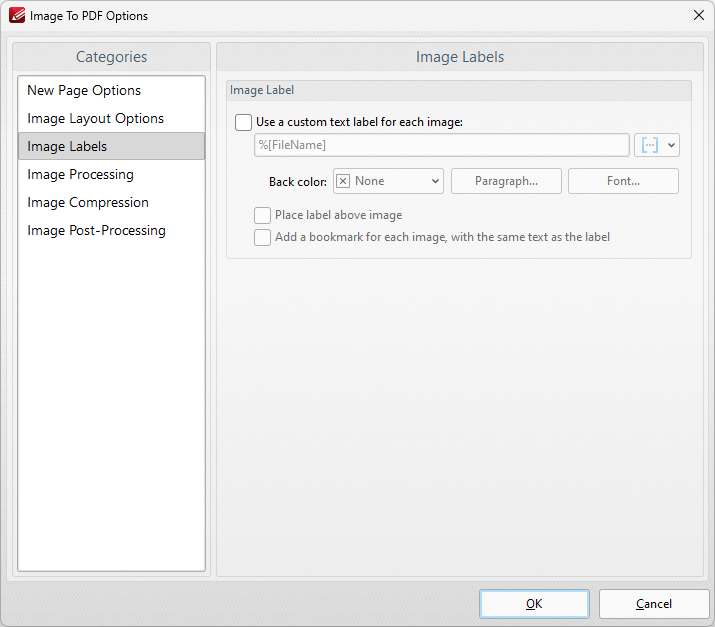
Figure 5. Image Labels Dialog Box
•Select the Use special text label for each image box to enable further options.
•Enter the desired label text in the text box. Click the blue icon to utilize Macros as desired.
•Back Color determines the background color of the label. Click the box to open a menu of available colors.
•The Paragraph settings determine the alignment, indentation and spacing of the text on the label. Click Paragraph to adjust these settings. The indentation settings include two special options. Select the First Line option to indent the first line, as in a standard paragraph. The second special option is Hanging indentation, which means the first line is not indented but all subsequent lines are. When either of these settings are being used the ‘By’ box must be adjusted accordingly.
•Click Font to determine the font used for the label. The dialog box in detailed in (figure 6) will open.
•If the Place label above image box is not selected then the label will appear below the image.
•Select the Add bookmark for each image with the same text as label as desired. Further information about bookmarks is available here.
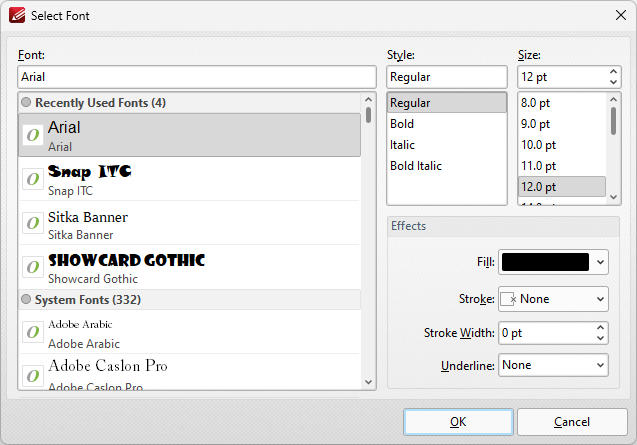
Figure 6. Select Font Dialog Box
•Use the Font text box to enter the name of the desired font, or select one from the options listed below the text box.
•Use the Style menu to determine the style of the font.
•Use the Size menu to determine the size of the font.
•Use the Fill menu to determine the color of the font.
•Use the Stroke menu to determine the color of the stroke. This color will border the text.
•Use the Stroke width menu to determine the size of the stroke.
•Use the Underline menu to enable/disable font underline.
Click OK to save settings.
Image Processing
When this option is selected in the Categories menu the following options are available:
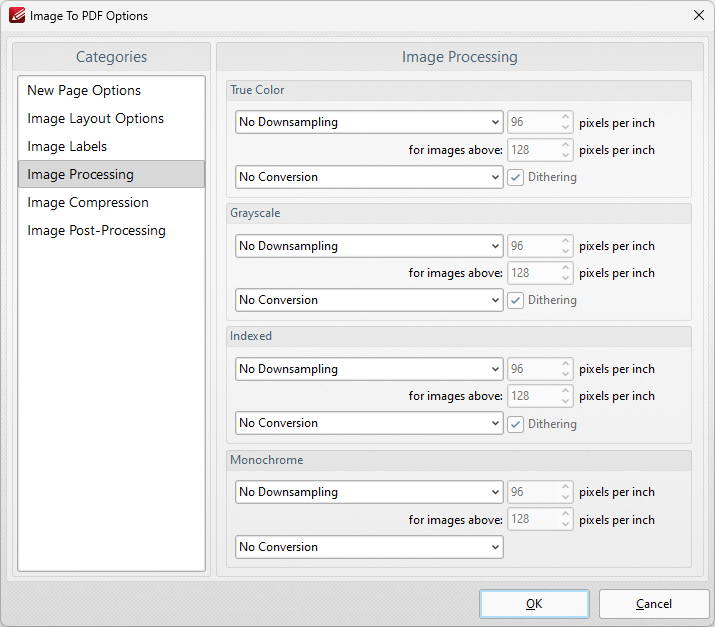
Figure 7. Image Processing Dialog Box
•These settings determine the dimensions for converted documents of different formats: True Color, Grayscale, Indexed and Monochrome. There are two options for each format:
•Downsampling reduces the sampling rate of images. Each format has three options: Linear, Bilinear and Bicubic. Further information about these options is available here. Use the pixels per inch boxes to determine the size above which and to which images will be downsampled.
•Conversion relates to the automatic conversion of files, where possible, from one format to another. Use this option to convert the format of new files when they are created. Where applicable, select the box for dithering as desired.
Click OK to save settings.
Image Compression
When this option is selected in the Categories menu the following options are available:
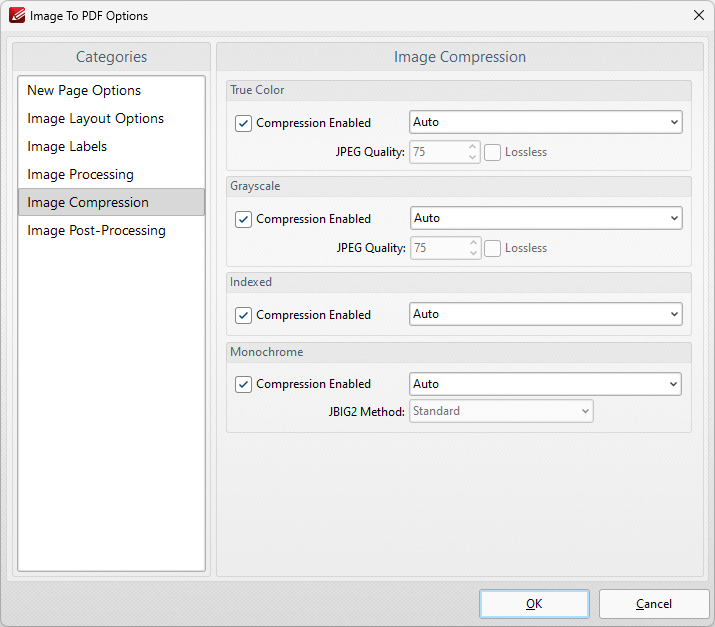
Figure 8. Image Compression Dialog Box
•Image compression is enabled by default. Clear the boxes to disable this setting.
•When compression is enabled, use the adjacent menu to select the type of compression that the tool performs. Auto is the default setting.
•Where applicable, adjust the JPEG Quality/JBIG2 Method and Lossless options as desired.
Click OK to save settings.
Image Post-processing
When this option is selected in the Categories menu the following options are available:
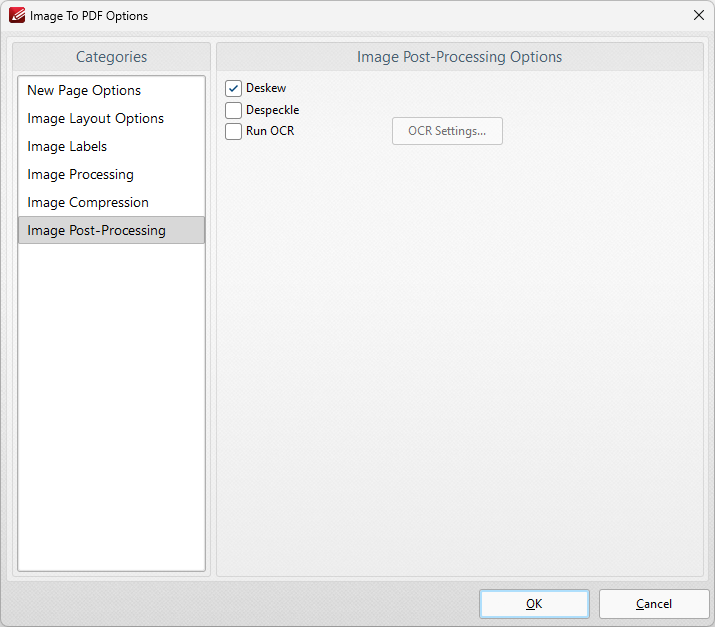
Figure 9. Image Post-Processing Options Dialog Box
•Select the Deskew box to deskew images. This straightens the edges of images automatically and is a useful tool if images have been scanned or photographed crookedly.
•Select the Despeckle box to despeckle images. This removes speckles from images during conversion.
•Select the Run OCR box to OCR images after processing. Click the OCR Settings button to set the language and accuracy of the OCR process.
Click OK to save settings.