 Creating PDF Portfolio Files
PDF portfolio files are a unique format of PDF file in which multiple files are assembled into an integrated PDF unit. The Portfolio settings detailed below are for PDF portfolio files and are only available when these files are open in PDF-XChange Editor:
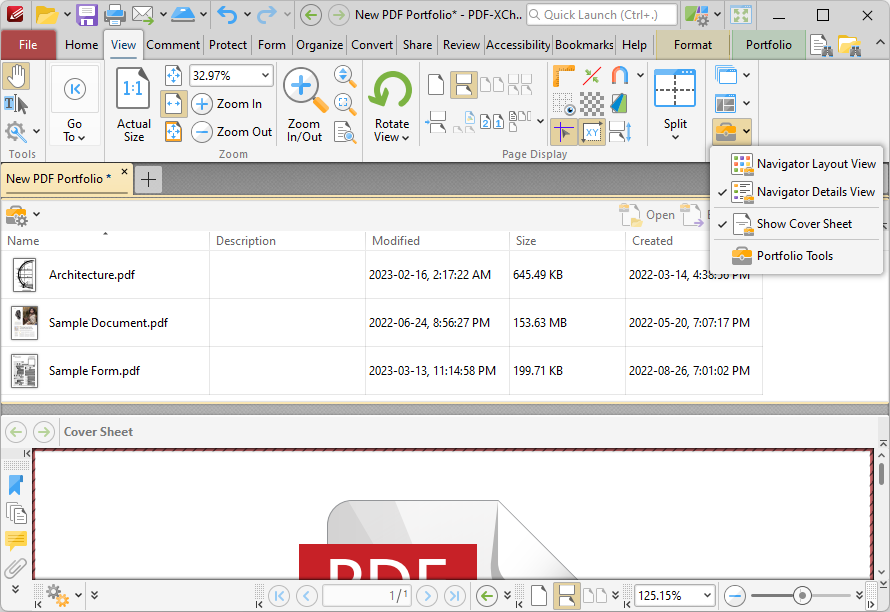
Figure 1. Portfolio Submenu
•Click Navigator Layout View or Navigator Details View to determine the view used to display portfolio files.
•Click Show Cover Sheet to show/hide the portfolio cover sheet.
•Click Portfolio Tools, or click the Portfolio tab, to move to the Portfolio tab:
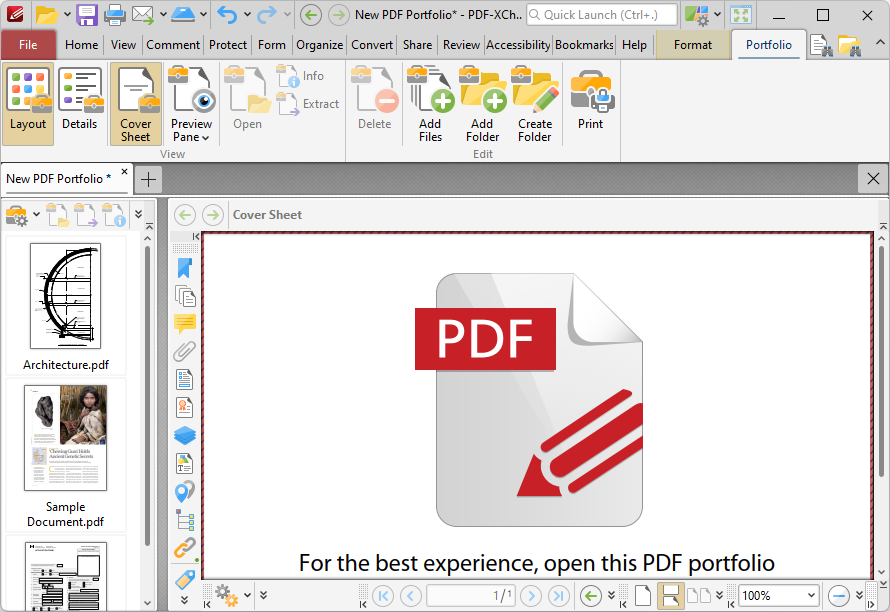
Figure 2. Portfolio Tab
•Click Layout/Details to switch between layout view and details view for the files that the PDF portfolio file contains, as detailed above
•Click Cover Sheet and/or Navigator to display the cover sheet and/or navigator, which is used to browse the files that the PDF portfolio file contains.
•Click Preview to open the section of the portfolio file currently displayed in the main window in its default application.
•Click Info to view the file properties of the section of the portfolio file currently displayed in the main window.
•Click Extract to extract the section of the portfolio file currently displayed in the main window.
•Click Delete to delete the section of the portfolio file currently displayed in the main window.
•Click Add Files/Folder to add files/folders to the portfolio file.
•Click New Folder to add a new folder to the portfolio file.
Right click the document list for additional options:
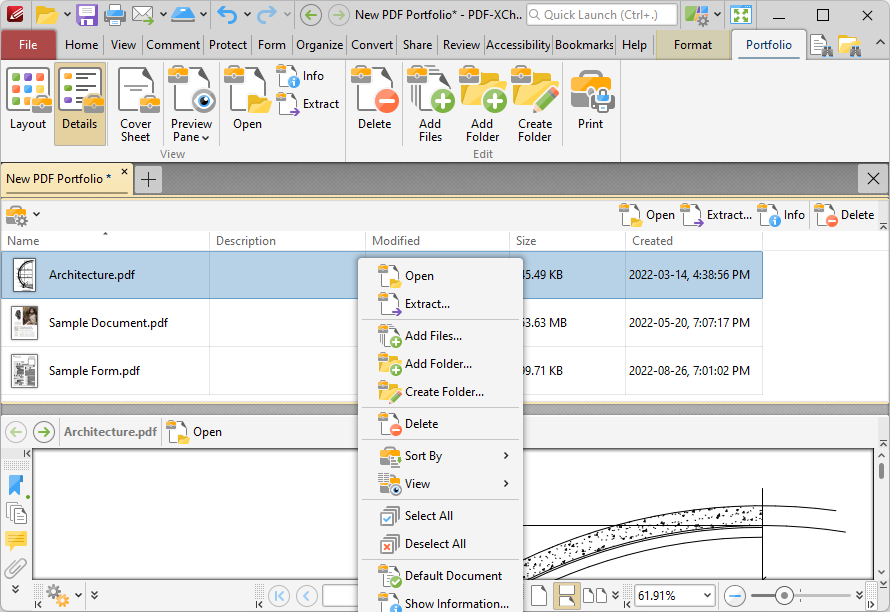
Figure 2. Portfolio File Right-Click Submenu
•Click Sort by to determine the criteria used to sort the content of portfolio files.
•Click Select All/Deselect All to select/deselect all files in portfolio files.
•Click Show Information to view the file properties of of portfolio files.
•Click Portfolio Properties to view/edit file properties for portfolio files.
Create New PDF Portfolio Files
Click the File tab, then click New Document and click PDF Portflio to create a new PDF portfolio file:
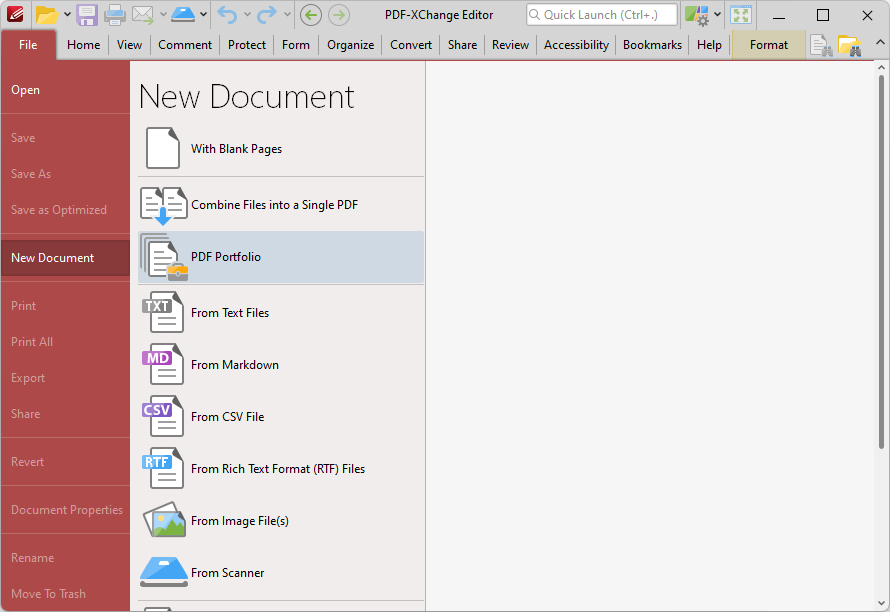
Figure 3. File Tab, New Document, PDF Portfolio Highlighted
The Create PDF Portfolio dialog box will open:
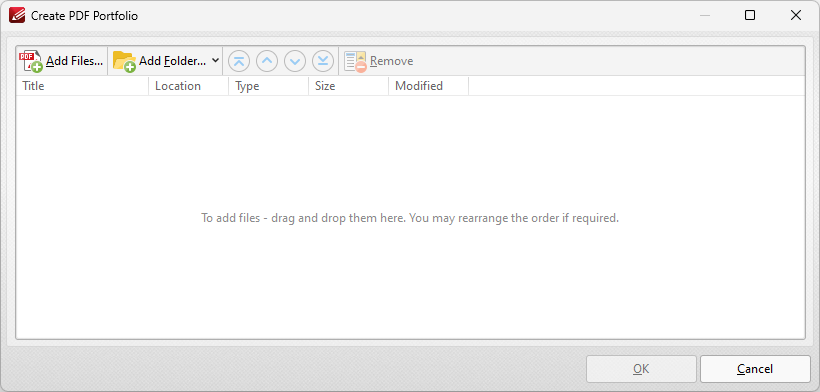
Figure 4. Create PDF Portfolio Dialog Box
•Click Add Files to select files from the local computer to add to the portfolio file.
•Click Add Folder to add entire folders to the list of source files used to create the portfolio file. Click the arrow adjacent to the button to determine further options. The Add Files From Folder Options dialog box will open. This is detailed in (figure 5).
•Use the arrow icons to reorder selected documents in the list. This determines the order in which they appear in the portfolio file.
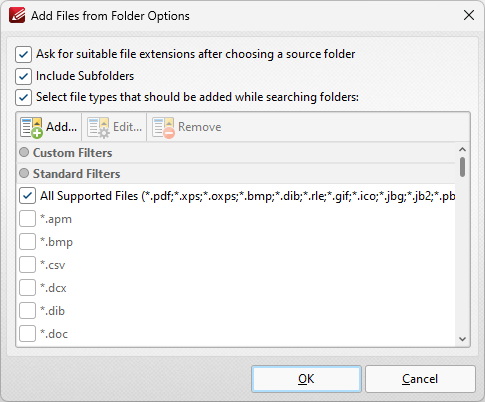
Figure 5. Add Files From Folder Options Dialog Box
•Select the Ask for suitable file extensions after choosing a source folder box to launch this dialog box when folders are selected using the Add Folder button.
•Select the Include Subfolders box to include subfolders of the parent folder when the software searches for files to add to the list of source files.
•Select the Select file types which should be added while searching folders box to determine file types to be included when the software performs a search.
•Custom filters can be added using the Add Custom Filter option. This facilitates the creation of custom profiles for subsequent use that search for specific file extensions. Click Add Custom Filter to open the Add Custom Filter dialog box:
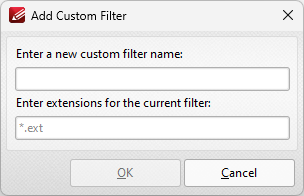
Figure 6. Add Custom Filter Dialog Box
•Enter a name for the custom filter.
•Enter the desired file extensions. File extensions must begin with an asterisk and a period, for example: *.apm, *.bmp.
•When the desired details have been entered, click OK to save the custom filter.