 Free Sign Tool
The Free Sign tool is used to add (non-digital) signatures and initials to document pages:
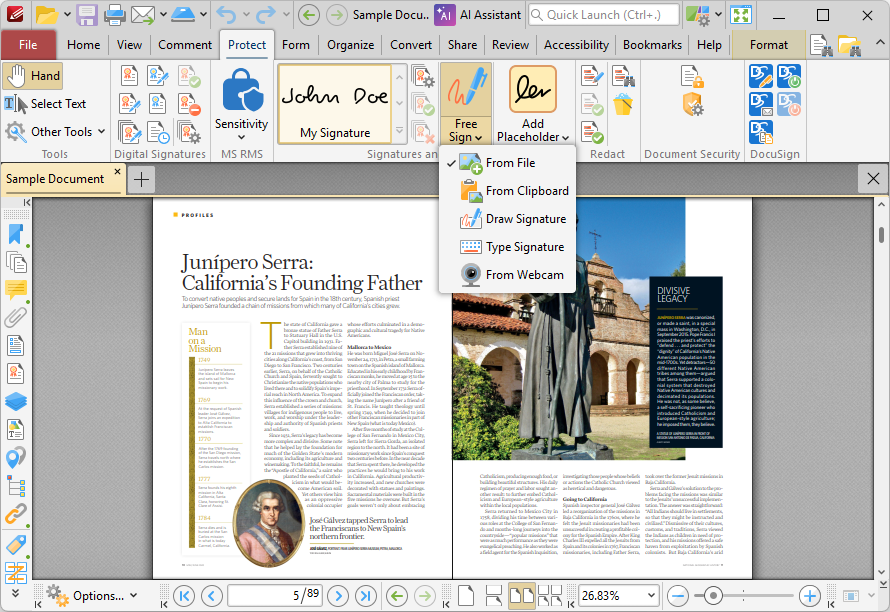
Figure 1. Free Sign Tool Location
•Click From File to add a signature from file. When this option is selected the pointer becomes a blue rectangle, which represents the signature area in document. Click to add it to the document. The Add Signature from FIle dialog box will open. Select the file to be used for the signature, then click OK to add it to the document.
•Click From Clipboard to add a signature from the clipboard. When this option is selected the pointer becomes a blue rectangle, which represents the signature area in document. Click to add it to the document. The Create Signature from Clipboard dialog box will open. Select the desired clipboard content and then click OK to add it to the document.
•Click Draw Signature to draw a freehand signature in order to sign the document. When this option is selected the pointer becomes a blue rectangle, which represents the signature area in document. Click to add it to the document. The Draw Signature dialog box will open. Draw the signature and then click OK to add it to the document.
•Click Type Signature to type a signature in order to sign the document. When this option is selected the pointer becomes a blue rectangle, which represents the signature area in document. Click to add it to the document. The Type Signature dialog box will open. Type the signature and then click OK to add it to the document.
•Click From Webcam to add a signature via webcam. When this option is selected the pointer becomes a blue rectangle, which represents the signature area in document. Click to add it to the document. the From Webcam dialog box will open. Hold the desired signature to the webcam and then click the camera icon to take a photograph of it. Crop the image as desired and then click OK to add it to the document.