 Enhance Scanned Pages
Click Enhance Scanned Pages to enhance the quality of scanned pages:
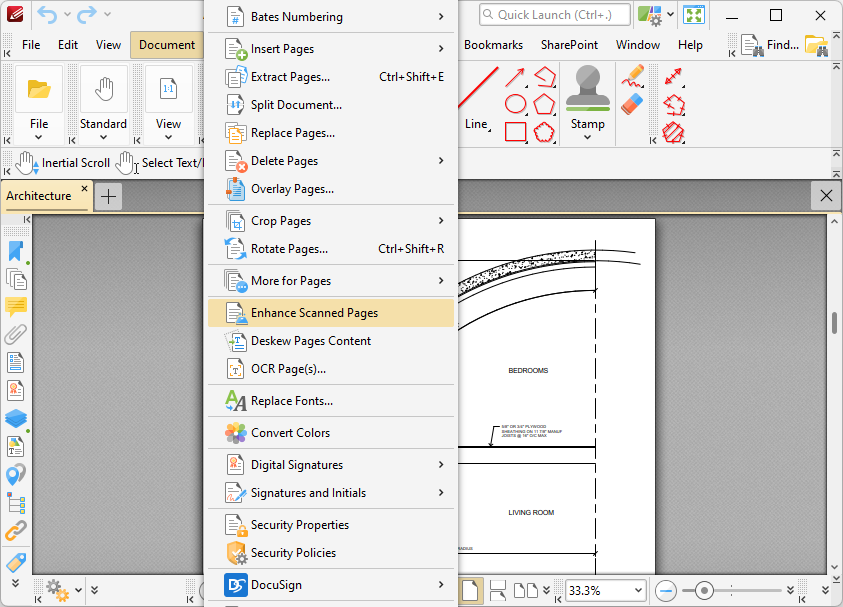
Figure 1. Document Tab Submenu, Enhance Scanned Pages
The Enhance Scanned Pages dialog box will open:
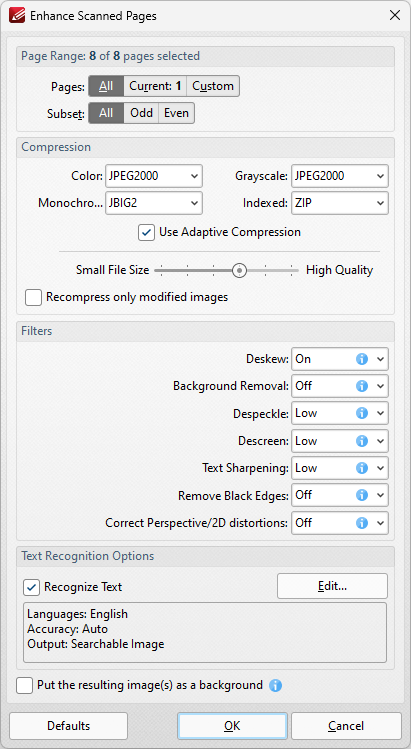
Figure 2. Enhance Scanned Pages Dialog Box
•Use the Page Range options to determine the page range of pages to be enhanced:
•Select All to specify all pages.
•Select Current to specify only the current page.
•Select Custom to specify a custom page range, then enter the desired page range in the adjacent number box. Further information about how to specify custom page ranges is available here.
•Use the Subset options to specify a subset of selected pages. Select All, Odd or Even as desired.
•Use the Color/Grayscale, Monochrome, Grayscale and Indexed dropdown menus to determine the type of compression for these formats.
•Select/clear the Apply Adaptive Compression box as desired.
•Use the slider to select between Small Size and High Quality as desired.
•Use the Filters dropdown menus to set options for deskewing, background removal, descreening and text sharpening as desired.
•Select the Recognize Text box to perform OCR on the pages.
•Click Edit to change the language and/or accuracy of the OCR operation. Note than increasing the accuracy will also increase the time taken to perform the operation and vice versa. Note that two optical character recognition engines are available in PDF-XChange Editor: the Default OCR engine and the Enhanced OCR engine, which is available when PDF-XChange Editor Plus is purchased (either as a stand-alone product or as part of the PDF-XChange PRO bundle). The Enhanced OCR engine is faster, more accurate and more dynamic than the default OCR engine, and it also contains some extra features. Further information about the Enhanced OCR engine is available here. The differences between these engines are detailed here.
Click OK to enhance pages.